Key-in Payment
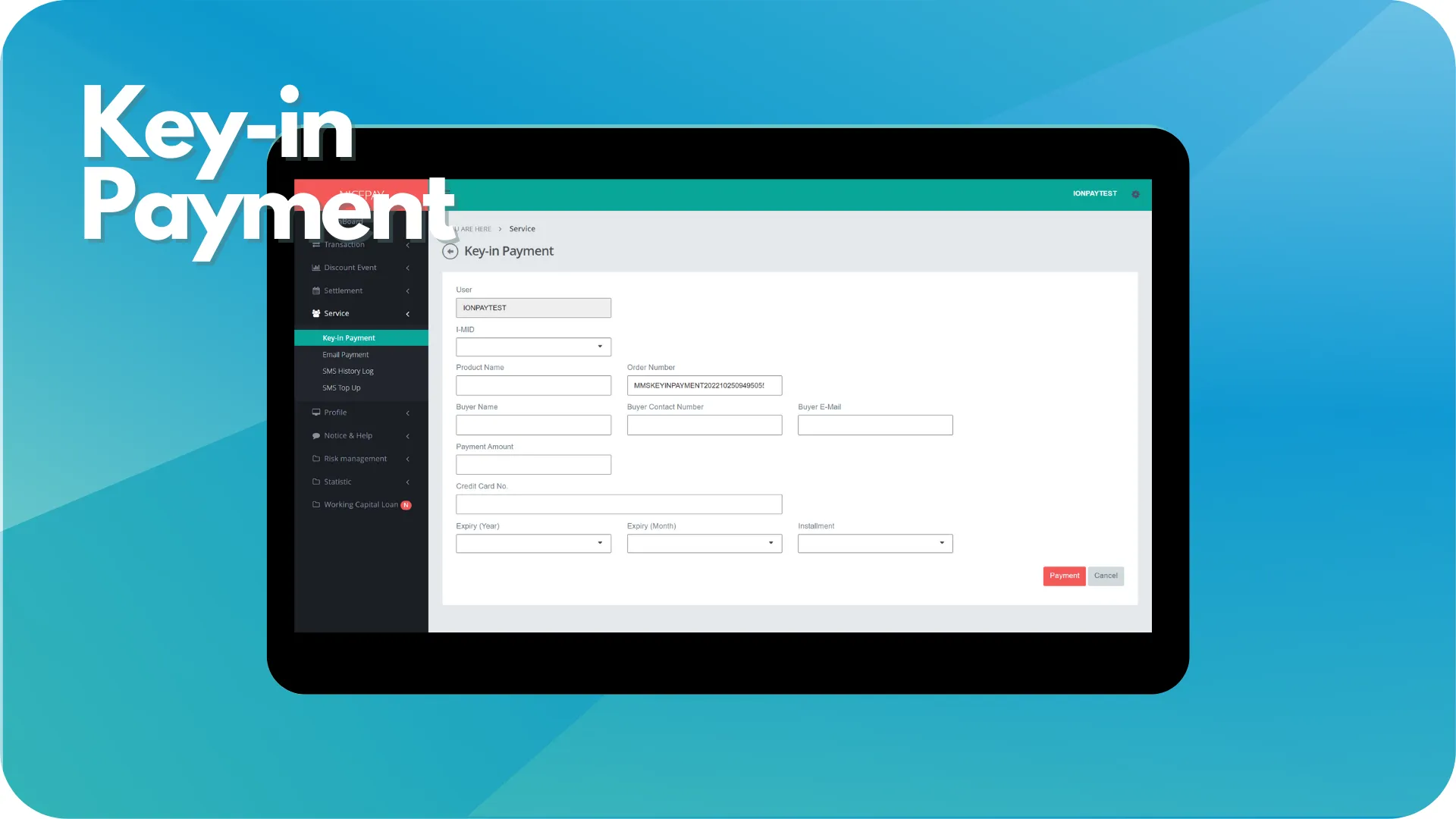
The Key-in Payment sub-menu uses by Merchant to proceed with the manual transaction and can send the invoice to Customers through e-mail. To use this sub-menu, at first Merchant must know the Customer Credit Card's information, like the Credit Card number and expiration date.
Key-in Payment
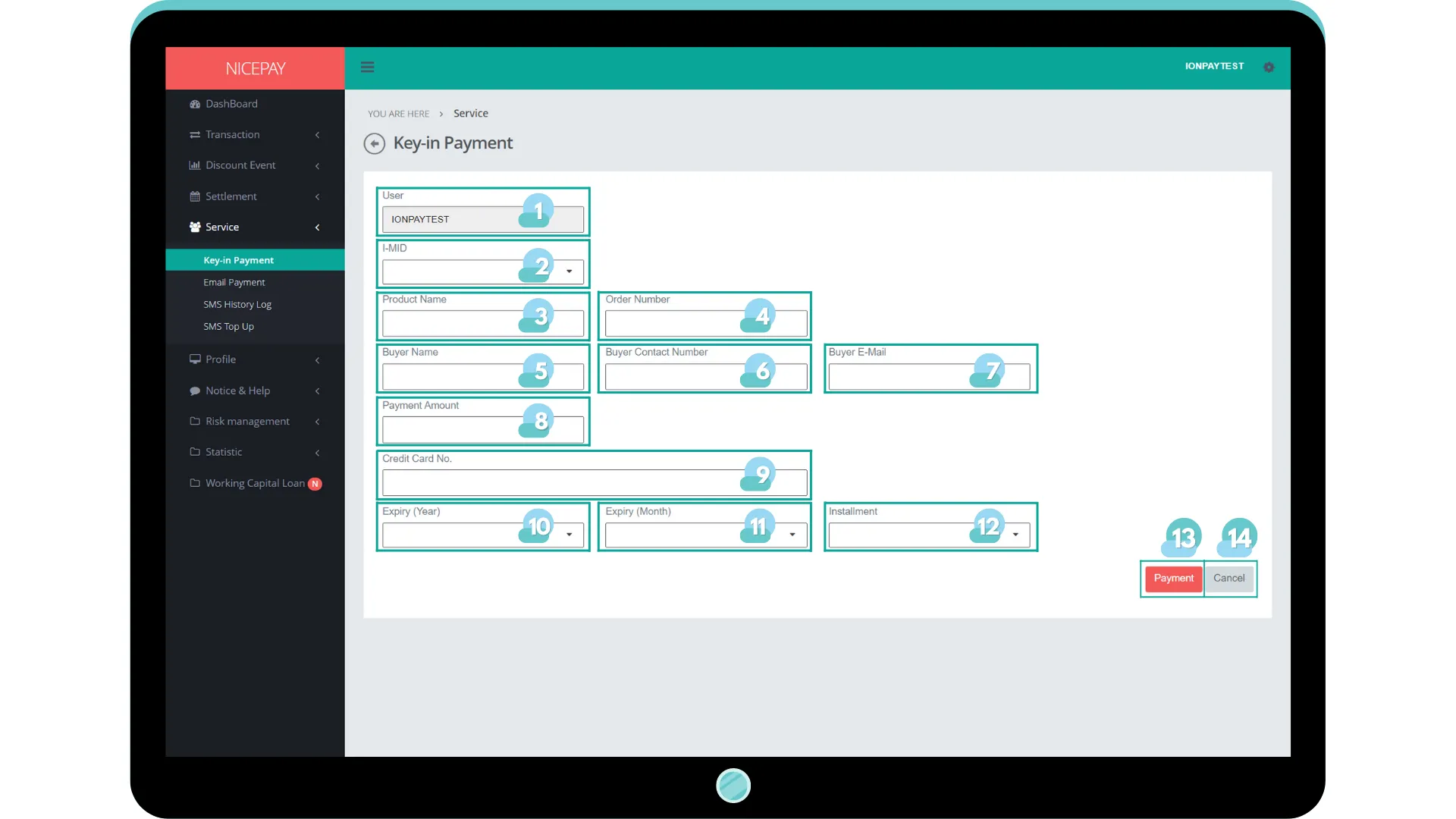
The Key-in Payment sub-menu assists Merchant to proceeds with the manual transaction from Back Office MMS. Merchant shall input the paid amount and card information for perform the transaction on the following form. Then, the payment process will done with the EDC machine. The form on Key-in Payment page is consist of:
Name | Description | Remark |
|---|---|---|
User | Merchant identity | Mandatory |
I-MID | Merchant ID | |
Product Name | Product name | |
Order Name | Order name | |
Buyer Name | Buyer name | |
Buyer Contact Number | Customer contact number | |
Buyer E-Mail | Customer e-mail | |
Payment Amount | Total billing payment | |
Credit Card No | Credit Card number | |
Expiry (Year) | Credit card expiration year | |
Expiry (Month) | Credit card expiration month | |
Installment | Installment category plan | |
Payment | Button to proceed the payment | |
Cancel | Button to abort transaction process | |
Tutorial
Payment using Key-in Payment
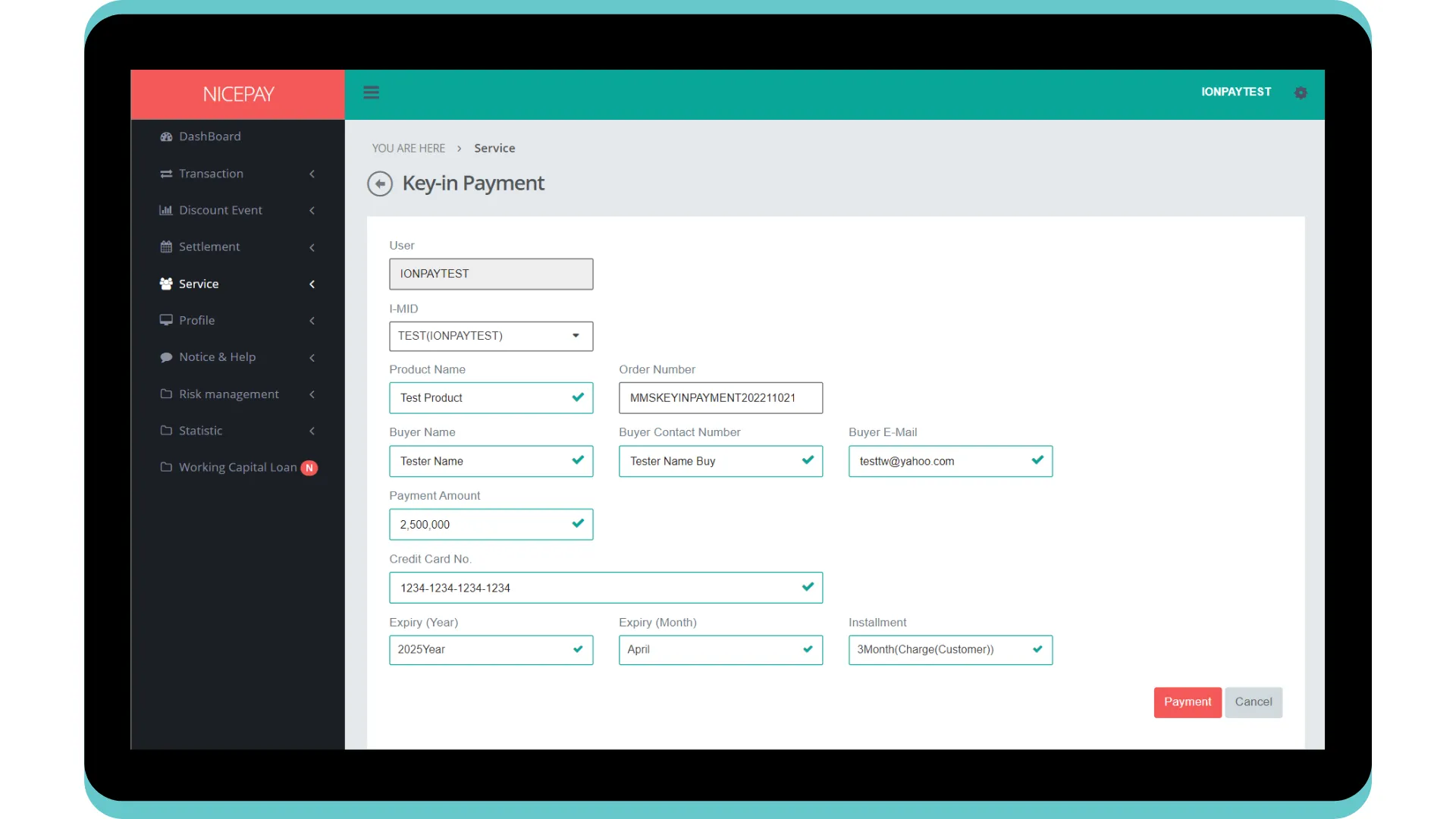
Here’s guidance to perform payment with Key-in Payment.
- Open sidebar.
- Select Service menu.
- Select Key-in Payment sub-menu.
- Input payment term on the available form.
- Press Payment button to proceed the payment or Cancel button to abort the process.
- The payment process will be proceed. Please follow the further steps.
See also
Find out explanation related to NICEPAY payment product on Payment Link page.
Visit the Email Payment page to find out how to proceed payment using e-mail.