SMS Top Up
SMS Top Up
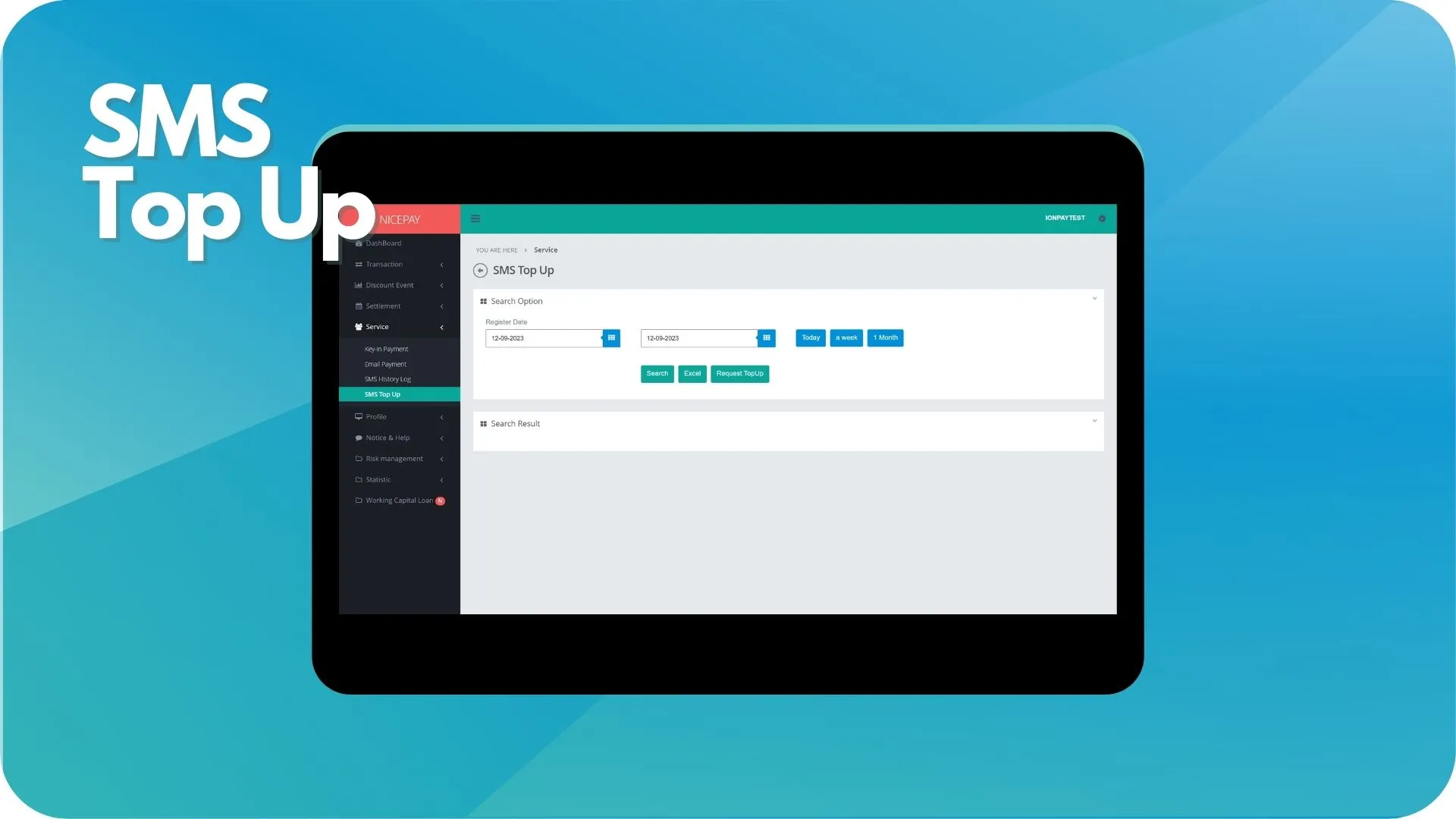
The SMS Top Up sub-menu uses to top up balance or SMS tokens so Merchants can use SMS sending services to the Customer for broadcast information related to promo, OTP, notification, and many other things.
The SMS Top Up sub-menu divides into 2 sections; Search Option section and Search Result section. The Search Option section uses to input the search criteria of search data. The Search Result section displays data search results based on the inputted searching criteria data.
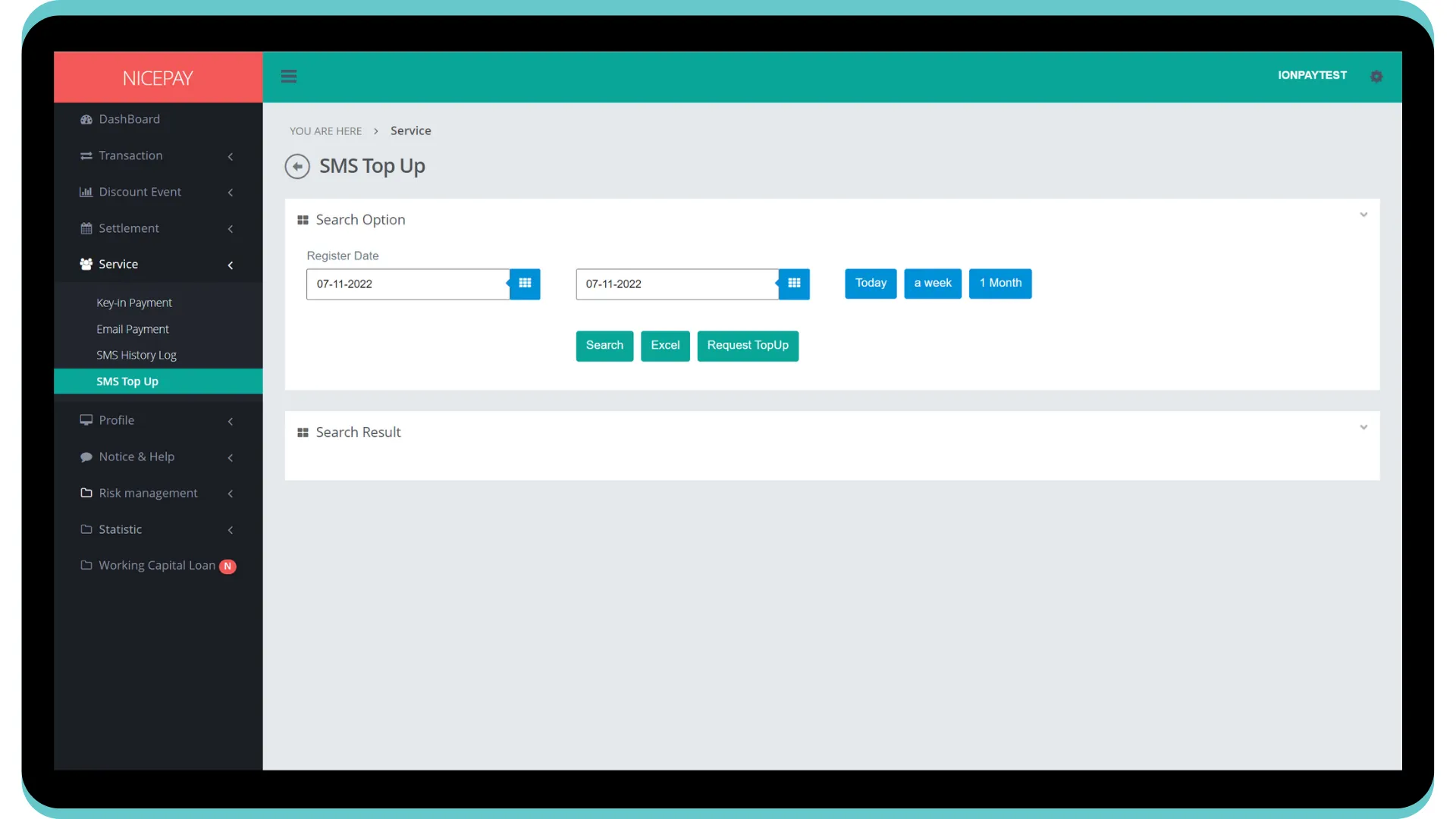
In the Search Option section, there is a form for data search criteria. Besides, Merchants can request additional token to use SMS sending service and download SMS token booking history. The form in Search Option section consists of:
Name | Description | Remark |
|---|---|---|
Register Date | Transaction register date Time settings can be directly determined between today, 1 week, or 1 month | Default selection: today's date and 24 hour time interval |
Search | Button to process the keywords entered by the Merchant to search for data | Data search results will be displayed in the Search Result section |
Excel | Button to process the keywords entered by the Merchant for the file to be downloaded | The file format will be downloaded in Excel format (.XLS) |
Request Top Up | Button to request SMS token | Service fee will be multiplied with the total SMS token desired |
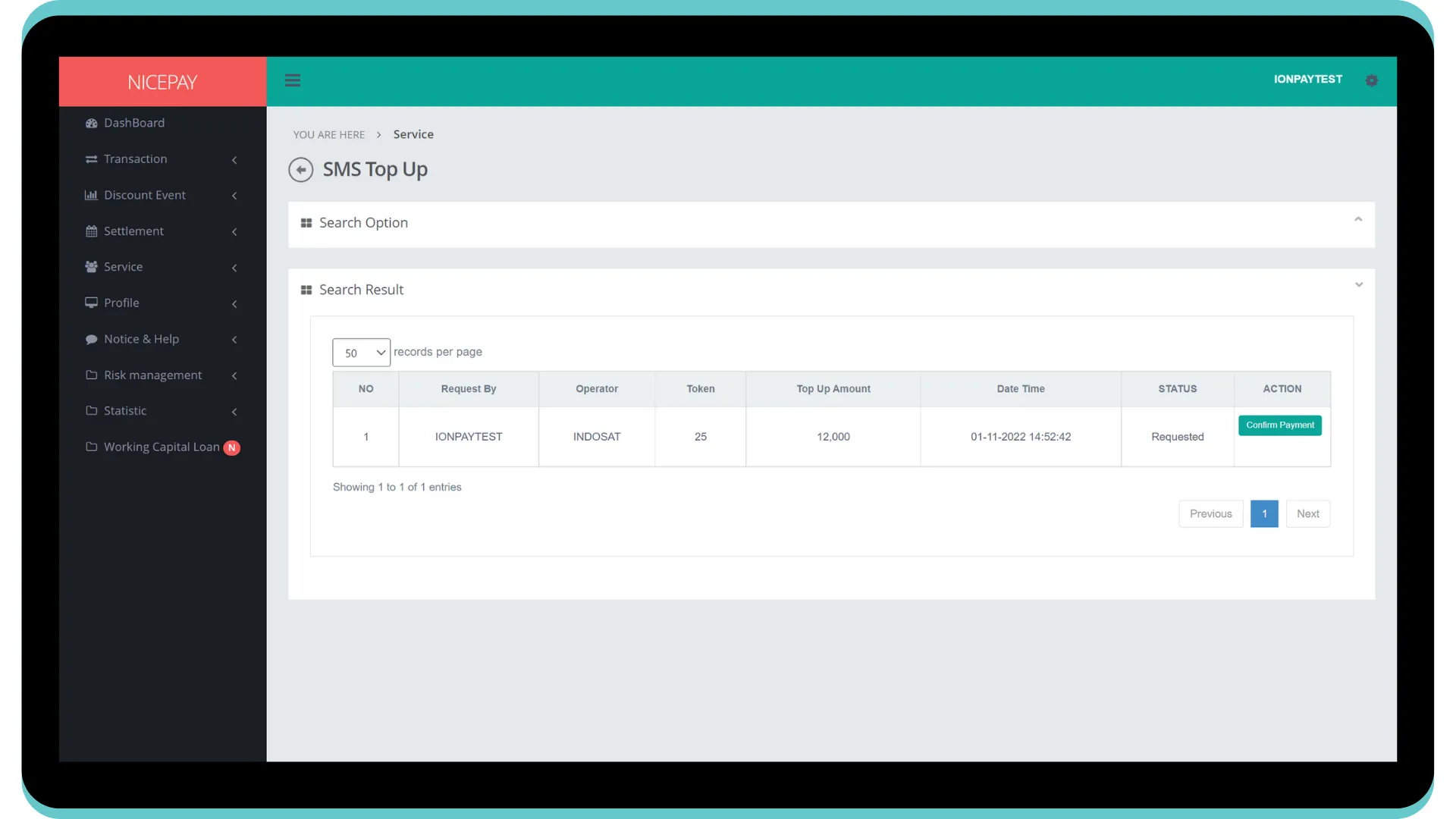
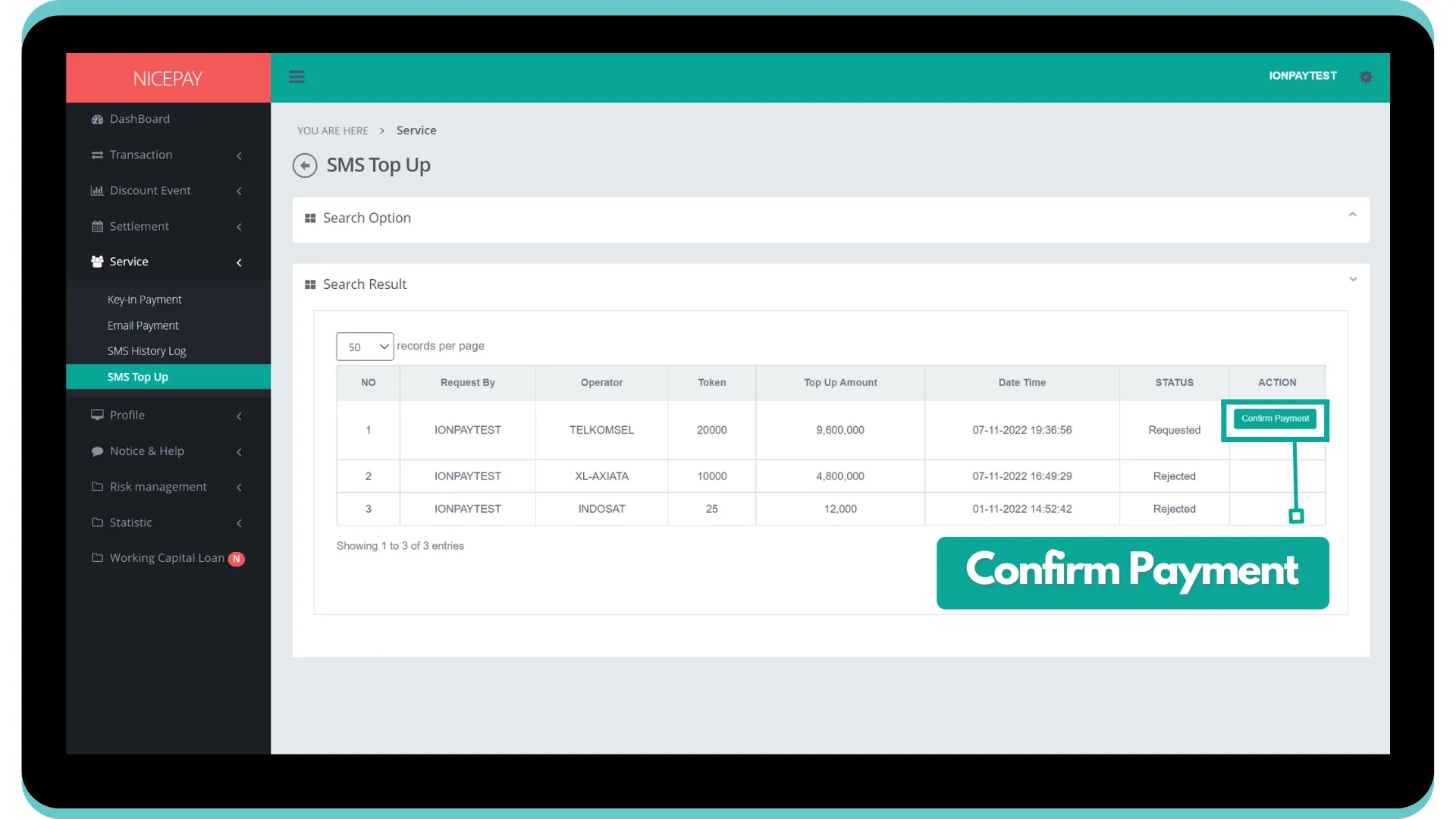
The Search Result section displays token purchase history data based on the last order time. Merchant can confirm payment if a new transaction is submitted.
Request Top Up
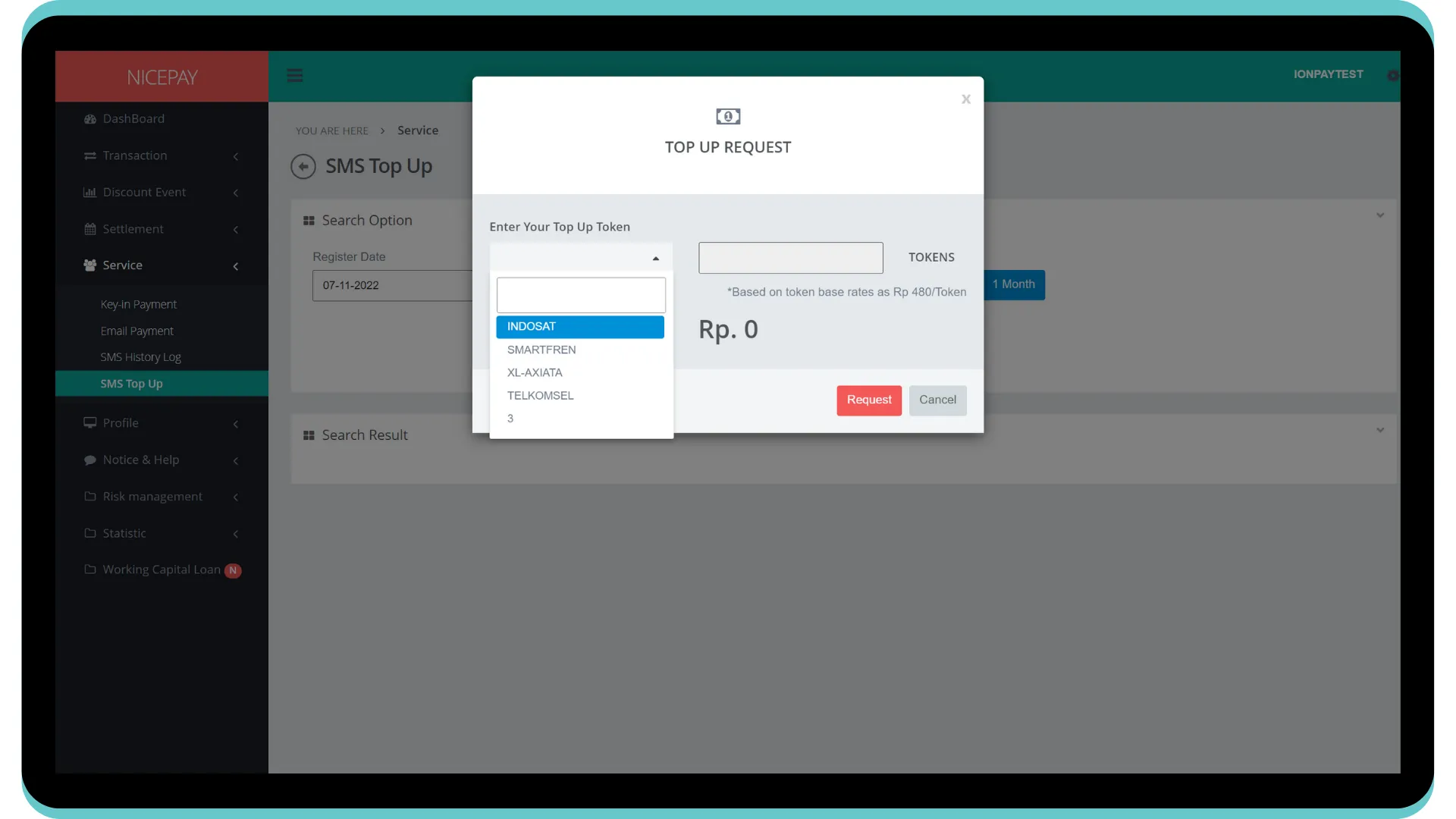
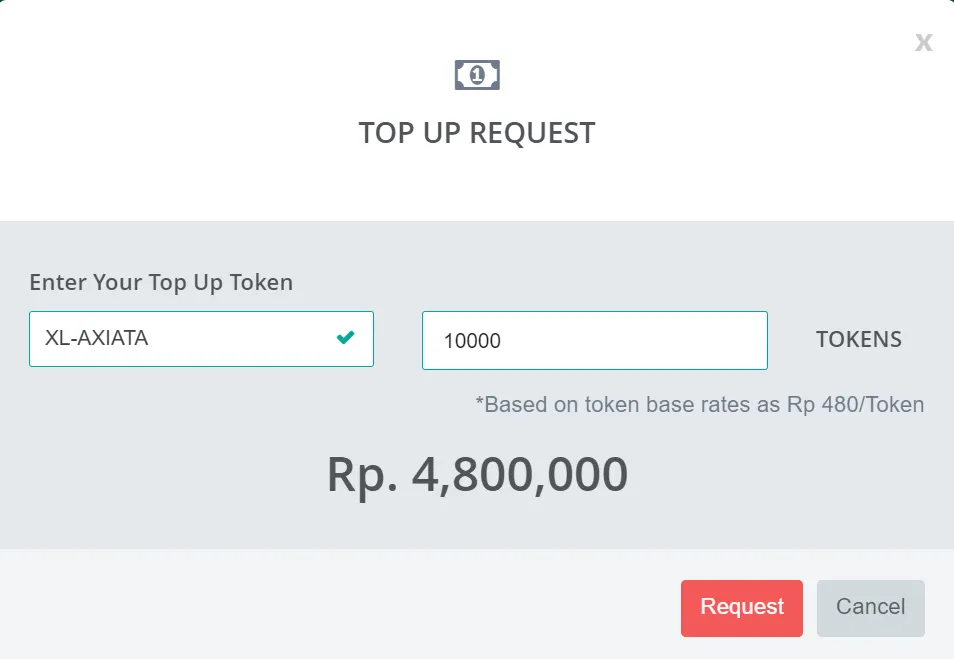
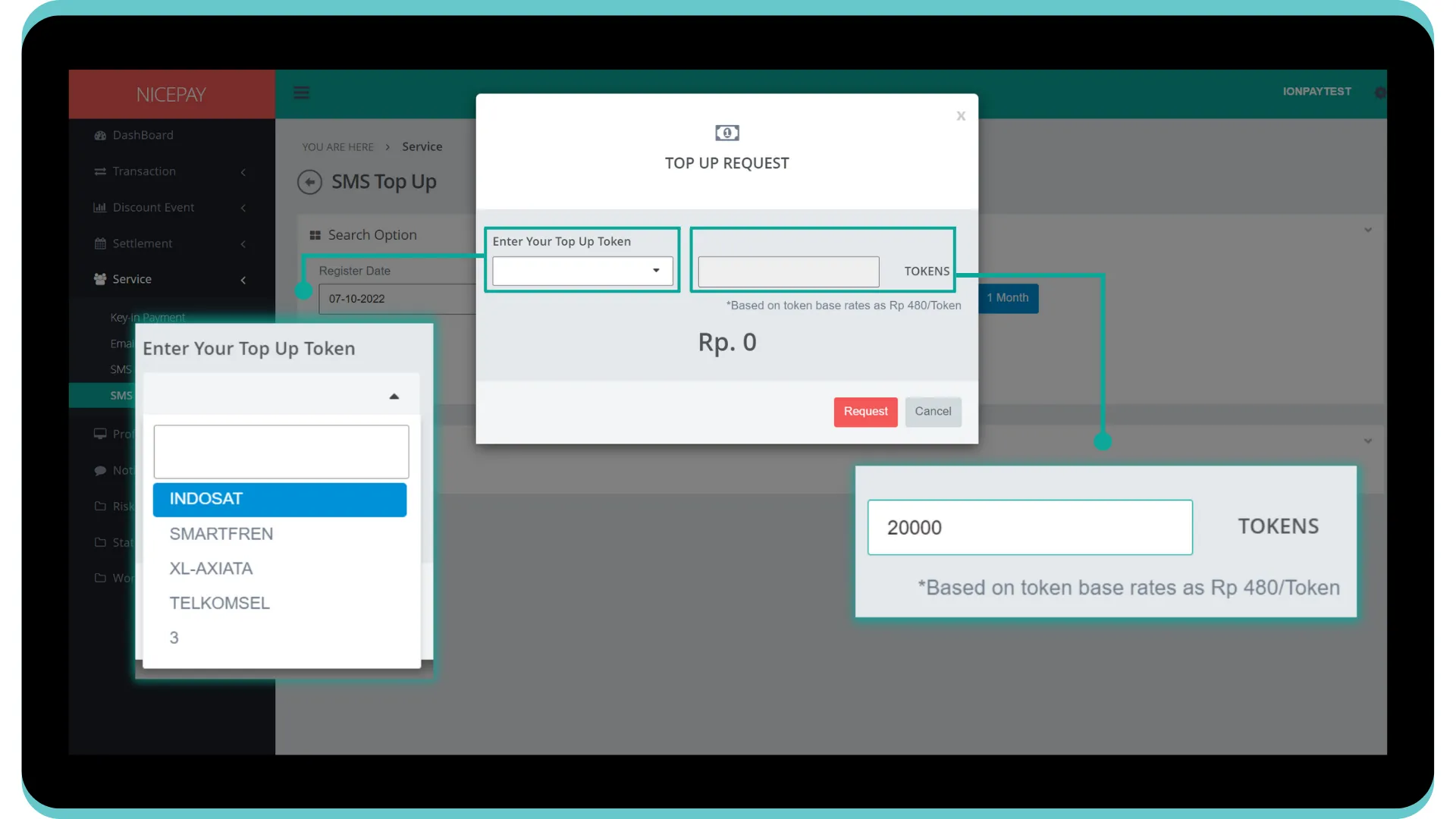
In Search Result section, there is Request Top Up button used to request token purchases for sending SMS using NICEPAY service. The form on Top Up Request section consists of:
Name | Description | Remark |
|---|---|---|
Enter Top Up Token (provider) | Select the desired provider network services | Dropdown option:
|
Enter Top Up Token (total token) | Input desired total token | Total token calculated automatically with service fee for each token |
Request | Button to request top up process | |
Cancel | Button to abort top up process | |
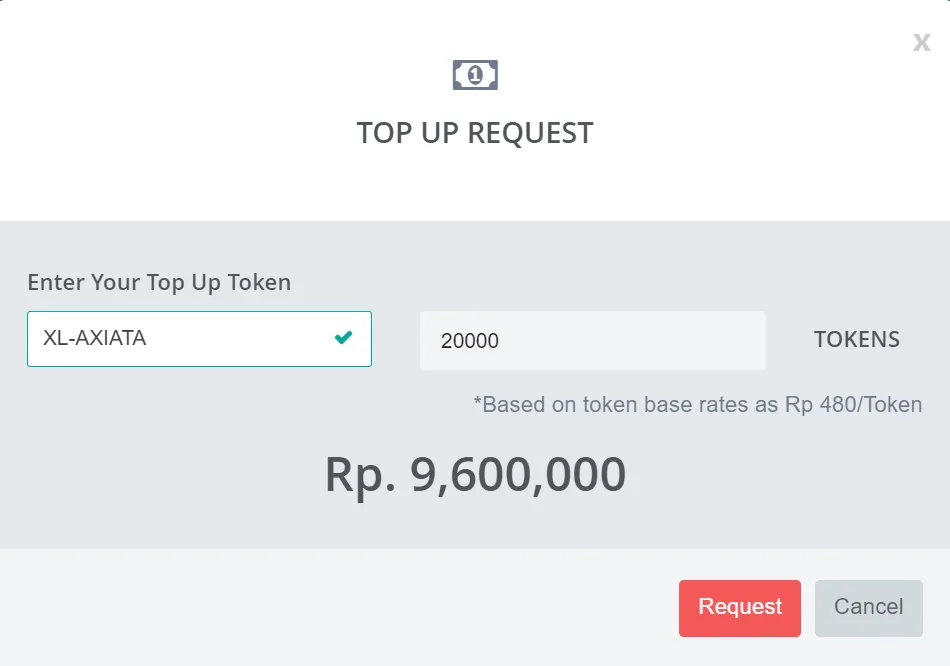
In the tab pop-up that appears, the total token and service fee will be calculated automatically. You can view the total bill amount that needs to be paid in Rupiah.
Tutorial
Search SMS Top Up Data
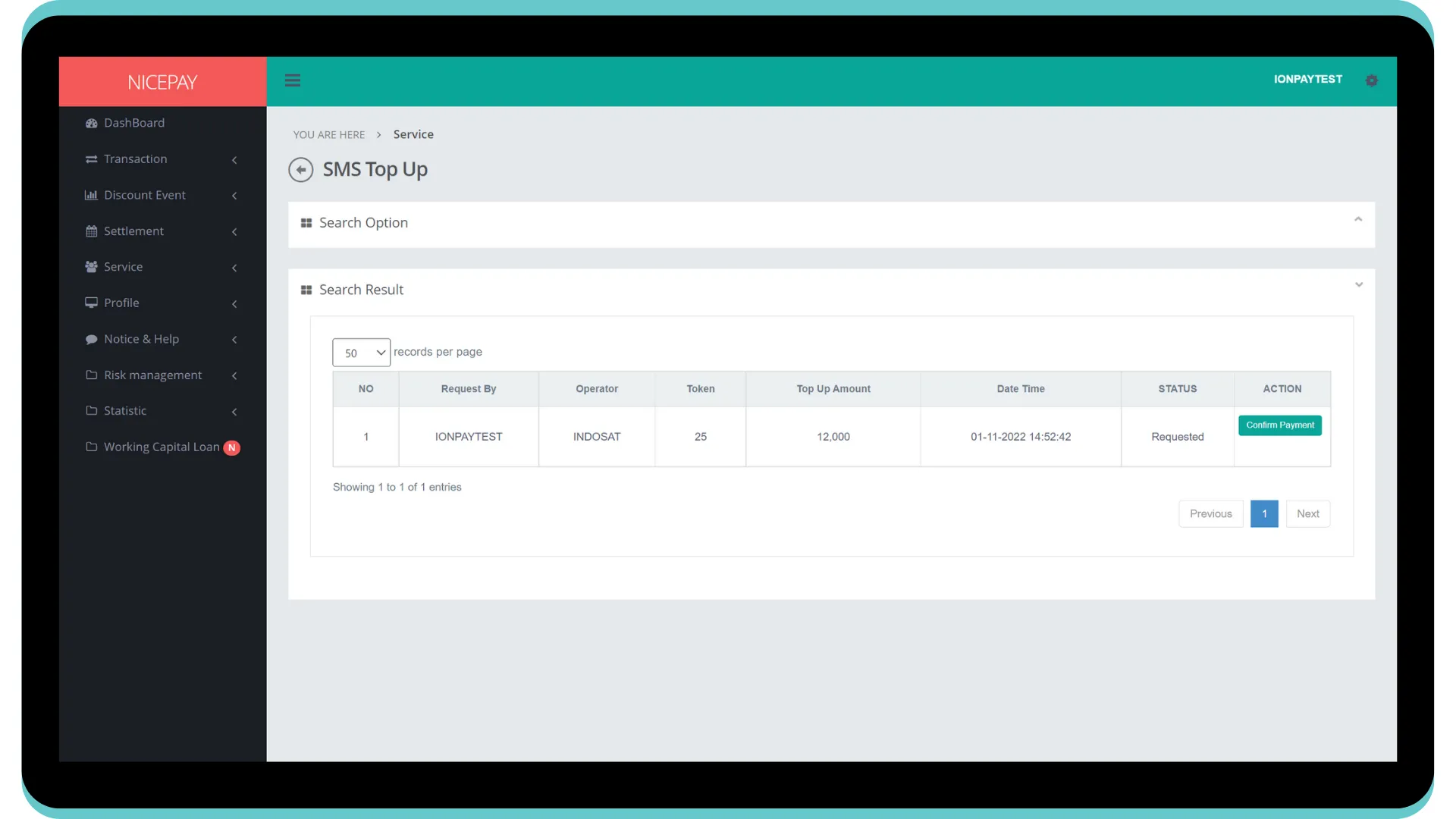
Here’s guidance for searching SMS History Log data.
- Open sidebar.
- Select the Service menu.
- Select the SMS Top Up sub-menu.
- Input the search term in the Search Option section.
- Press the Search button to performs data searching process.
- The searched data will appear in the Search Result section.
Download SMS Top Up Data
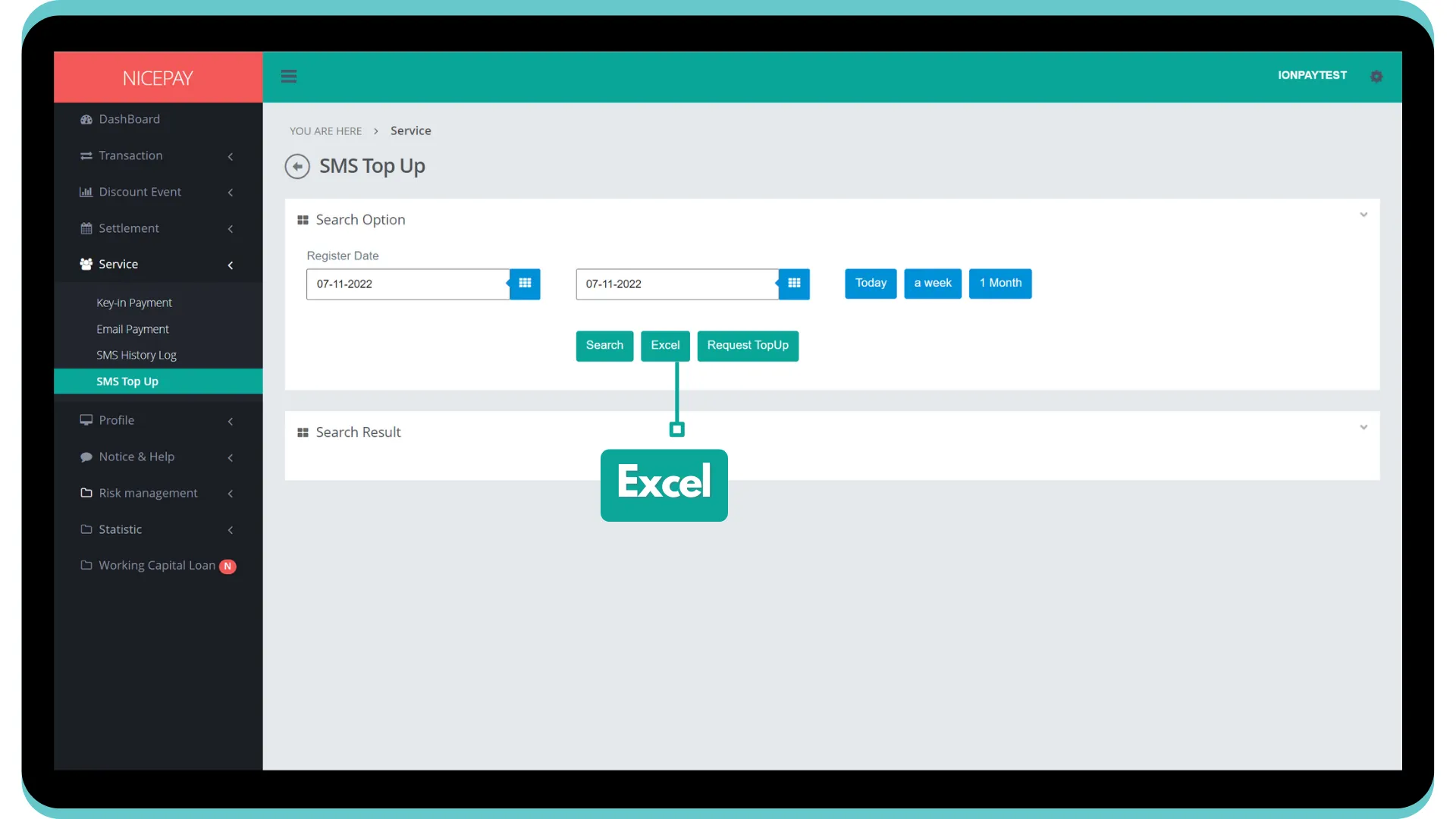
Here’s guidance to download SMS History Log data.
- Open sidebar.
- Select the Service menu.
- Select the SMS Top Up sub-menu.
- Input the search term in the Search Option section.
- Press the Excel button to download data in Excel format.
- The searched data will download automatically.
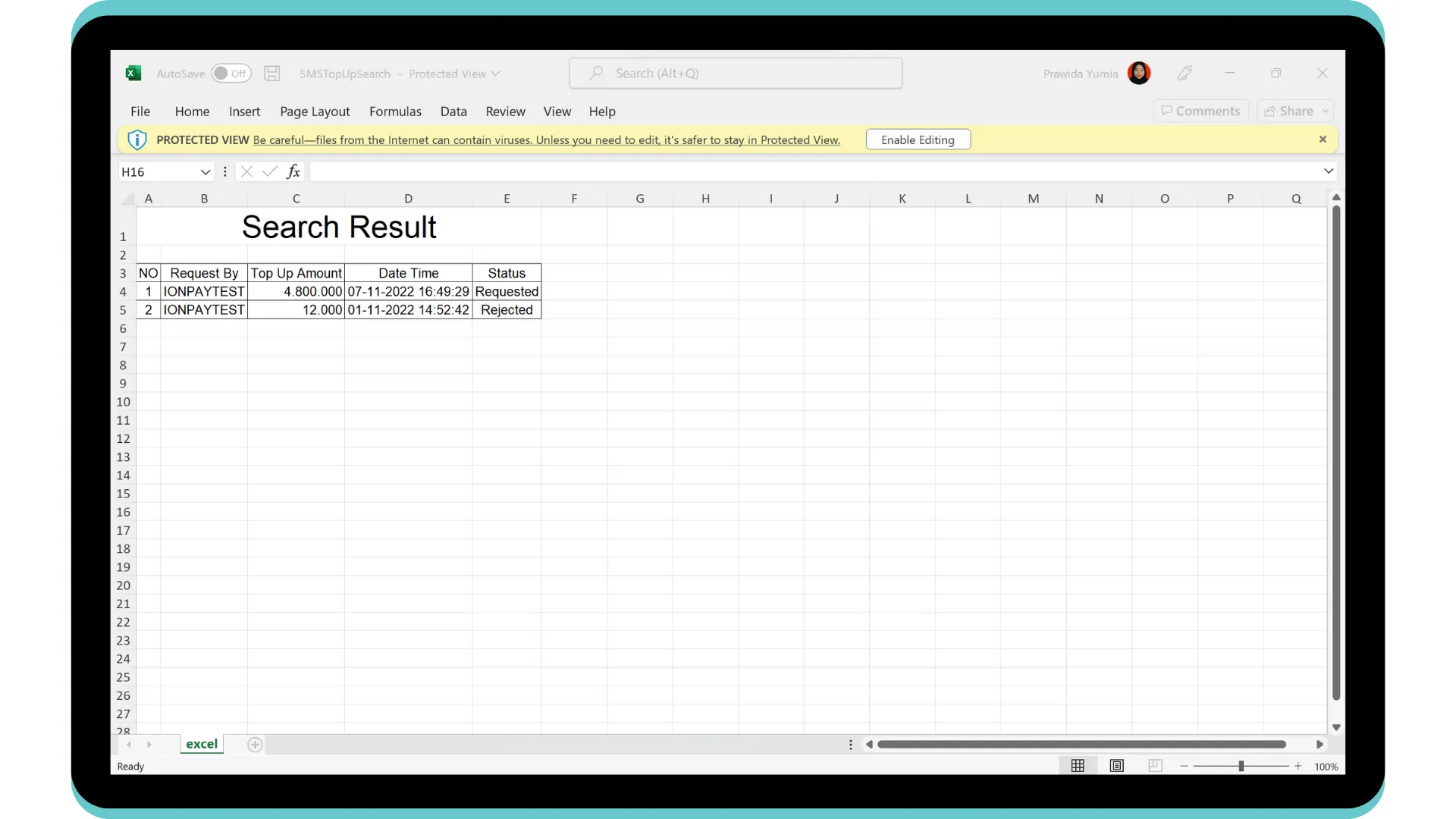
Request SMS Top Up Token
Here’s guidance to request SMS top up token.
- Open sidebar.
- Select the Service menu.
- Select the SMS Top Up sub-menu.
- Input the search term in the Search Option section.
- Press the Request TopUp button to request a token to use SMS service.
- Input total token wish to be owned on Top Up Request Token and choose service provider. The service price will calculate automatically based on the service price for each token times the total inputted token.
- Click the Payment button to proceed to the payment.
- Data will appear directly on the data table in the Search Result section.
- Click the Confirm Payment button to proceed the payment process.
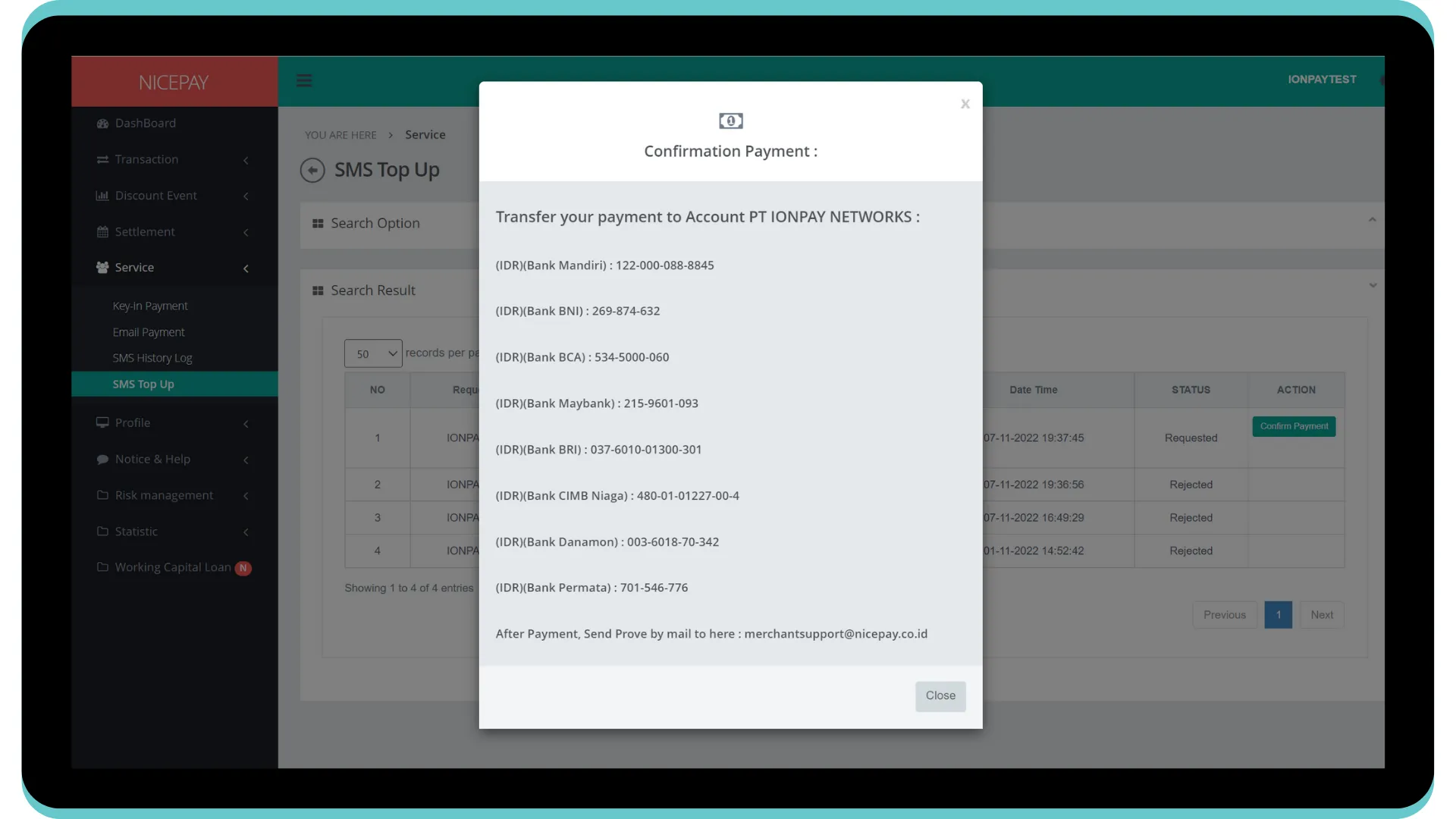
- The Confirmation Payment pop-up will appear and contain the list of NICEPAY account numbers to proceed the payment process.
See also
Find out information related to NICEPAY messaging product on SMS page.
Visit the SMS History Log page to find out how to check SMS sent history.