Whitelist Card
Whitelist Card
The Whitelist Card sub-menu uses to assist Merchant on searching or register specific identity as whitelist on the system, so it shall not detected as spam or disturbing identity. Whitelist type divided into 3 types; Card Number, Customer Email, and Card Bin Number. By registering the specific identity as whitelist, the Merchant could secure the identity that do not disrupt the system.
Example: your business always uses e-mail A to send broadcast e-mails to many receivers as part of business goal. The sent e-mail address needs to managed as whitelist so all messages send to the other User e-mails don’t go into their spam system.
The Whitelist Card sub-menu page divided into 3 sections which are the Search Option, Search Result, and Regist. The Search Option section is a form section used to input the data search criteria. The Search Result section displays data search results based on the inputted criteria. The Regist section is a section used to performs whitelist data registration.
Search Whitelist Based on Card Number
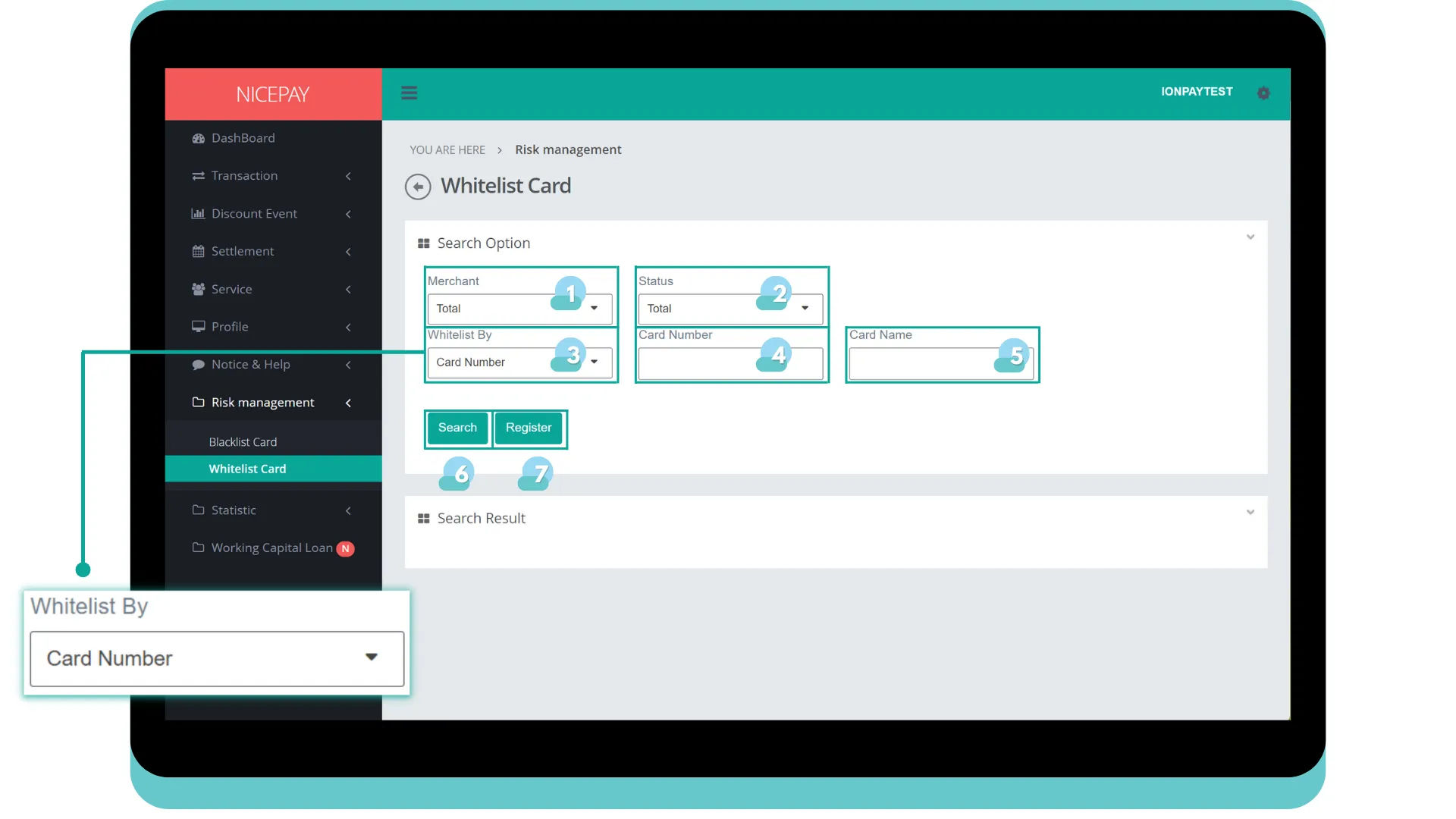
The Search Option section in the Whitelist by: Card Number contains the search form used to search whitelist data history based on card number. The form consists of:
Name | Description | Remark |
|---|---|---|
Merchant | Merchant name | |
Status | Whitelist status | Default: Total -> all status Dropdown option:
|
Whitelist By | Chosen whitelist method | Default: Card Number Dropdown option:
|
Card Number | Card number | |
Card Name | Card Owner name | |
Search | Button to process the keywords entered by the Merchant to search for data | Data search results will be displayed in the Search Result section |
Register | Button to process the keywords entered by the Merchant for the file to be downloaded | The form will be appeared above the Search Option section |
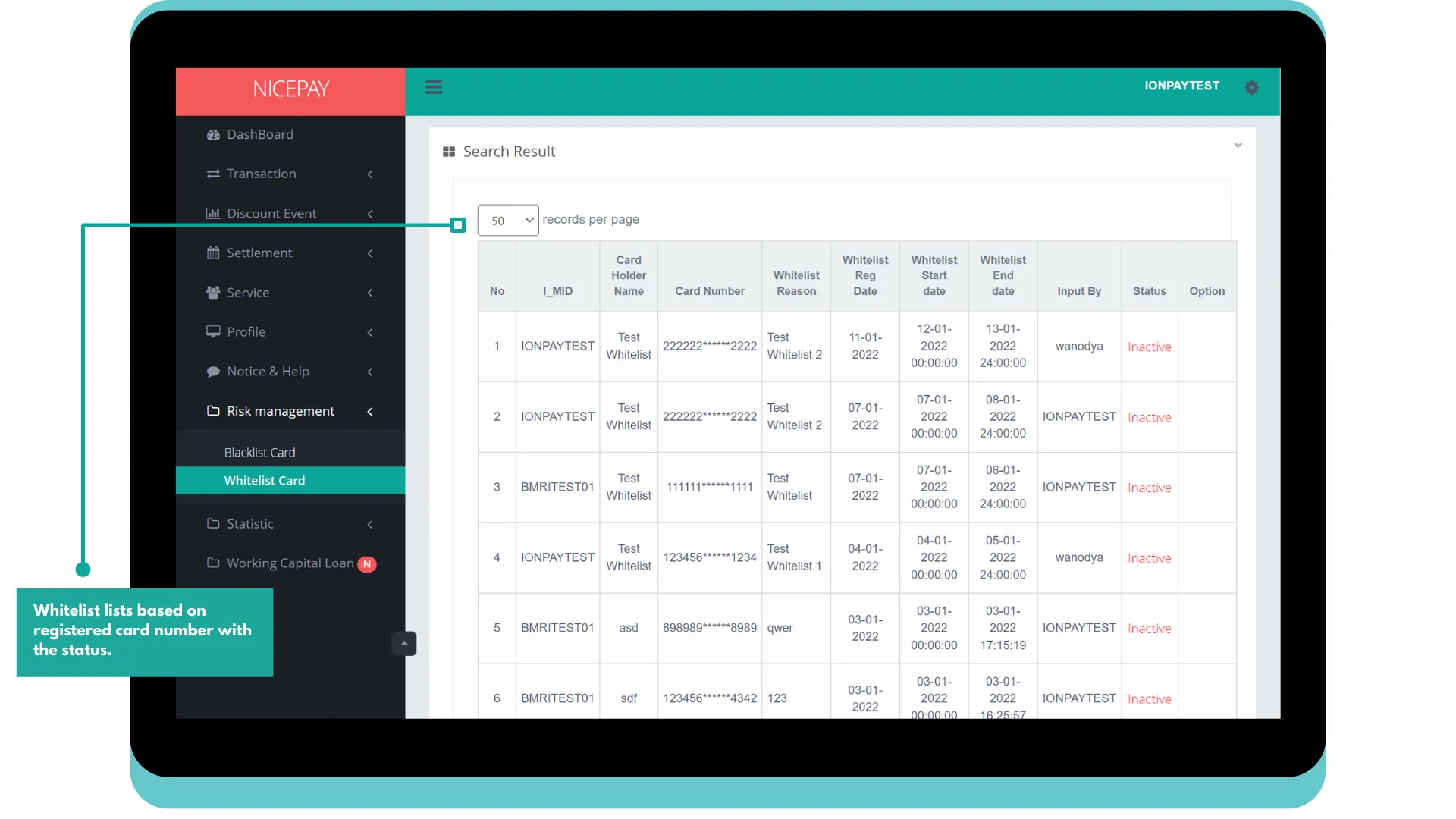
The Search Result section in the Whitelist by: Card Number displays whitelist data history based on the card number. Merchant can change the data by pressing the Edit button and release card data by pressing the Release button availables in Option column.
Register Whitelist Card Based on Card Number
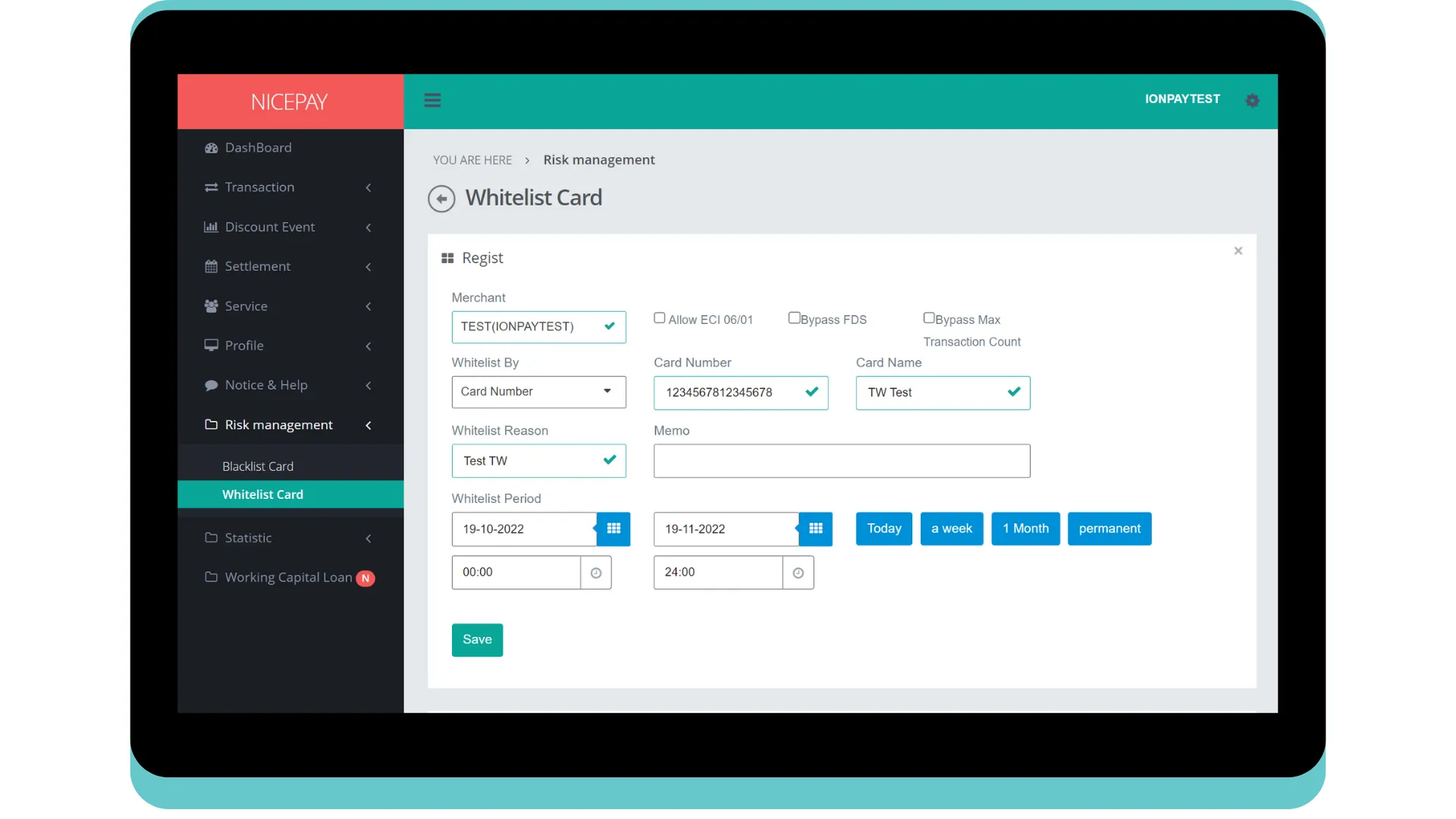
Moreover, Merchant can register card which needs to be whitelisted. Successfully added data will be appeared in the Search Result section by pressing the Register button on the Search Option section. The form on Regist section consists of:
Name | Description | Remark |
|---|---|---|
Merchant | Merchant name based on Total/Merchant ID | |
Permission Option | Flag related to whitelist permission | Flagging option:
|
Whitelist By | Chosen whitelist method | Default: Card Number Dropdown option:
|
Card Number | Card number | |
Card Name | Card Owner name | |
Whitelist Reason | Reason cards register to the whitelist | |
Memo | Additional note inputted by Merchant | |
Whitelist period | Whitelist card valid period Time settings can be directly determined between today, 1 week, 1 month or permanent | Default selection Default setting: today's date and 24 hour time interval |
Save | Button to save whitelist card by card number data | |
Search Whitelist Based on Customer Email
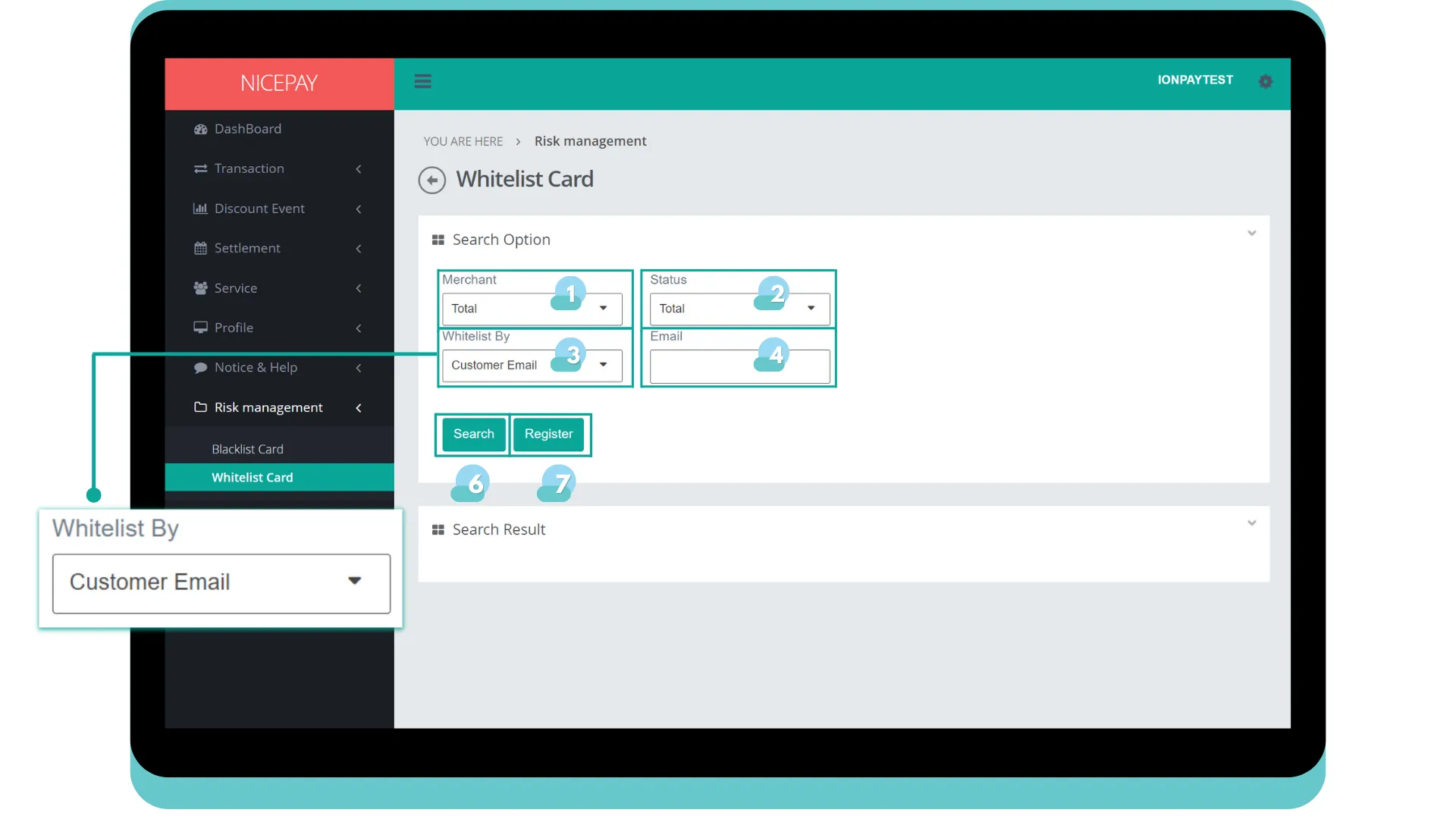
The Search Option section in the Whitelist by: Customer Email contains the search form used to search whitelist data history based on Customer email. The form consists of:
Name | Description | Remark |
|---|---|---|
Merchant | Merchant name | |
Status | Whitelist status | Default: Total -> all status Dropdown option:
|
Whitelist By | Chosen whitelist method | Default: Card Number Dropdown option:
|
Customer email data | | |
Search | Button to process the keywords entered by the Merchant to search for data | Data search results will be displayed in the Search Result section |
Register | Button to process the keywords entered by the Merchant for the file to be downloaded | The form will be appeared above the Search Option section |
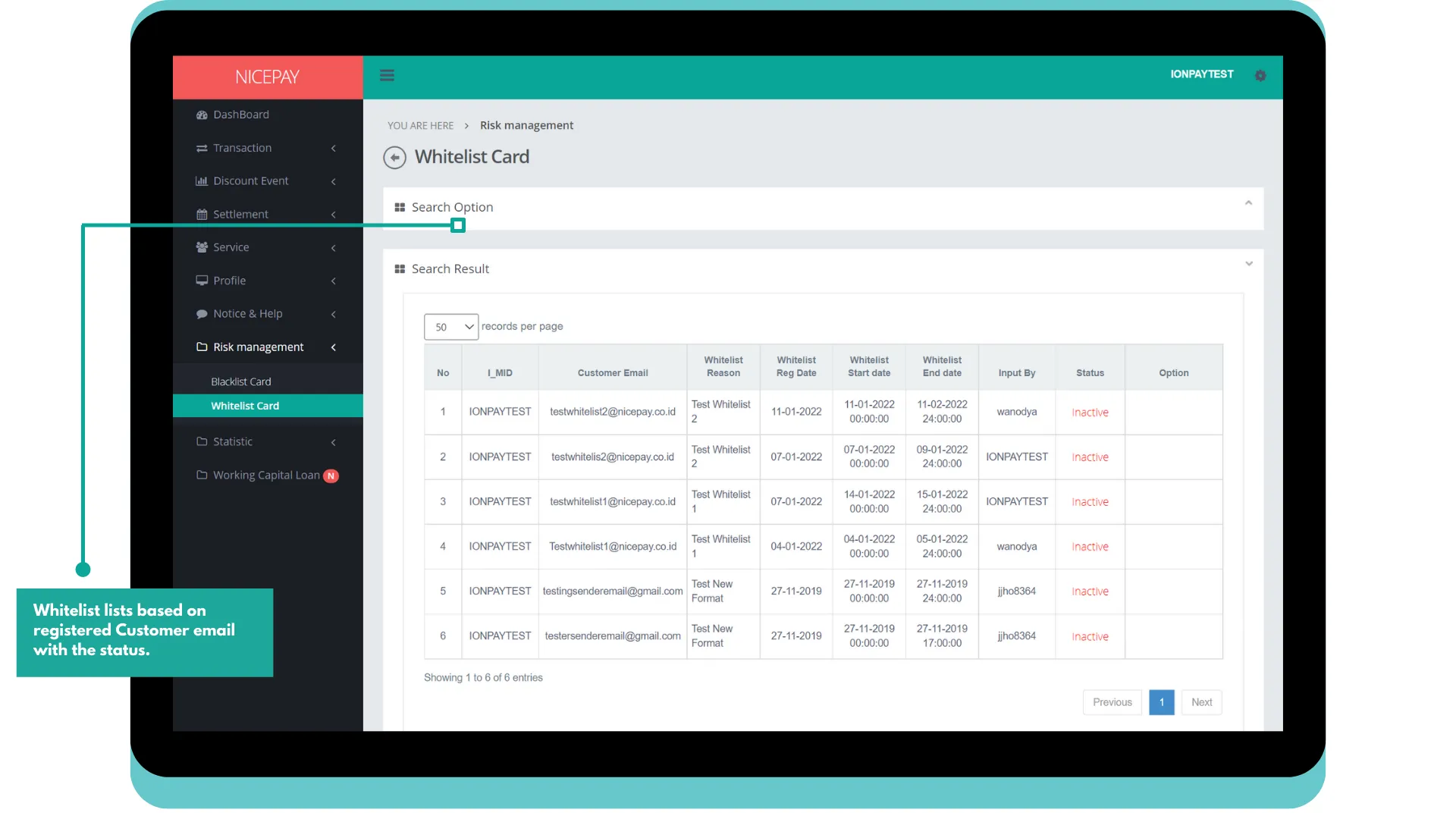
The Search Result section in the Whitelist by: Customer Email displays whitelist data history based on Customer email information. Merchant can change the data by pressing the Edit button and release card data by pressing the Release button available in Option column.
Register Whitelist Card Based on Email
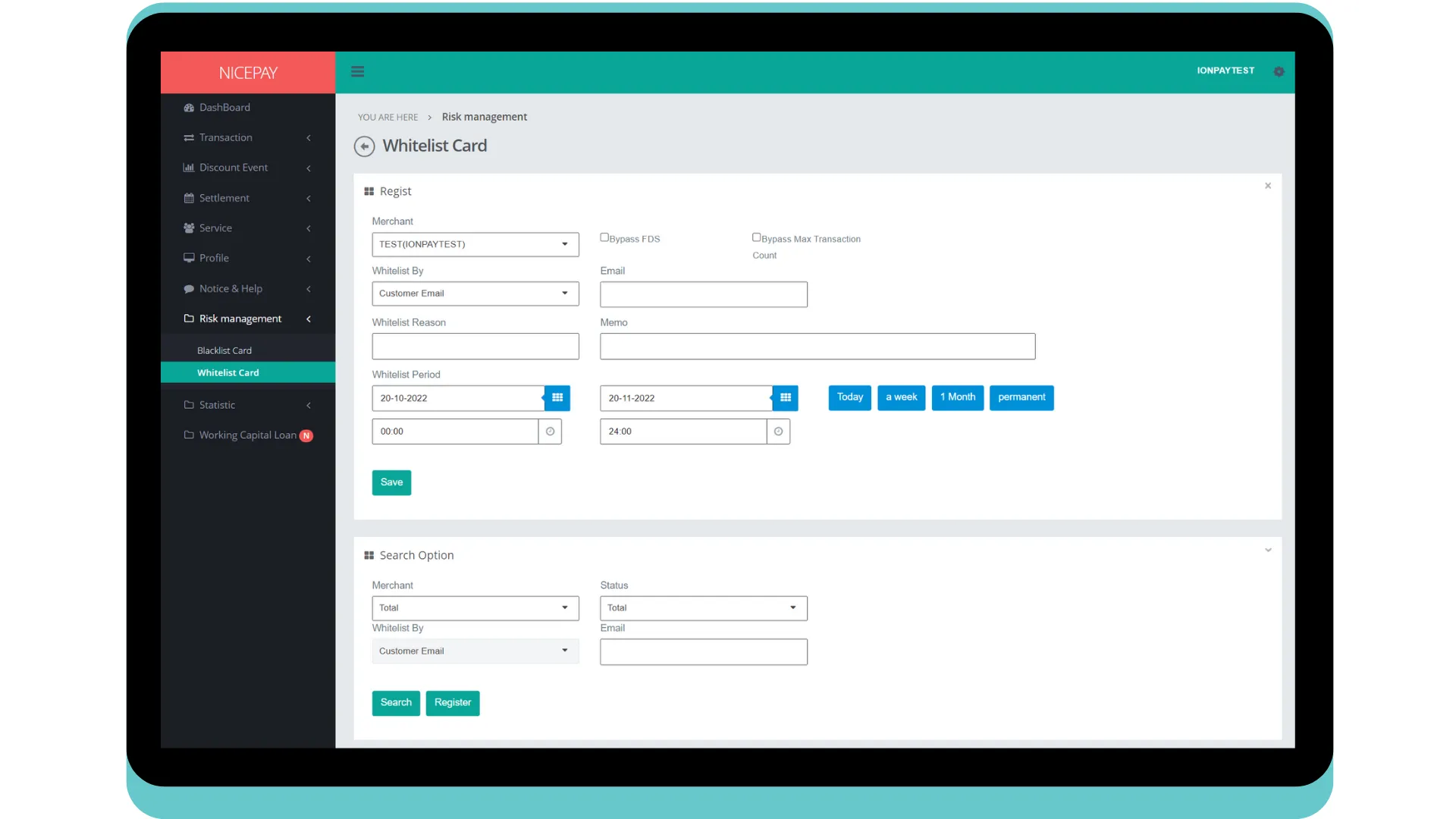
Other than that, Merchant can register card which needs to be whitelisted. Data which successfully registered will appear in the Search Result section by pressing the Register button on the Search Option section. The form in the Regist section consists of:
Name | Description | Remark |
|---|---|---|
Merchant | Merchant name | |
Permission Option | Flag related to whitelist permission | Flagging option:
|
Whitelist By | Chosen Whitelist method | Default: Card Number Dropdown option:
|
Card Owner email | | |
Whitelist Reason | Reason cards register to the whitelist | |
Memo | Additional note inputted by Merchant | |
Whitelist period | Whitelist card valid period Time settings can be directly determined between today, 1 week, 1 month, 3 months, or 6 months | Default selection Default setting: today's date and 24 hour time interval |
Save | Button to save whitelist card by Customer email data | |
Search Whitelist Based on Card BIN Number
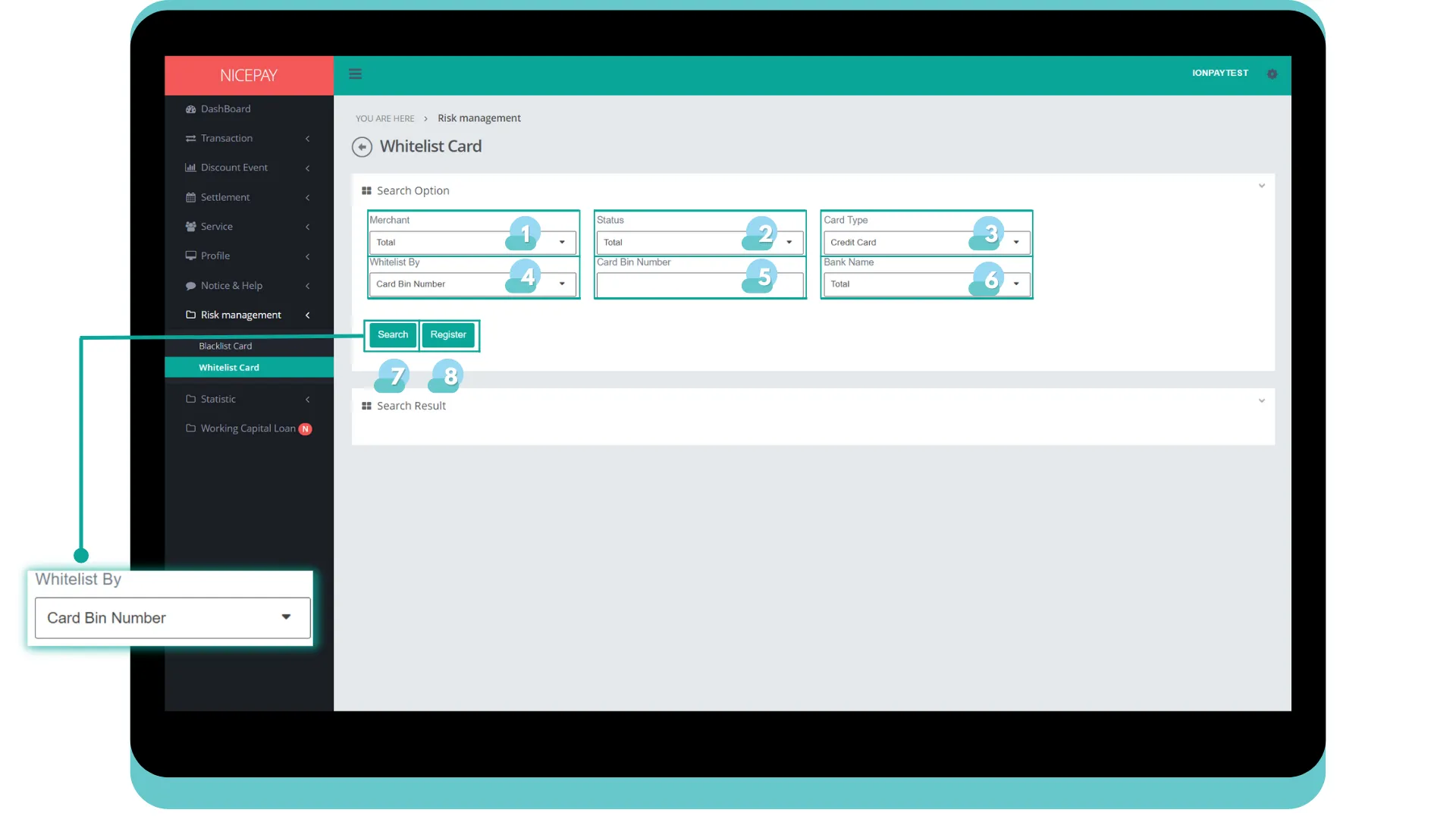
The Search Option section in the Whitelist by: Card Bin Number contain the search form used to search whitelist data history based on card bin number. The form consists of:
Name | Description | Remark |
|---|---|---|
Merchant | Merchant name | |
Status | Whitelist status | Default: Total -> all status Dropdown option:
|
Card Type | Card type | Default: Credit Card Dropdown option:
|
Whitelist By | Chosen whitelist method | Default: Card Number Dropdown option:
|
Card Bin Number | Card Bin number | |
Bank Name | Bank name | Default: Total -> all Bank Dropdown option:
|
Search | Button to process the keywords entered by the Merchant to search for data | Data search results will be displayed in the Search Result section |
Register | Button to process the keywords entered by the Merchant for the file to be downloaded | The form will be appeared above the Search Option section |
The Search Result section in the Whitelist by: Card Bin Number displays whitelist data history based on card bin number. Merchant can change the data by pressing the Edit button and release card data by pressing the Release button available in Option column.
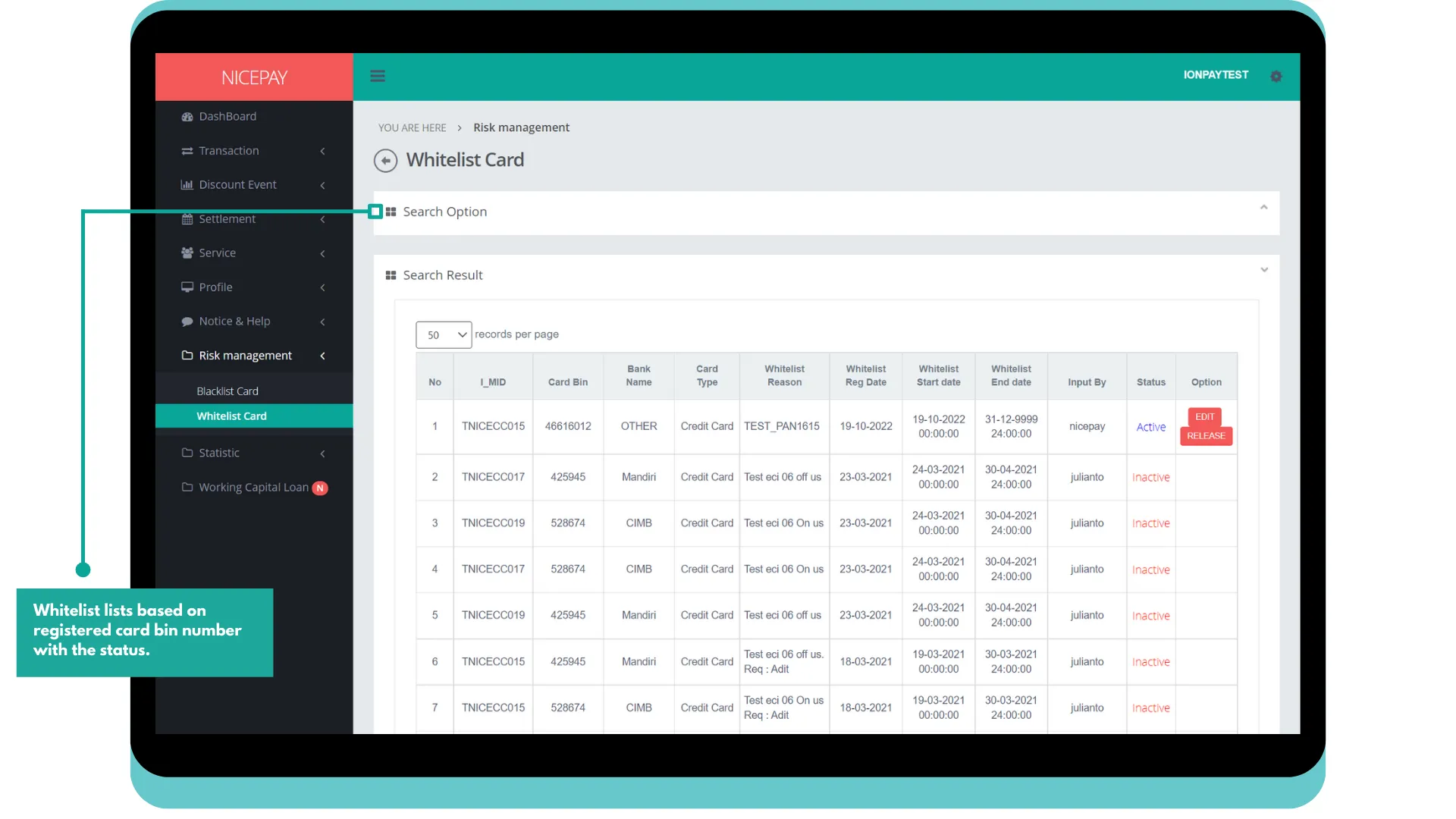
Register Whitelist Card Based on Card BIN Number
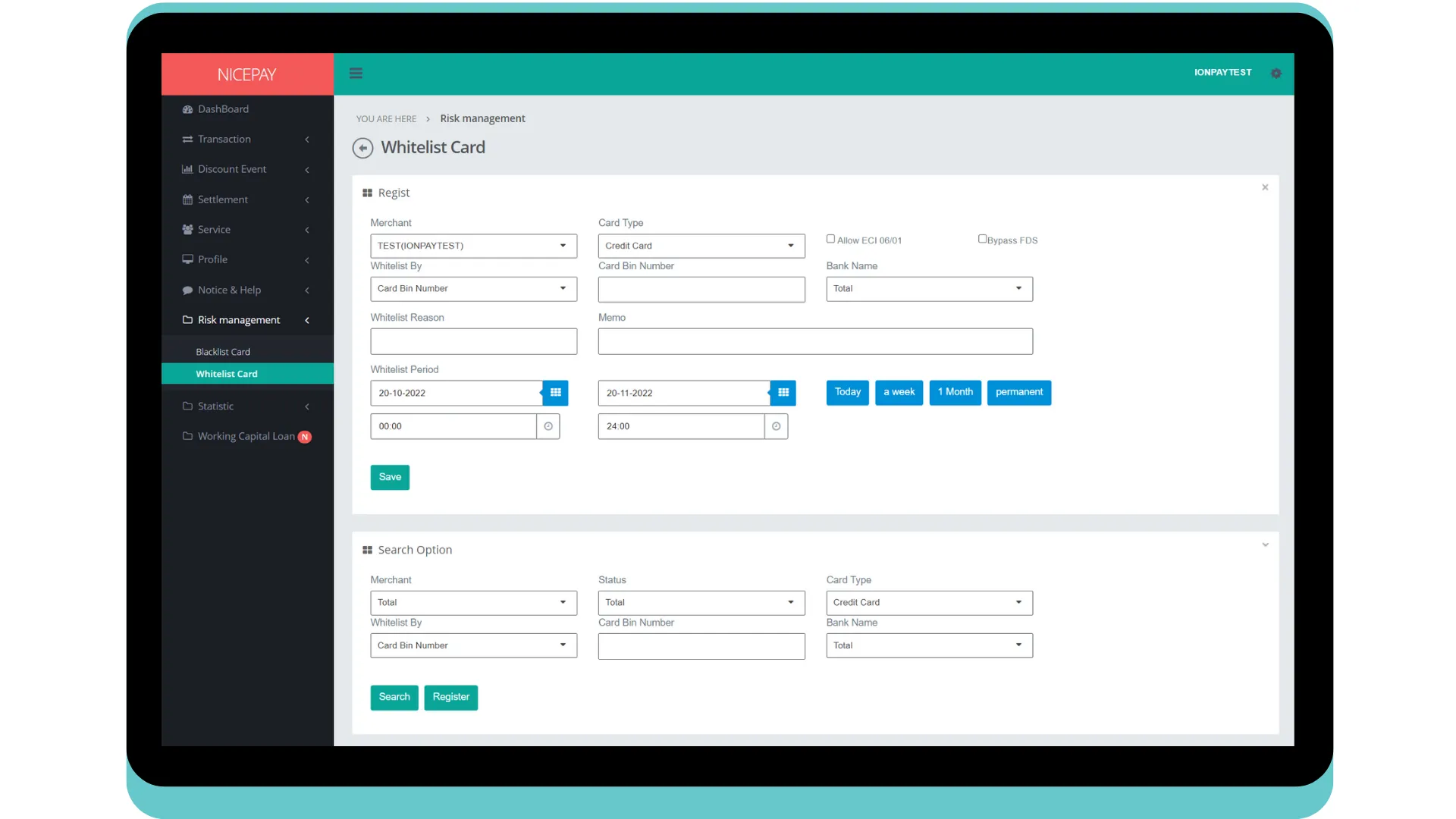
Moreover, Merchant can register card which needs to be whitelisted and added to the history. Successfully added data will be appeared in the Search Result section by pressing the Register button on the Search Option section. The form in the Regist section consists of:
Name | Description | Remark |
|---|---|---|
Merchant | Merchant name | |
Card Type | Card type | Default: Credit Card Dropdown option:
|
Permission Option | Flag regarding whitelist permission | Flagging option:
|
Whitelist By | Chosen whitelist method | Default: Card Number Dropdown option:
|
Card Bin Number | Card Bin number | |
Bank Name | Bank name | Default: Total -> all Bank Dropdown option:
|
Whitelist Reason | Reason cards register to the whitelist | |
Memo | Additional note inputted by Merchant | |
Whitelist period | Whitelist card valid period Time settings can be directly determined between today, 1 week, 1 month, 3 months, or 6 months | Default selection Default setting: today's date and 24 hour time interval |
Save | Button to save whitelist card by card bin number data | |
Tutorial
Search Whitelist Data
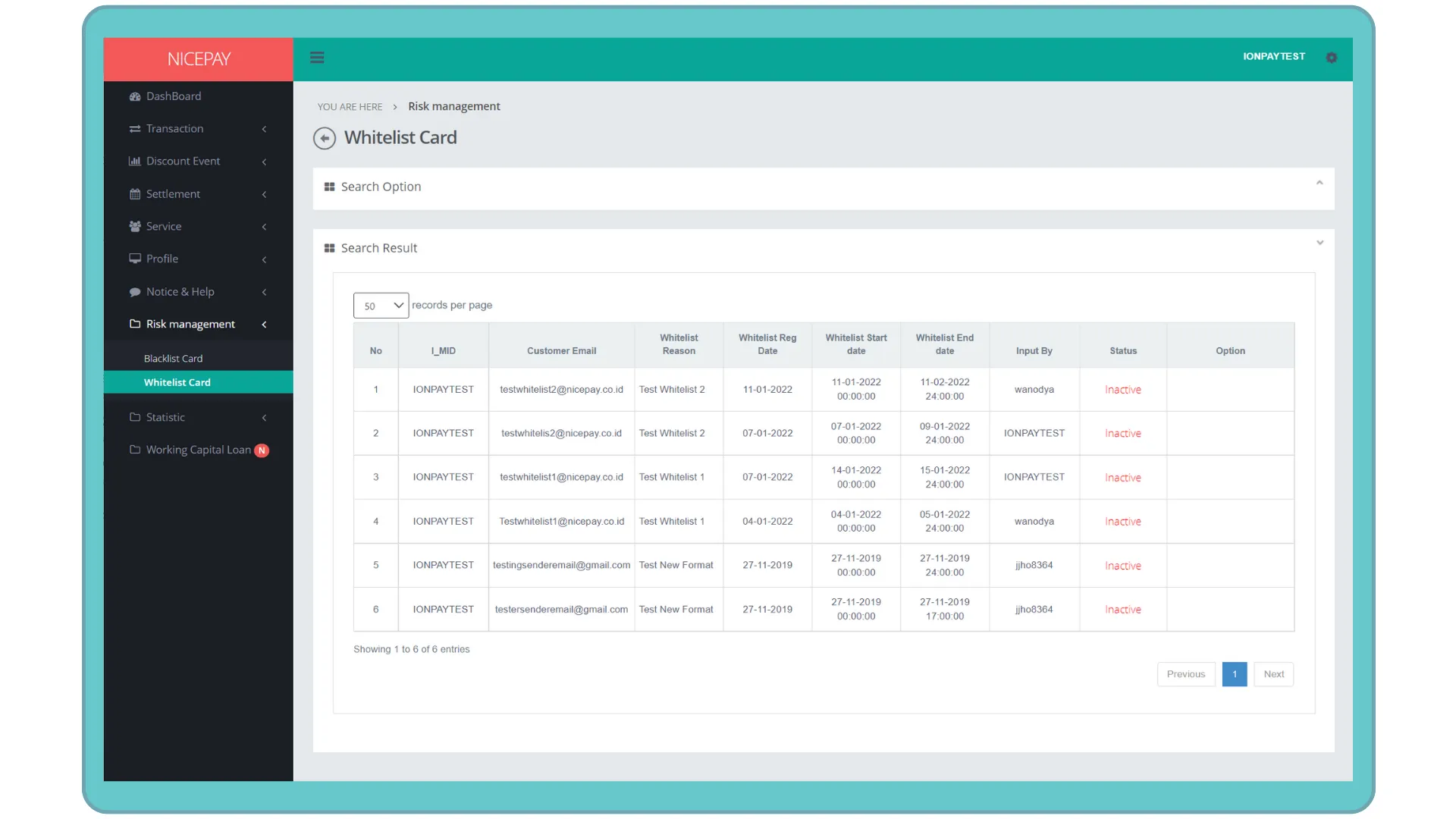
Here’s guidance to search whitelist data.
- Open sidebar.
- Select the Risk Management menu.
- Select the Whitelist Card sub-menu.
- Input the search term in the Search Option section.
- Press the Search button to proceed the data searching process.
- The searched data will appear in the Search Result section.
Register Whitelist Data
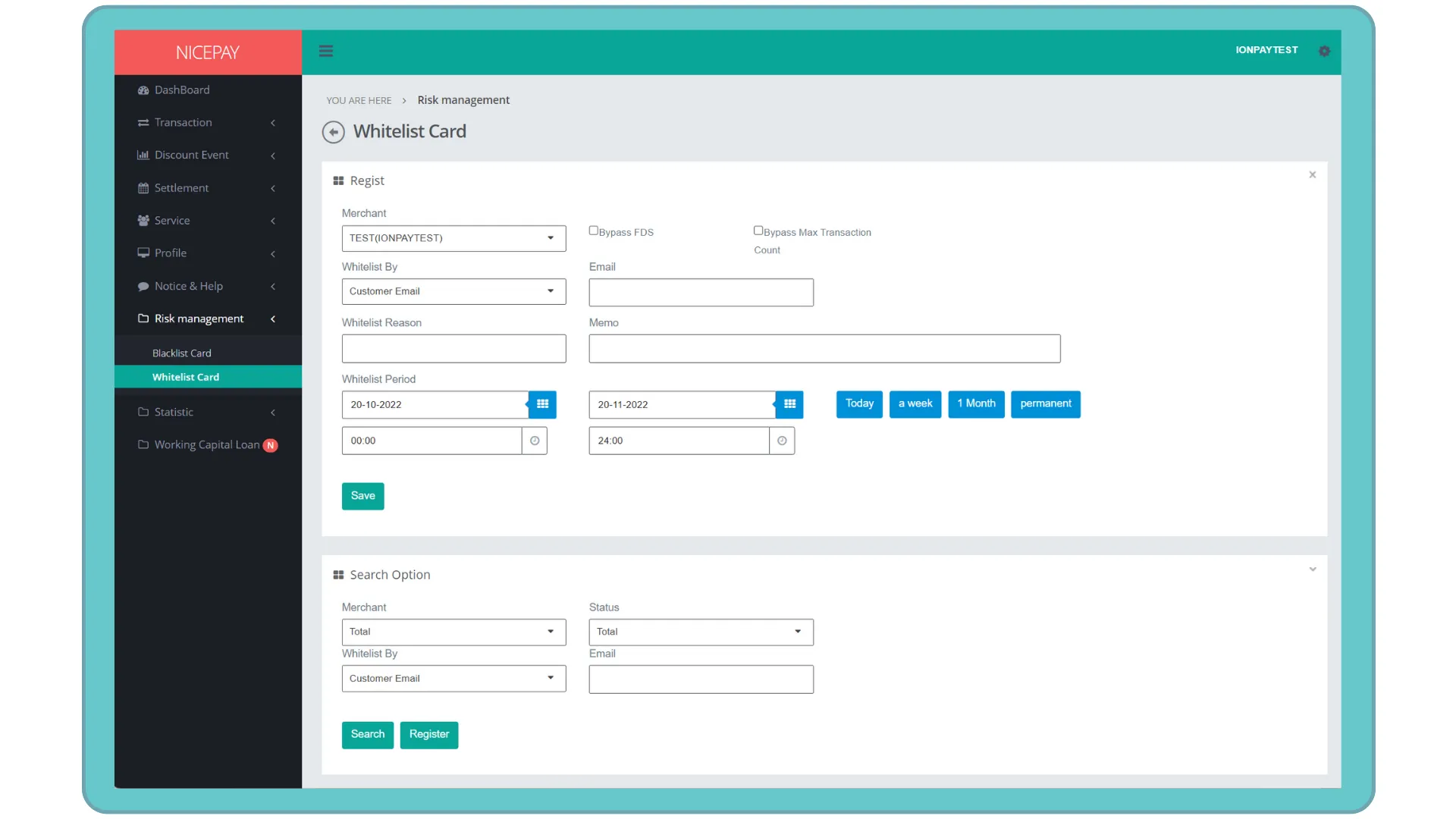
Here’s guidance to register card data that will get whitelist
- Open sidebar.
- Select the Risk Management menu.
- Select the Whitelist Card sub-menu.
- Select whitelist sort method on the Search Option bar section.
- Press the Register button.
- The Regist section will appear above the Search Option section.
- Fill out the form in the Regist section.
- Press the Register button.
- Data will automatically be registered and appear on Search Result section.
See also
Visit the Risk Management page to learn the particular menu for blacklist and whitelist.
Visit the Blacklist Card page to find out how to performs blacklist.