NICEPAY EDC Guidance
4 min
During Transaction Process

EDC - Transaction
The following is the transaction process using a NICEPAY EDC.
- Open Merchant application.
- Input transaction amount on Merchant application.
- EDC page will redirect to NICEPAY application.
- On NICEPAY application, Merchant side will choose payment method based on User request:
- If User wants to proceed payment with Card, then:
- Choose card image.
- Payment can be proceed by inserting card from the bottom part of EDC or by tapping the card in front of the part of EDC.
- If User wants to proceed payment with QRIS, then:
- Choose QR image.
- EDC will display QRIS for payment.
- User will scan QR through payment media such as Banking/E-Wallet.
- Payment status can be seen through Riwayat Transaksi menu.
View Transaction History
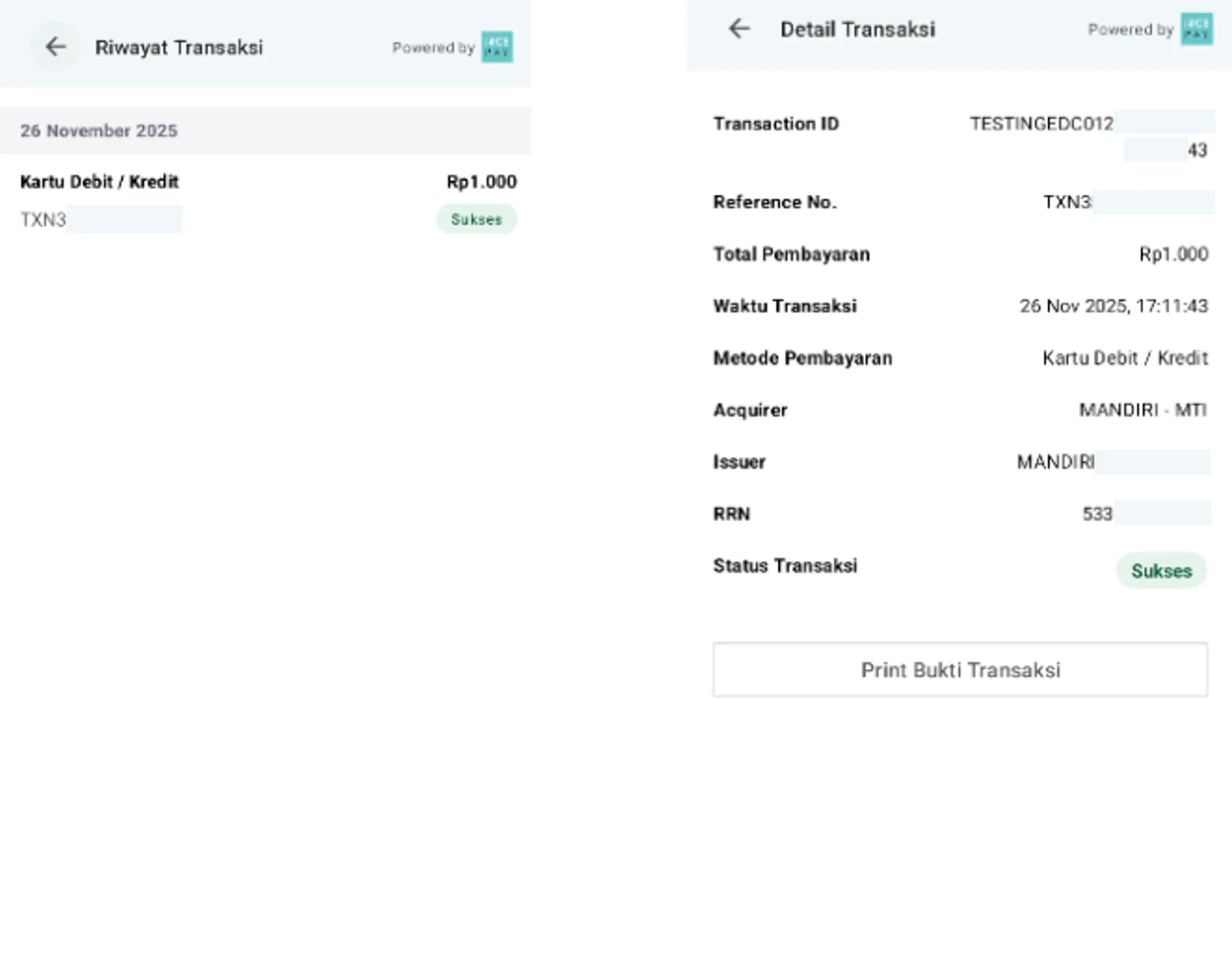
EDC - Transaction History
The following is the process to view the Riwayat Transaksi menu on EDC.
- Open NICEPAY application.
- Choose Riwayat Transaksi menu.
- The page will display the transaction list that had been done.
- Choose the desired transaction from the list.
- The transaction detail will appear on the monitor.
- Click Print Bukti Transaksi button to print the selected transaction detail.
Setting
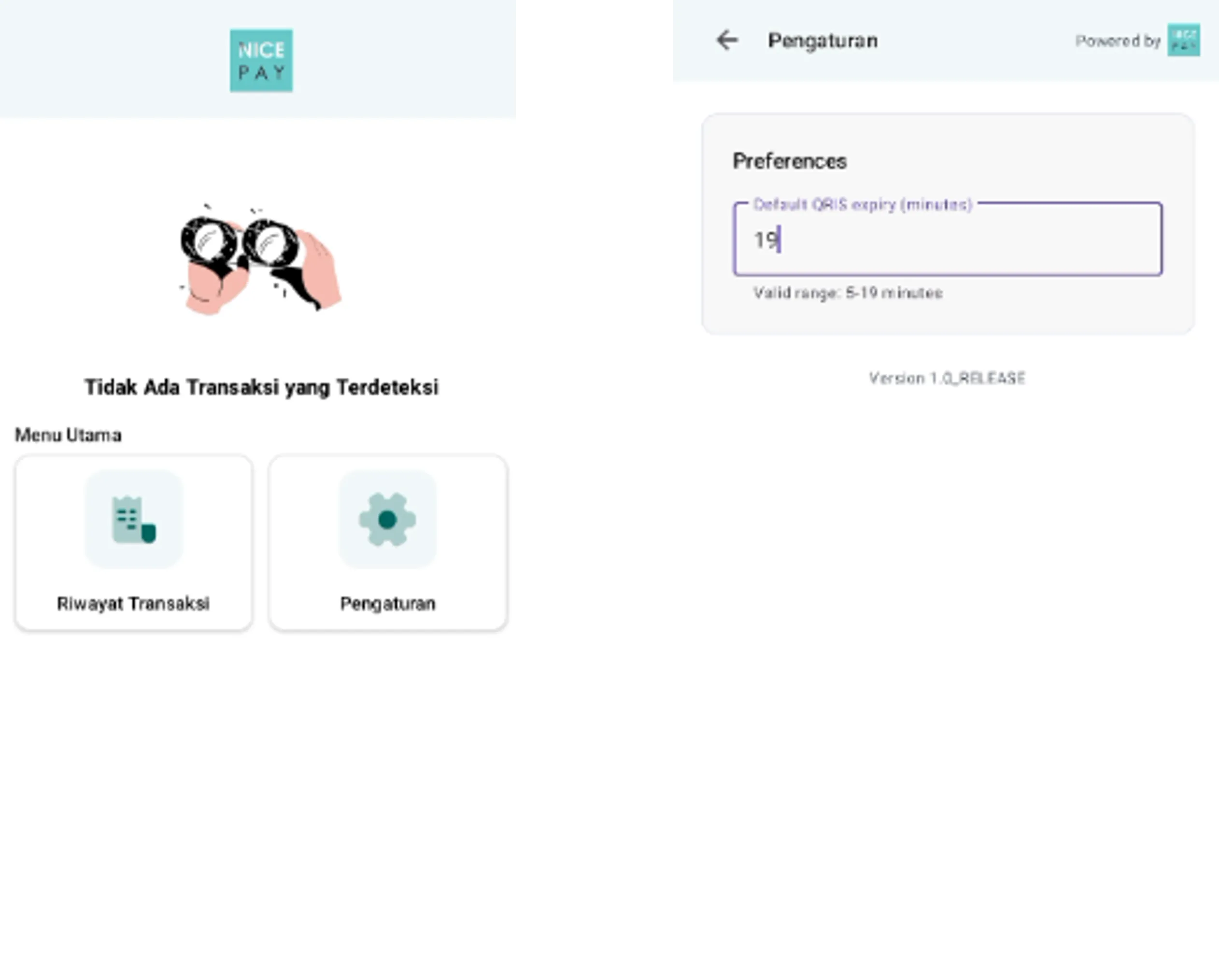
EDC - Setting
The following is the process to view the Setting menu on EDC.
- Open NICEPAY application
- Choose Pengaturan menu.
- The page will show the setting for QRIS validity time.
- Enter the time setting in minute unit. Range time permit is 5-19 minutes.
- The setting will automatically save if there are any changes.