Disbursement Report
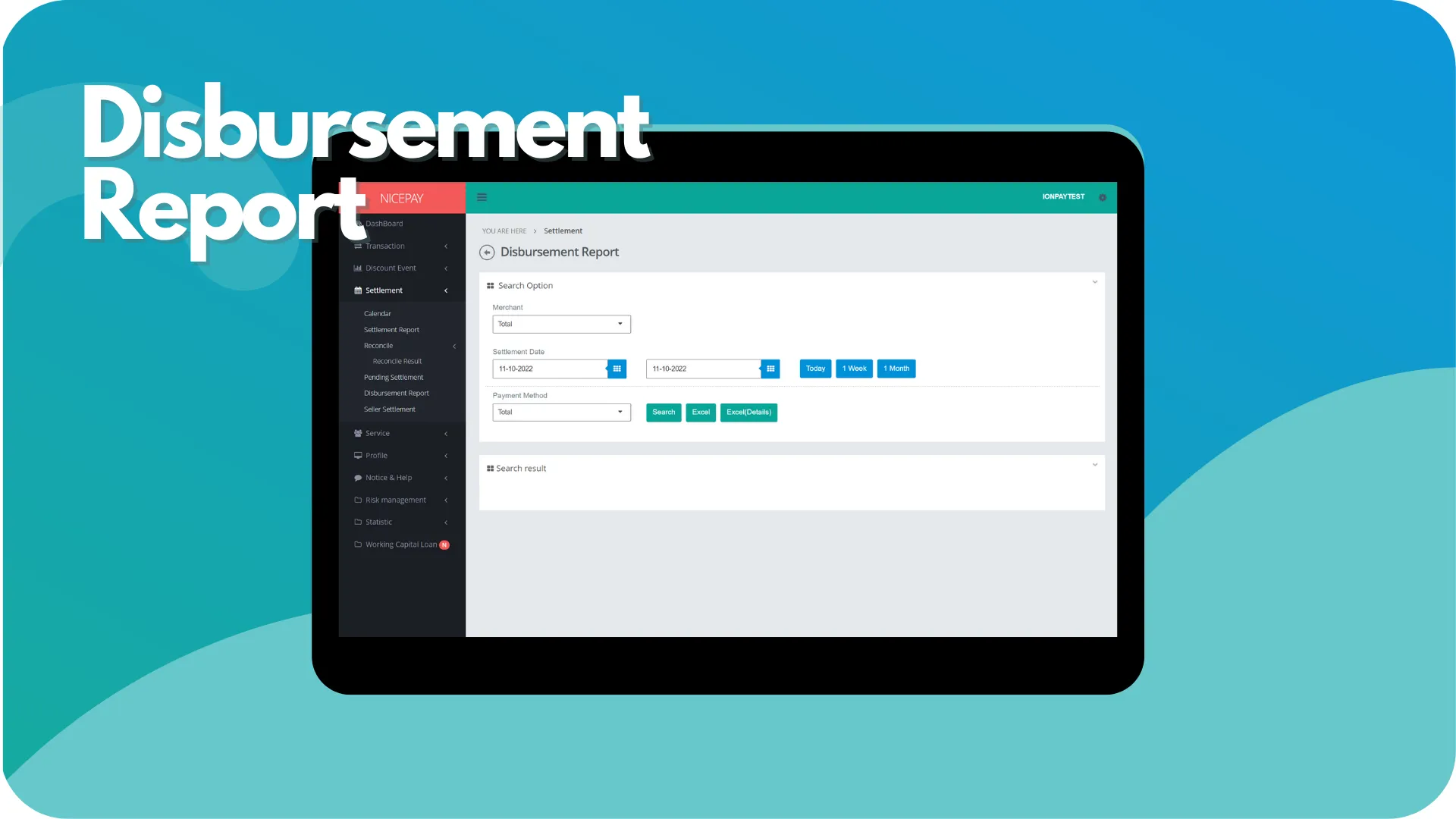
This sub-menu assists Merchant to views Disbursement transaction summary. This sub-menu page is divided into 2 sections; Search Option and Search Result.
The Search Option section is a form section used to input the search criteria of transaction data. All fields on the form are optional. However, the search results are dependent on the chosen payment method. There are 5 options for payment methods; Total, Overbooking, Online, LLG, RTGS, and Cashout. Merchant can perform data searches to be appeared in the Search Result section or download data on Excel format.
The Search Result section is a section that displays data search results based on the inputted criteria from the Search Option section. Data from this section will be appeared after Merchant confirms the data searching process by pressing the Search button. The search results are displayed differently based on the chosen payment method from the Search Option section.
Disbursement Report
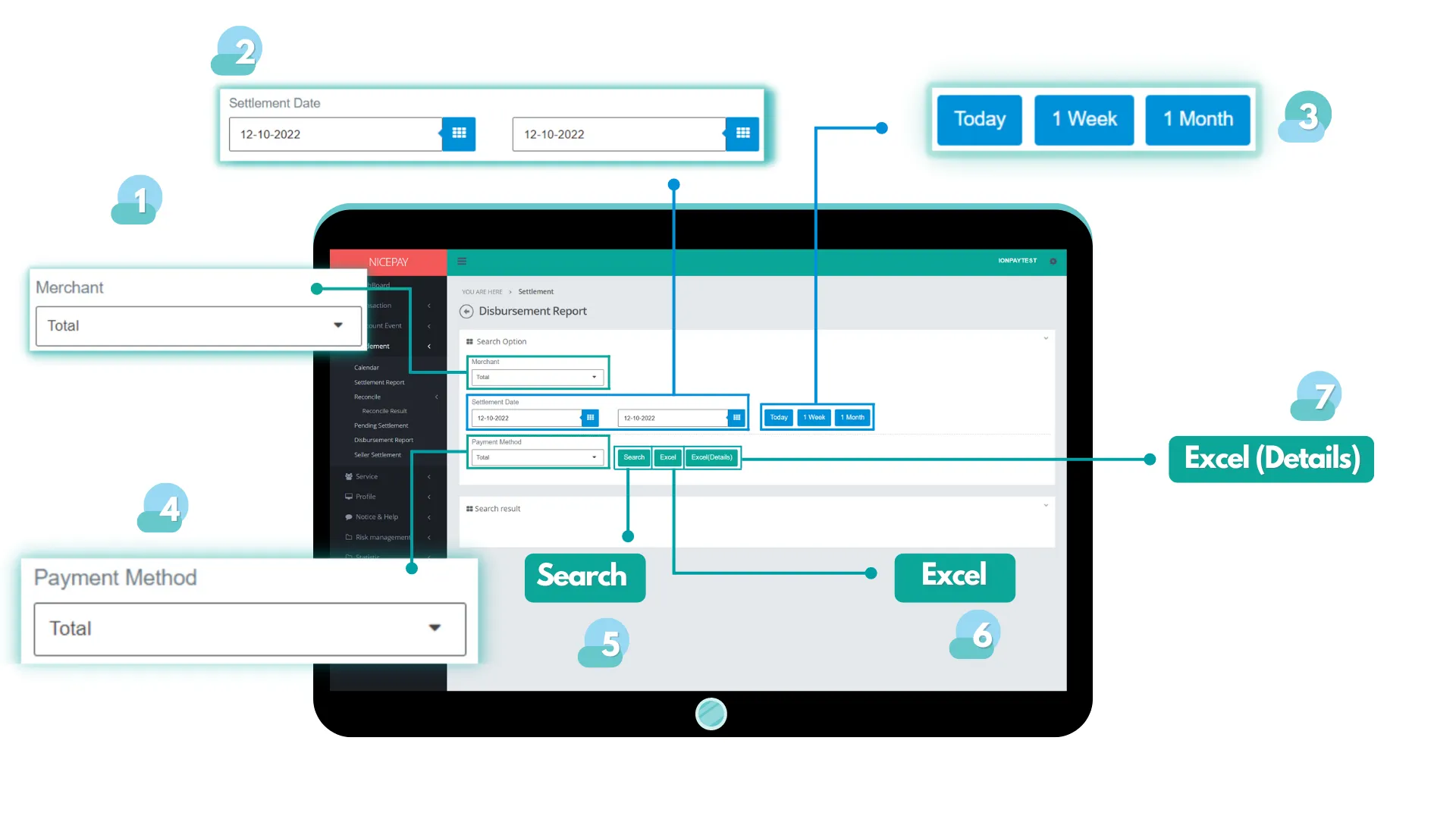
The Search Option section contains a search form which use to search all occur Disbursement transaction. The form consists of:
Name | Description | Remark |
|---|---|---|
Merchant | List of registered Merchant in NICEPAY system | Default: Total -> all Merchant |
Settlement Date | Disbursement execution time in date and hour format | Default: today's date and 24 hour time interval |
Settlement Date (Within) | Disbursement execution time interval in date and hour format Time settings can be directly determined between today, 1 week, or 1 month | Default: Today |
Payment Method | List of payment method that used to process the Settlement | Default: Total Dropdown option:
|
Search | Button to process the keywords entered by the Merchant to search for data | Data search results will be displayed in the Search Result section |
Excel | Button to process the keywords entered by the Merchant for the file to be downloaded | The file format will be downloaded in Excel format |
Excel (Details) | Button to process the keywords entered by the Merchant for the file to be downloaded The file contains detail data for each transaction | The file format will be downloaded in Excel format |
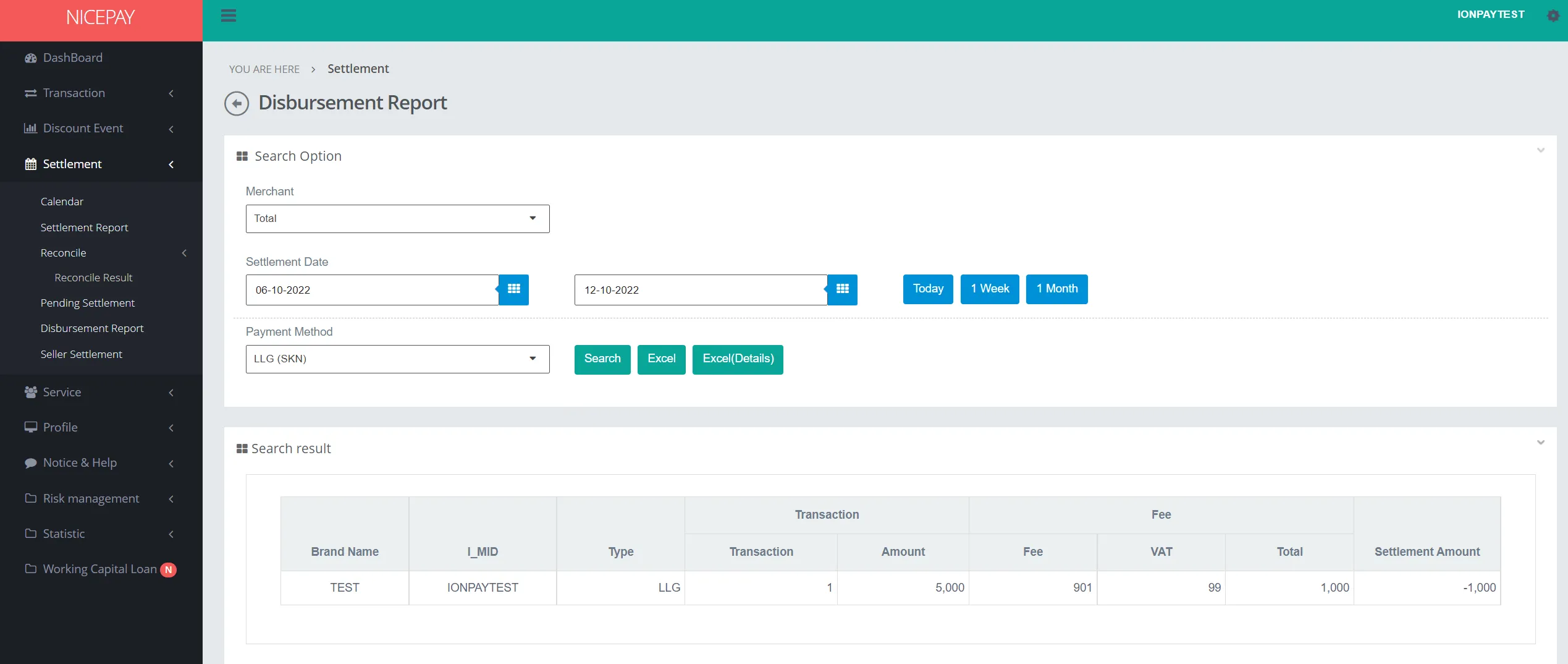
The Search Result section displays the data detail occur Settlement transaction compatible with term from Search Option section. If payment method: Total is selected, then it will display summary from all occur payment method. If specific payment method (example LLG) is selected, then it will show only summary for the selected payment method.
Tutorial
Search Disbursement Report Data
Here’s guidance for searching Disbursement report data.
- Open sidebar.
- Select the Settlement menu.
- Select the Disbursement Report sub-menu.
- Input the search term in the Search Option section.
- Press the Search button to perform the data searching process.
- The searched data will appear in the Search Result section.
Download Disbursement Report Data
Here's guidance for downloading Disbursement report data.
- Open sidebar.
- Select the Settlement menu.
- Select the Disbursement Report sub-menu.
- Input the search term on Search Option section.
- Press the Excel button to download data summary in Excel format.
- Press the Excel(Detail) button to download data detail in Excel format
- The search data will download automatically.