Merchant Data
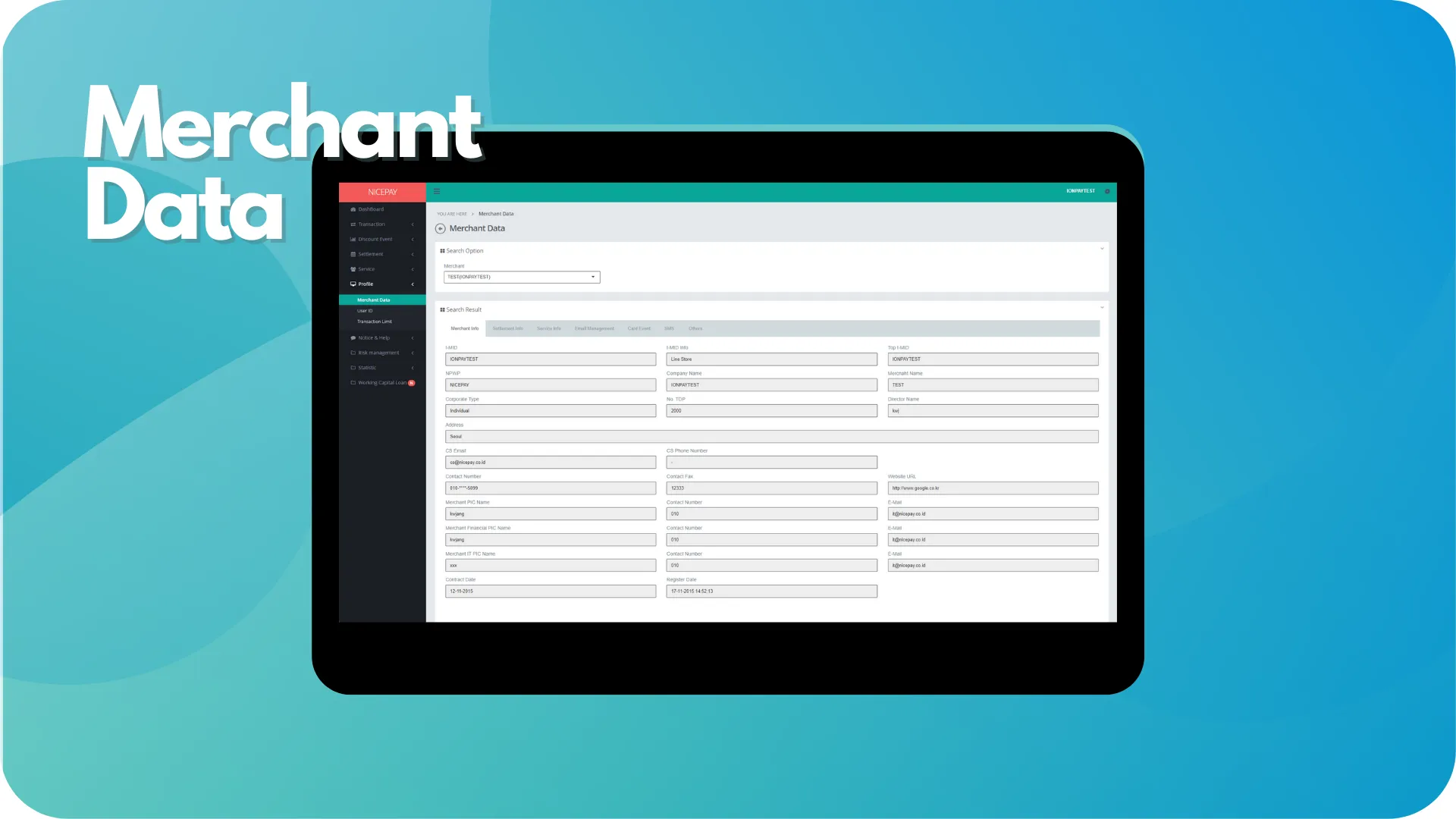
Merchant Data
The Merchant Data menu contains all Merchant information which consists of 7 tabs; Merchant Info, Settlement Info, Service Info, Email Management, Card Event, SMS, and Others.
The Merchant Data page divided into 2 sections; Search Option and Search Result. The Search Option section is a form section used to input the search criteria. The Search Result section displays data search results based on the inputted criteria.
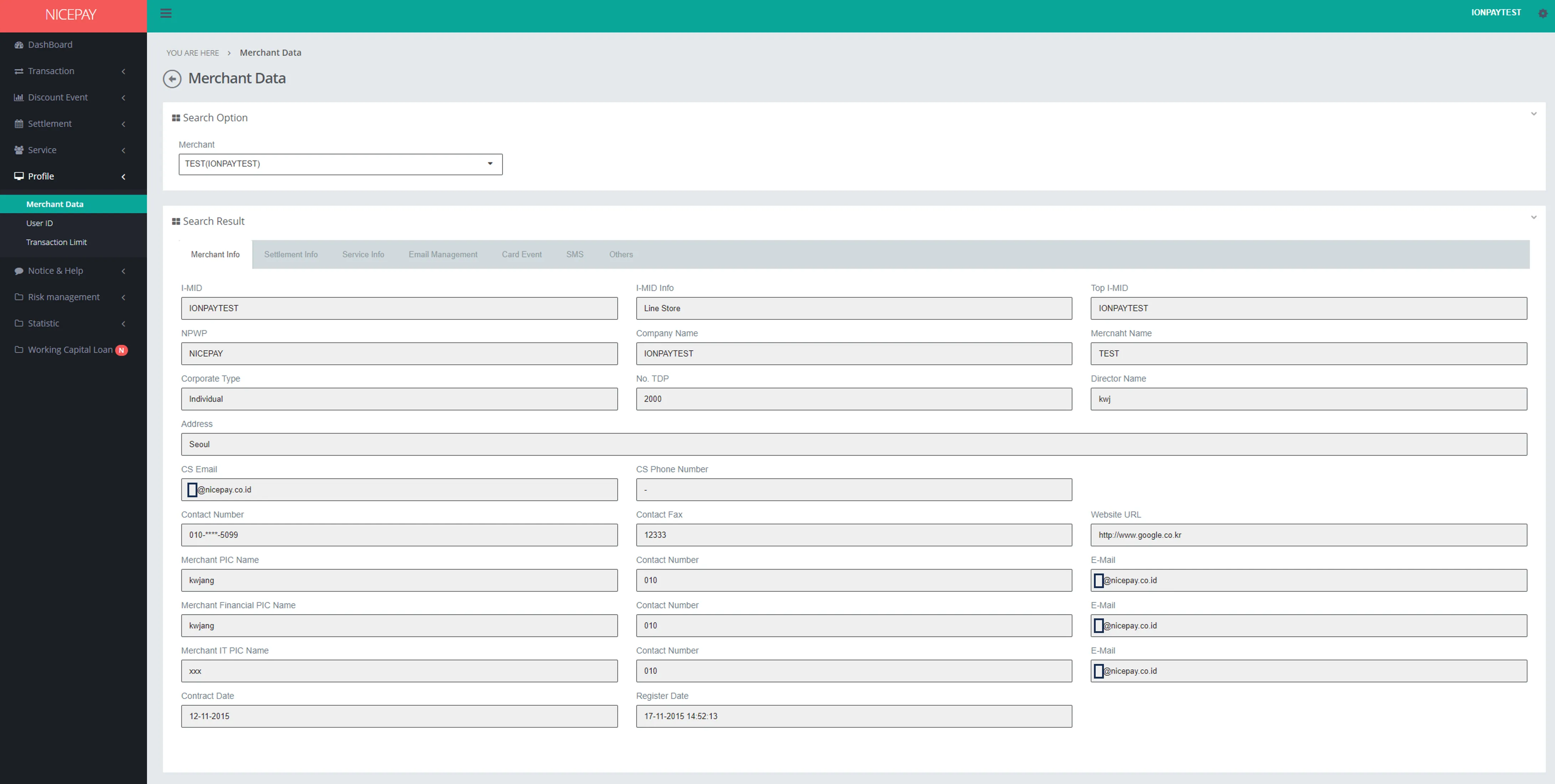
Merchant Info
The Merchant Info tab displays details of the Merchant's profile information. Fields in the form consist of:
Name | Description | Remark |
|---|---|---|
I-MID | ID Merchant | |
I-MID Info | Merchant information | Name, business line, etc |
Top I-MID | Top ID Merchant | |
NPWP | NPWP number | |
Company Name | Company name | |
Merchant Name | Merchant name | |
Corporate Type | Corporate/Company type | |
No.TDP | TDP number | |
Director Name | Director name | |
Address | Merchant Address | |
CS Email | Email CS | |
CS Phone Number | CS contact number | |
Contact Number | Contact number | |
Contact Fax | Fax number | |
Website URL | URL Website address | |
Merchant PIC Name | PIC Merchant name | |
Contact Number (Merchant) | Merchant contact number | |
Email (Merchant) | Merchant PIC e-mail | |
Merchant Financial PIC Name | Merchant Finance PIC name | |
Contact Number (Financial PIC Name) | Finance PIC contact number | |
Email (Financial PIC Name) | Finance PIC e-mail address | |
Merchant IT PIC Name | IT Merchant PIC name | |
Contact Number (IT PIC Name) | IT Name PIC contact number | |
Email (IT PIC Name) | IT PIC Name e-mail address | |
Contract Date | Contract signed date | |
Register Date | Merchant successfully registered date on NICEPAY system | |
Settlement Info
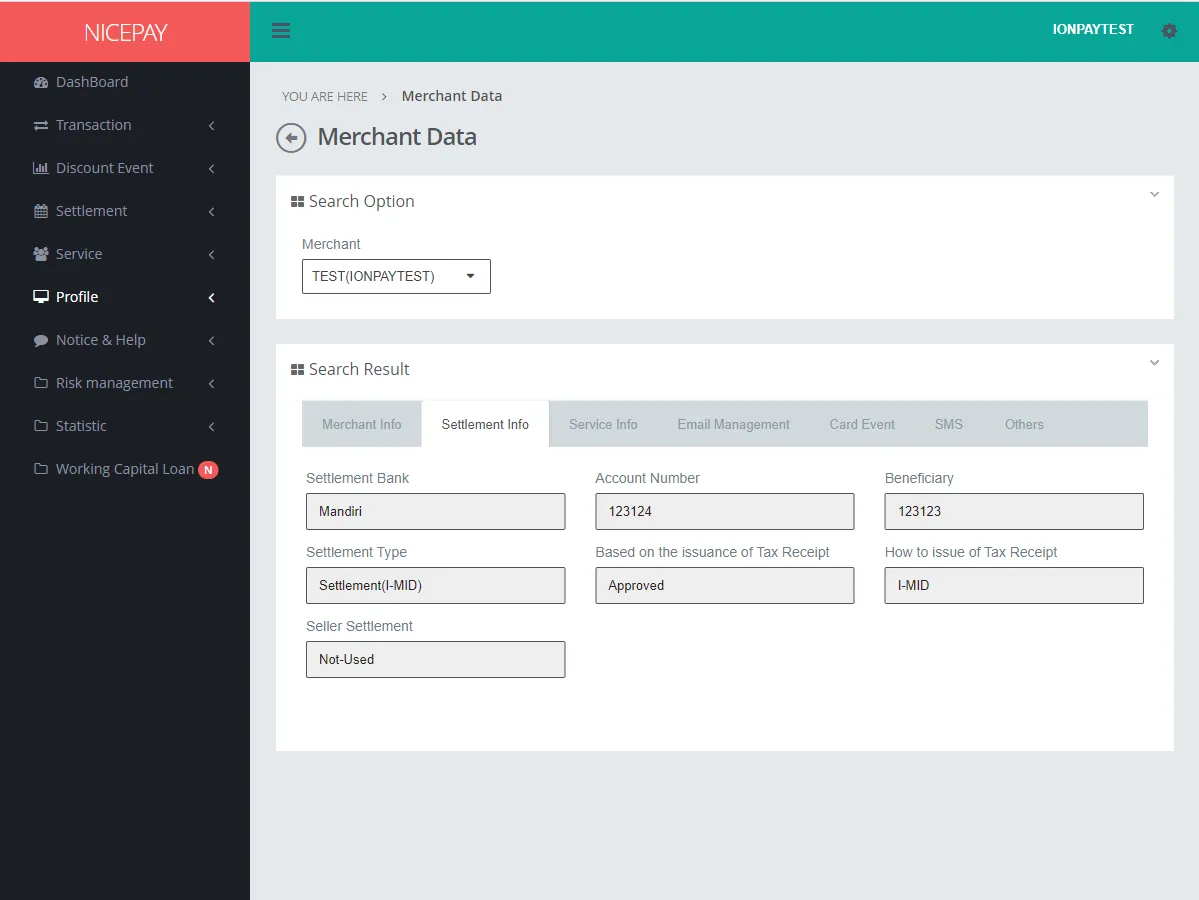
The Settlement Info tab displays the Merchant Settlement information. Fields in the form consist of:
Name | Description | Remark |
|---|---|---|
Settlement Bank | Settlement service Bank name | |
Account Number | Account number | Name, business line, etc |
Beneficiary | Recipient number | |
Settlement Type | Settlement type | |
Based on the Issuance of Tax Receipt | Status based on the tax receipt issue | |
How to issue of Tax Receipt | How to handle the tax receipt | |
Seller Settlement | Settlement from Seller | |
Service Info
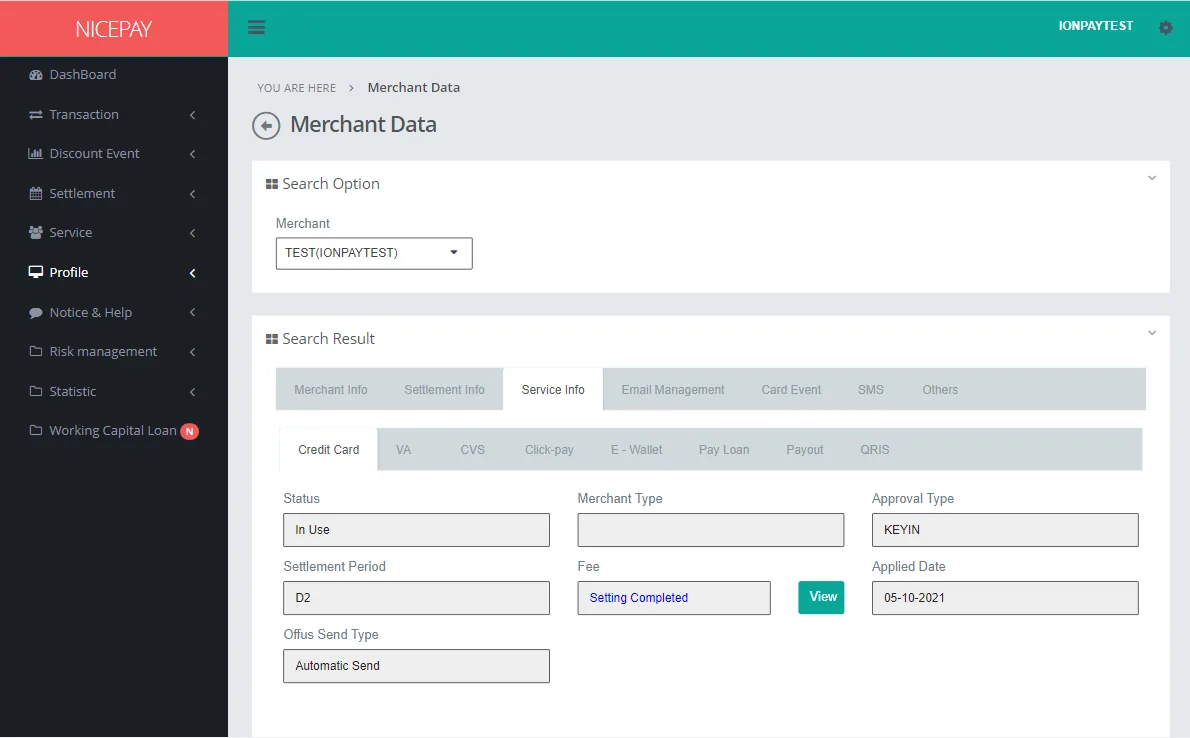
The Service Info tab displays the service information used by Merchant. There are 8 tabs for each payment service that consists of detailed information from Credit Card, VA, CVS, Click-Pay, E-Wallet, Pay Loan, Payout, and QRIS.
Credit Card
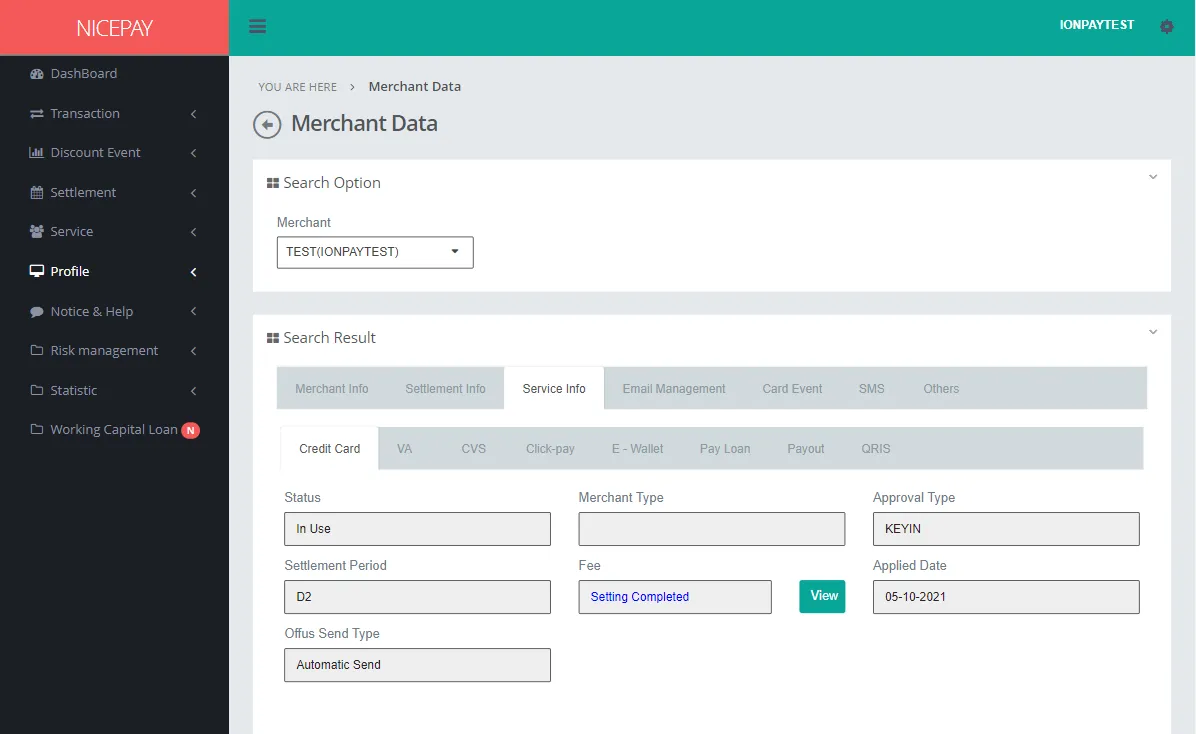
The fields in the form on this tab consist of:
Name | Description | Remark |
|---|---|---|
Status | Credit Card status feature | |
Merchant Type | Merchant type | Name, business line, dll |
Approval Type | Approval type | |
Settlement Period | Settlement period | |
Fee | Billing costs | View Document button to view Credit Card Fee detail |
Applied Date | Effective start date | |
Offus Send Type | Send to the different Bank type | |
VA
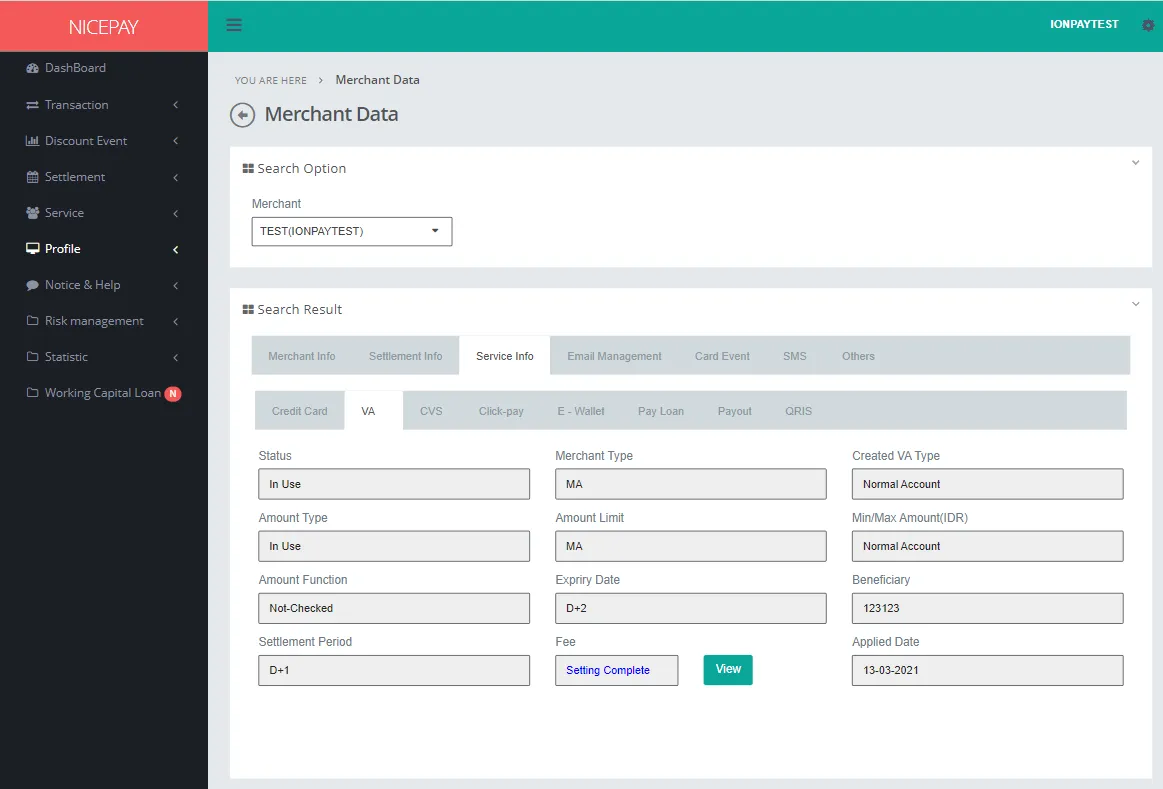
The fields in the form on this tab consist of:
Name | Description | Remark |
|---|---|---|
Status | VA status feature | |
Merchant Type | Merchant Type | Name, business line, etc |
Created VA Type | Created VA type | |
Amount Type | Amount of the bill type | |
Amount Limit | Amount of the bill limit | |
Min/Max Amount (IDR) | Amount of the bill limit (min/max) | Setting follows VA type |
Amount Function | Amount of the bill function | |
Expiry Date | Expiry date | |
Beneficiary | Recipient number | |
Settlement Period | Settlement period | |
Fee | Billing costs | View Document button to view VA detail |
Applied Date | Effective start date | |
CVS
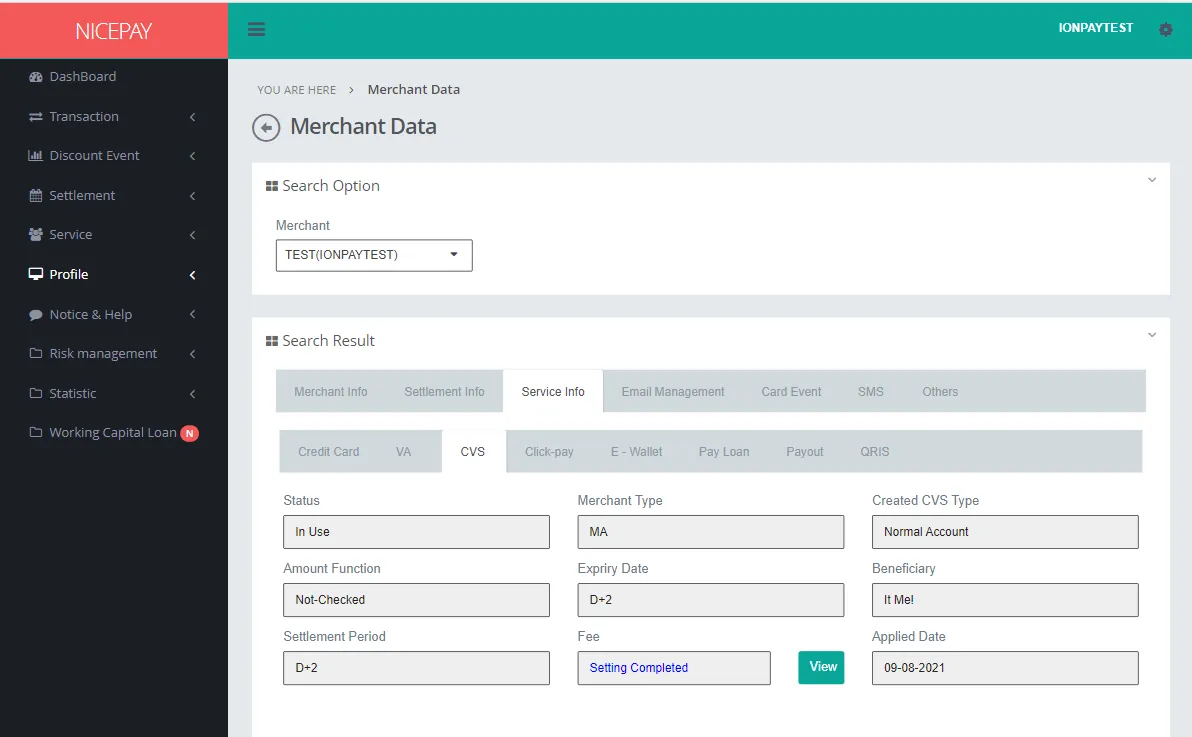
The fields in the form on this tab consist of:
Name | Description | Remark |
|---|---|---|
Status | CVS status feature | |
Merchant Type | Merchant type | Name, business line, etc |
Created CVS Type | CVS type created | |
Amount Function | Amount of the bill function | |
Expiry Date | Expiry date | |
Beneficiary | Recipient number | |
Settlement Period | Settlement period | |
Fee | Billing costs | View Document button to view CVS detail |
Applied Date | Effective start date | |
Click-Pay
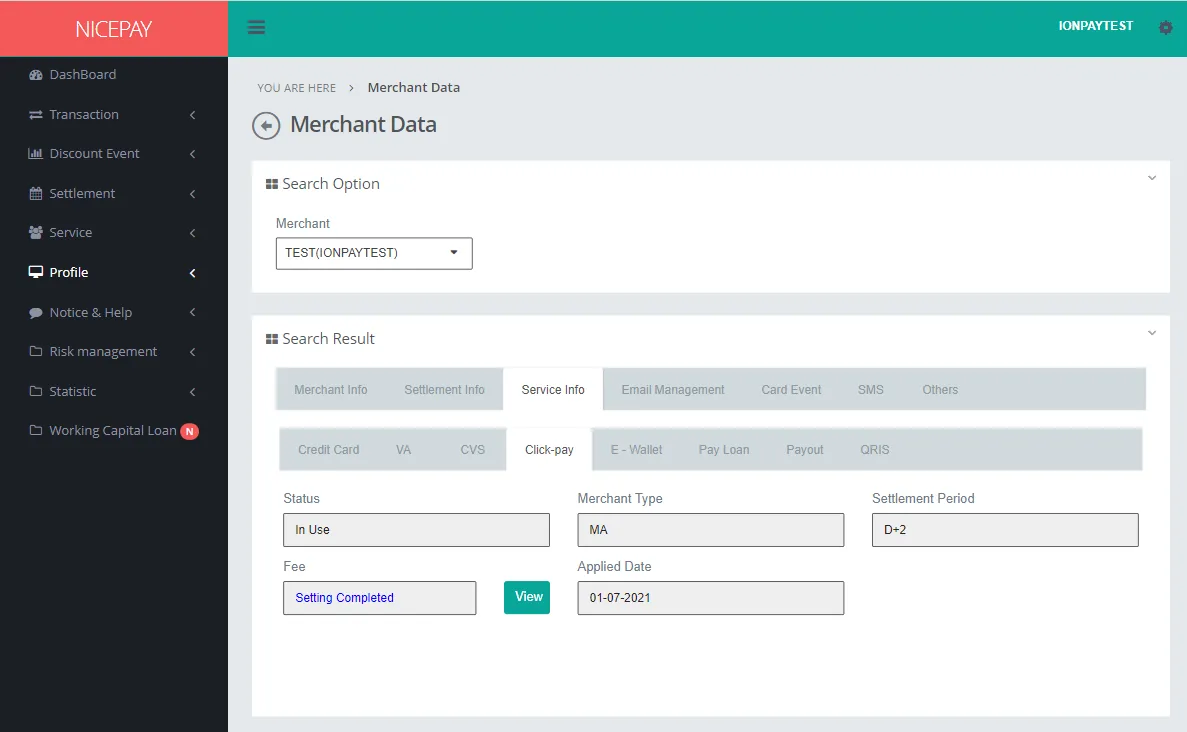
The fields in the form on this tab consist of:
Name | Description | Remark |
|---|---|---|
Status | Click-Pay status feature | |
Merchant Type | Merchant type | |
Settlement Period | Settlement period | |
Fee | Billing costs | The View Document button to view Click-Pay fee detail |
Applied Date | Effective start date | |
E-Wallet
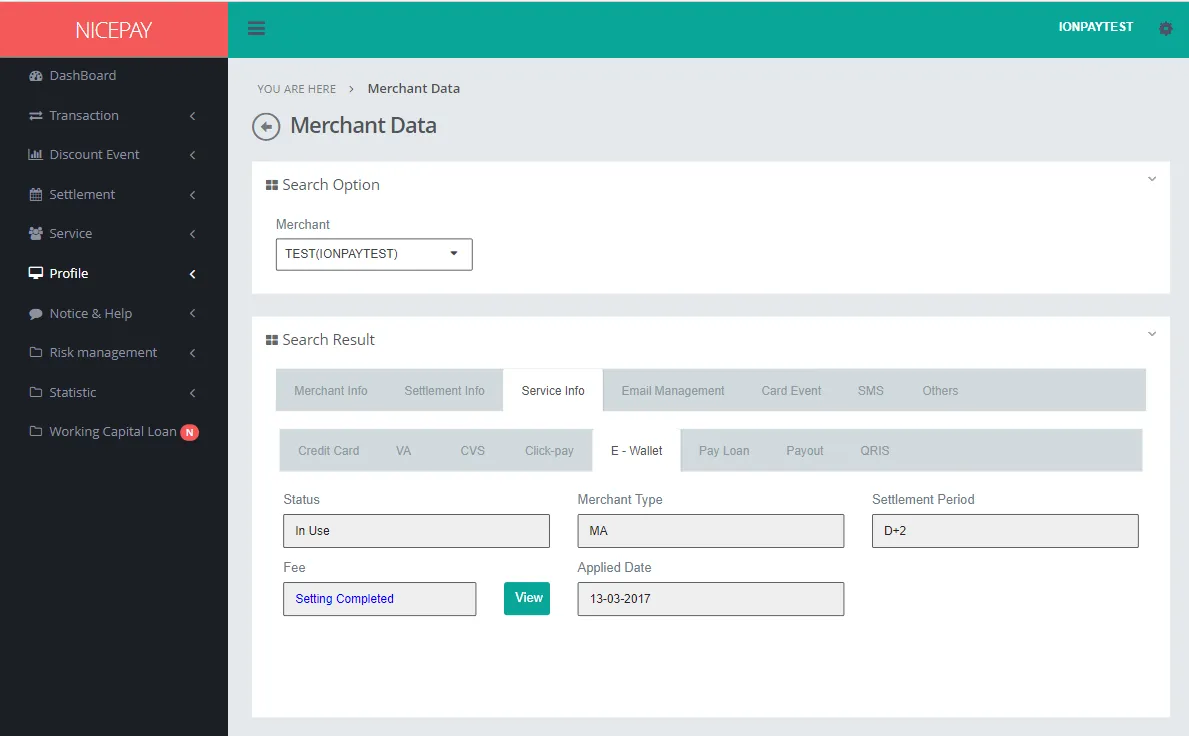
The fields in the form on this tab consist of:
Name | Description | Remark |
|---|---|---|
Status | E-Wallet status feature | |
Merchant Type | Merchant type | |
Settlement Period | Settlement period | |
Fee | Billing costs | The View Document button to view E-Wallet Fee in detail |
Applied Date | Effective start date | |
Pay Loan
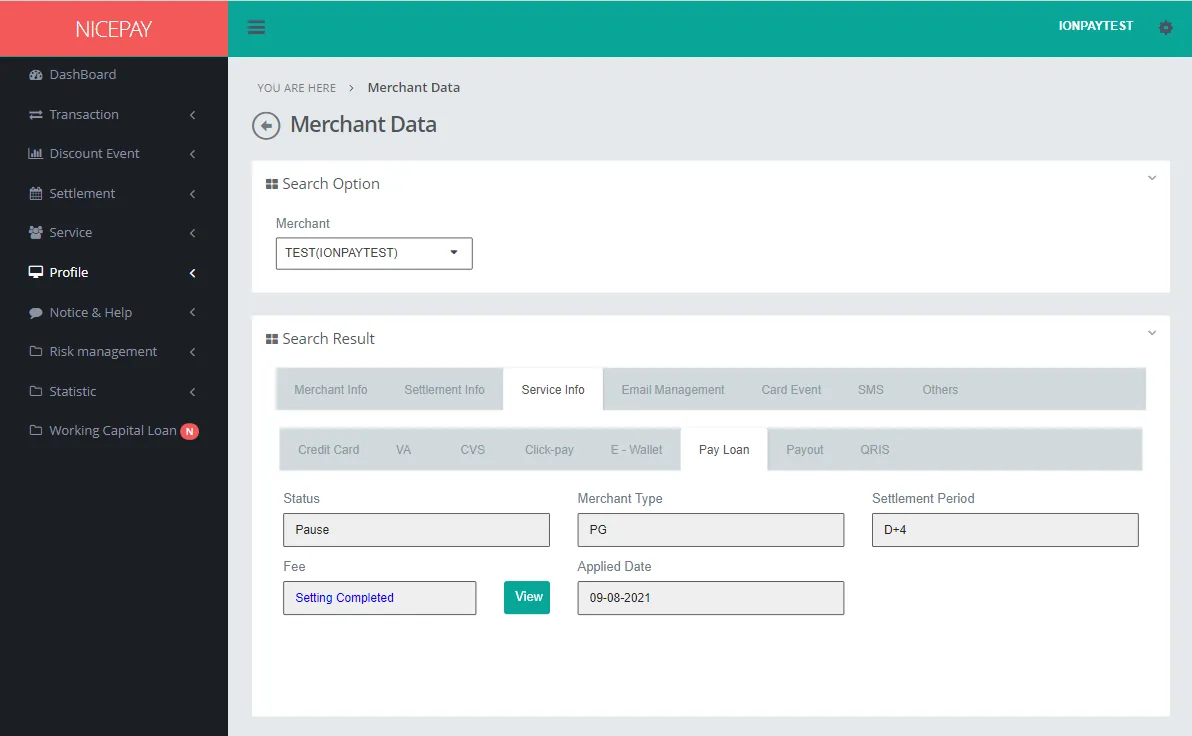
The fields in the form on this tab consist of:
Name | Description | Remark |
|---|---|---|
Status | Pay Loan status feature | |
Merchant Type | Merchant type | |
Settlement Period | Settlement period | |
Fee | Billing costs | The View Document button to view Paylater Fee detail |
Applied Date | Effective start date | |
Payout
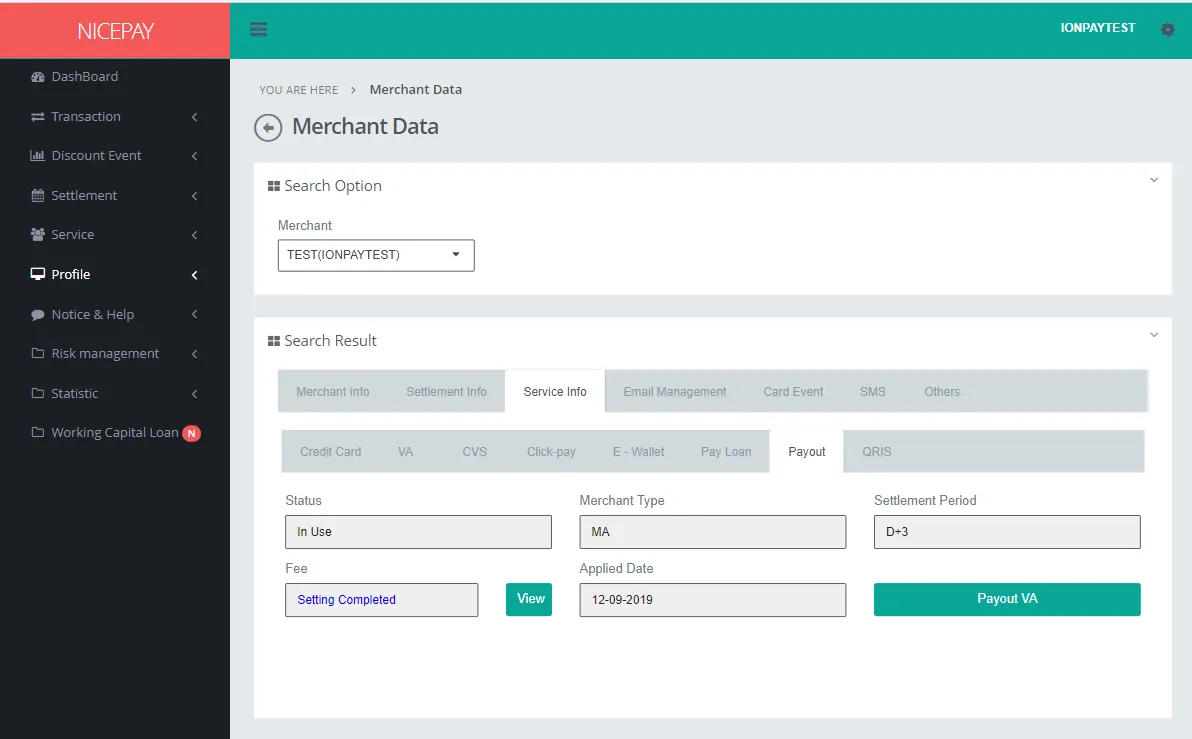
The fields in the form on this tab consist of:
Name | Description | Remark |
|---|---|---|
Status | Payout status feature | |
Merchant Type | Merchant type | |
Settlement Period | Settlement period | |
Fee | Billing costs | The View Document button to view Payout Fee detail |
Applied Date | Effective start date | |
Payout VA | | |
QRIS
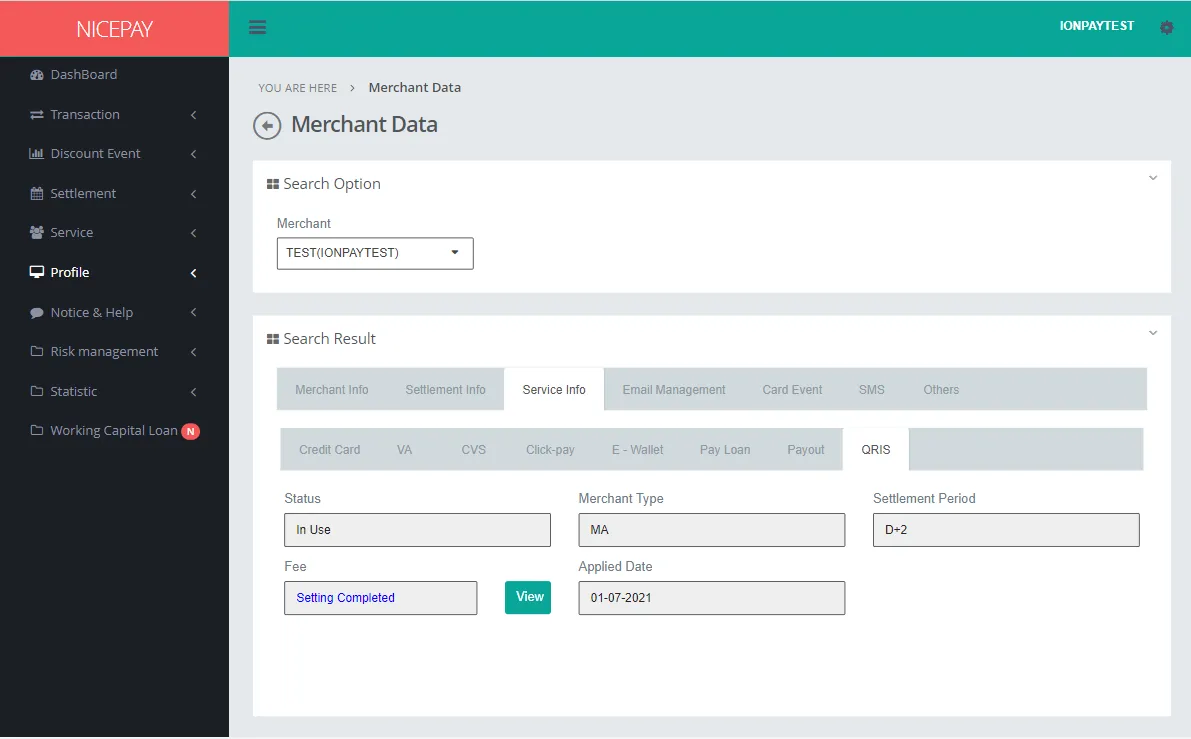
The fields in the form on this tab consist of:
Name | Description | Remark |
|---|---|---|
Status | QRIS status feature | |
Merchant Type | Merchant type | |
Settlement Period | Settlement period | |
Fee | Billing costs | The View Document button to view QRIS Fee in detail |
Applied Date | Effective start date | |
Email Management
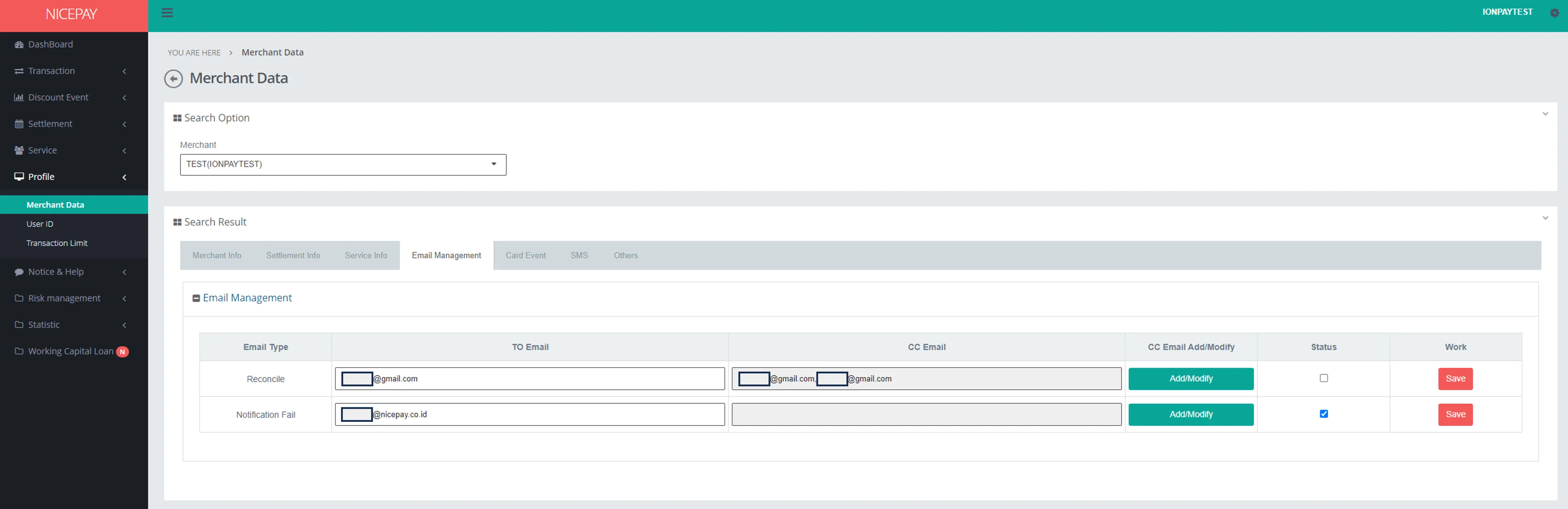
The Email Management tab is used to manage email that will be used by Merchant and saved on Back Office MMS Merchant. The fields in the form on this tab consist of:
Name | Description | Remark |
|---|---|---|
Email Type | E-mail type that will be sent | List option:
|
TO Email | Main recipient that will receive e-mail from NICEPAY | |
CC Email | Other recipient use to receive e-mail notification from NICEPAY | |
CC Email Add/Modify | To change or add recipient of NICEPAY email notification | Uneditable |
Status | Use to know active or not the email notification that will send by NICEPAY | Optional |
Work | Button to save registered/changed data | |
Card Event
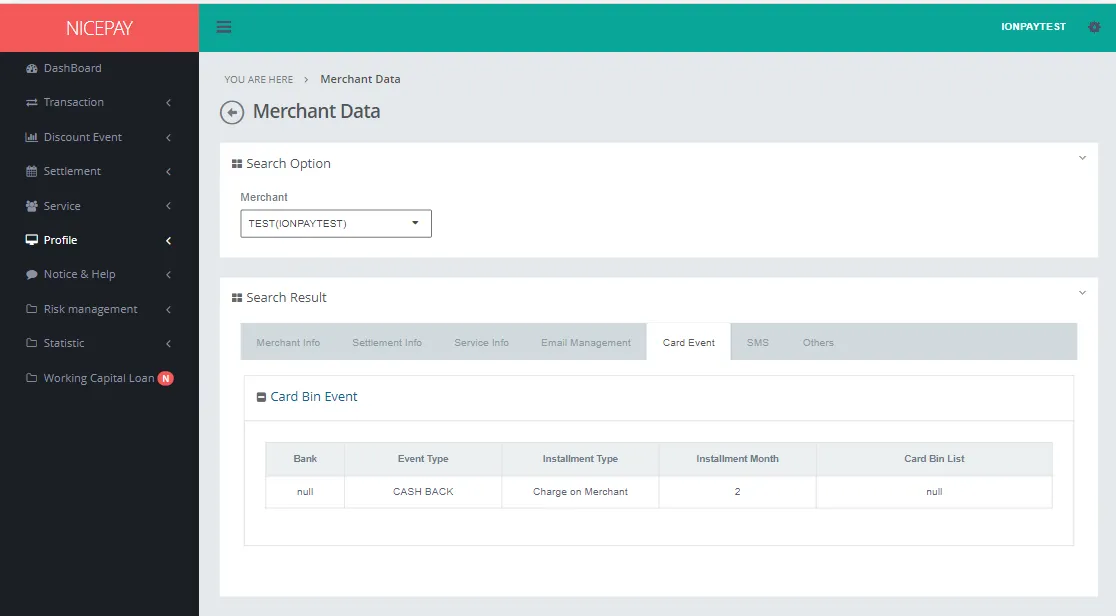
The Card Event tab contains e-mail information registered by the Merchant to receive e-mail reconcile notifications or failed notifications. The fields in the form on this tab consist of:
Name | Description | Remark |
|---|---|---|
Bank | Selected Bank | |
Event Type | E-mail type that will be sent | |
Installment Type | Installment type | |
Installment Month | Determined Installment period | |
Card Bin List | | |
SMS
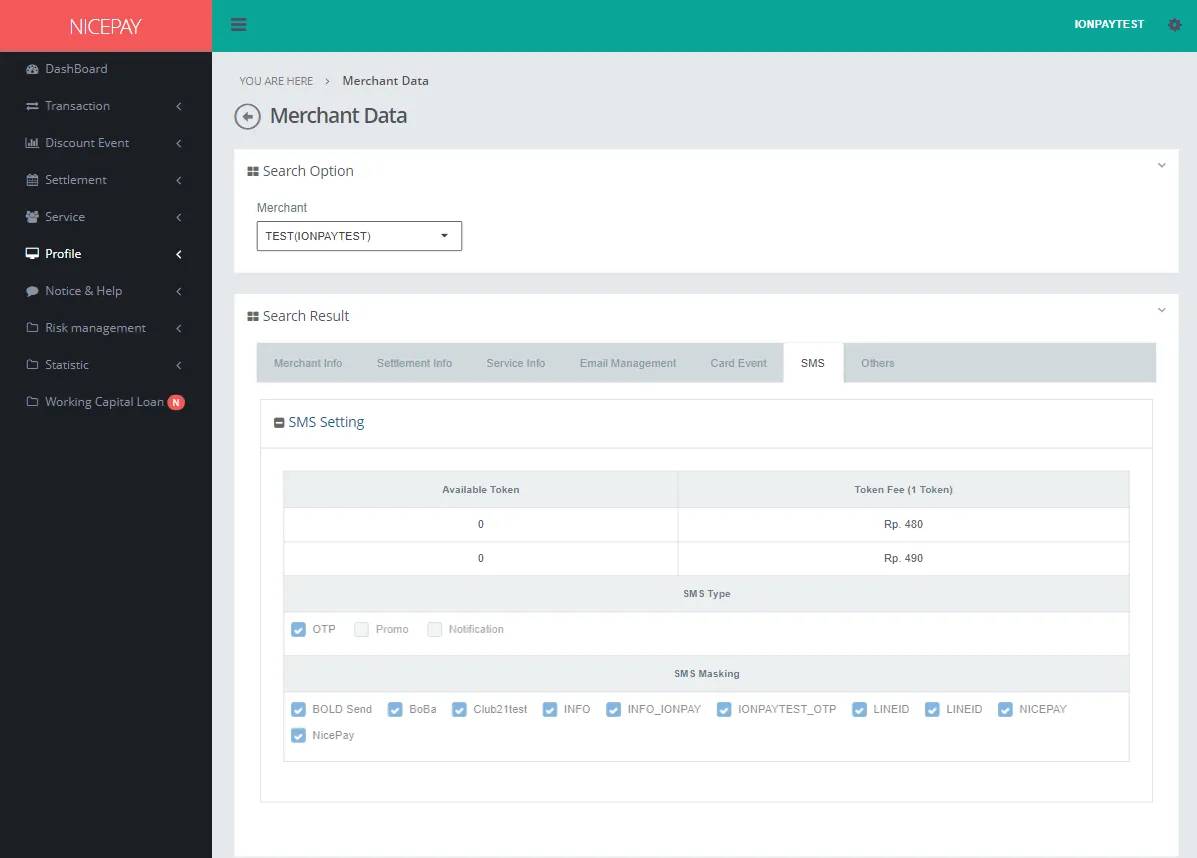
The SMS tab displays detailed information about the SMS feature, such as token, SMS type, and masking. The fields in the form on this tab consist of:
Name | Description | Remark |
|---|---|---|
Available Token | Available token | |
Token Fee (1 Token) | 1 time token fee | |
SMS Type | SMS type | |
SMS Masking | The service of SMS broadcast | |
Others
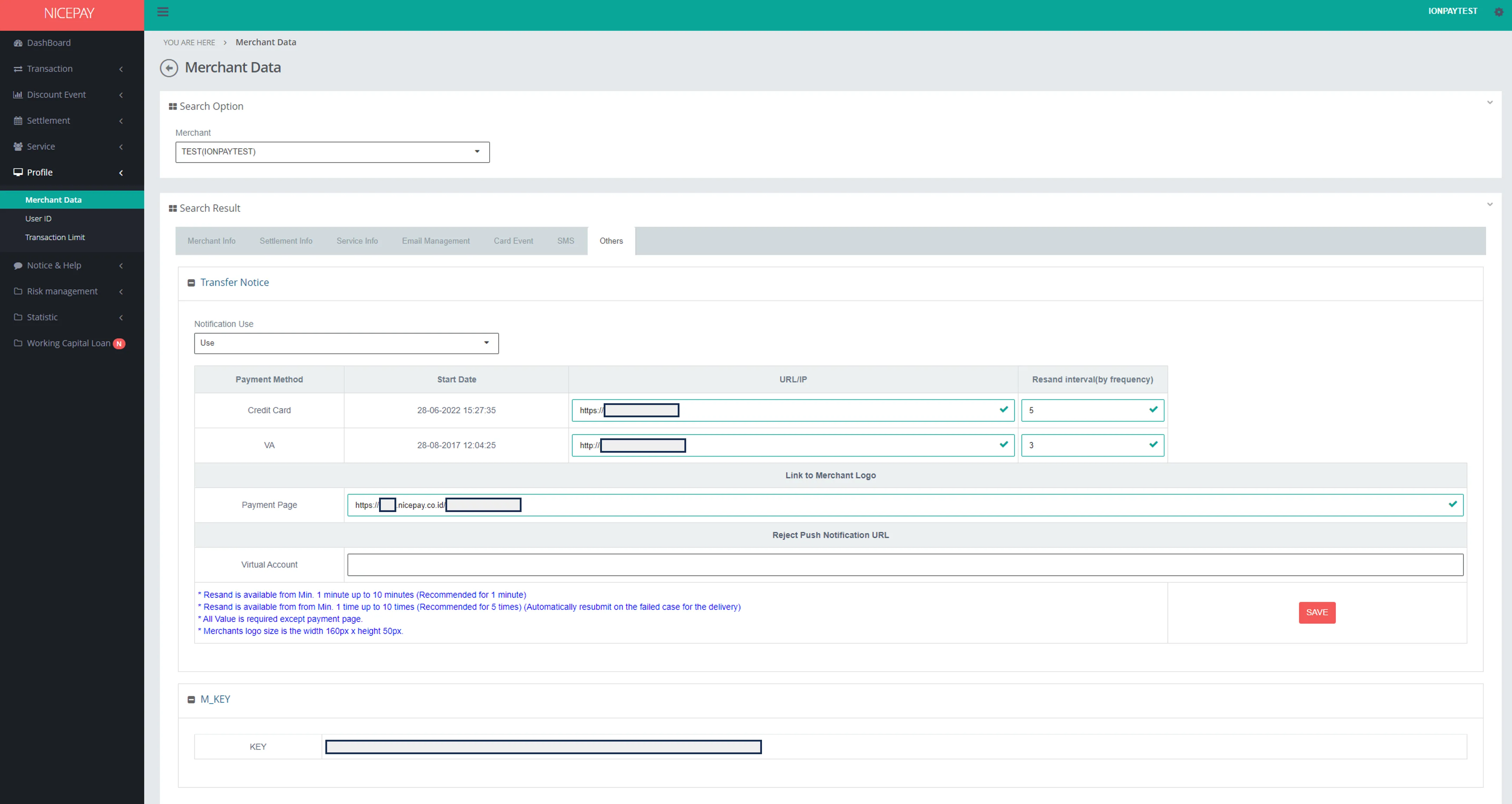
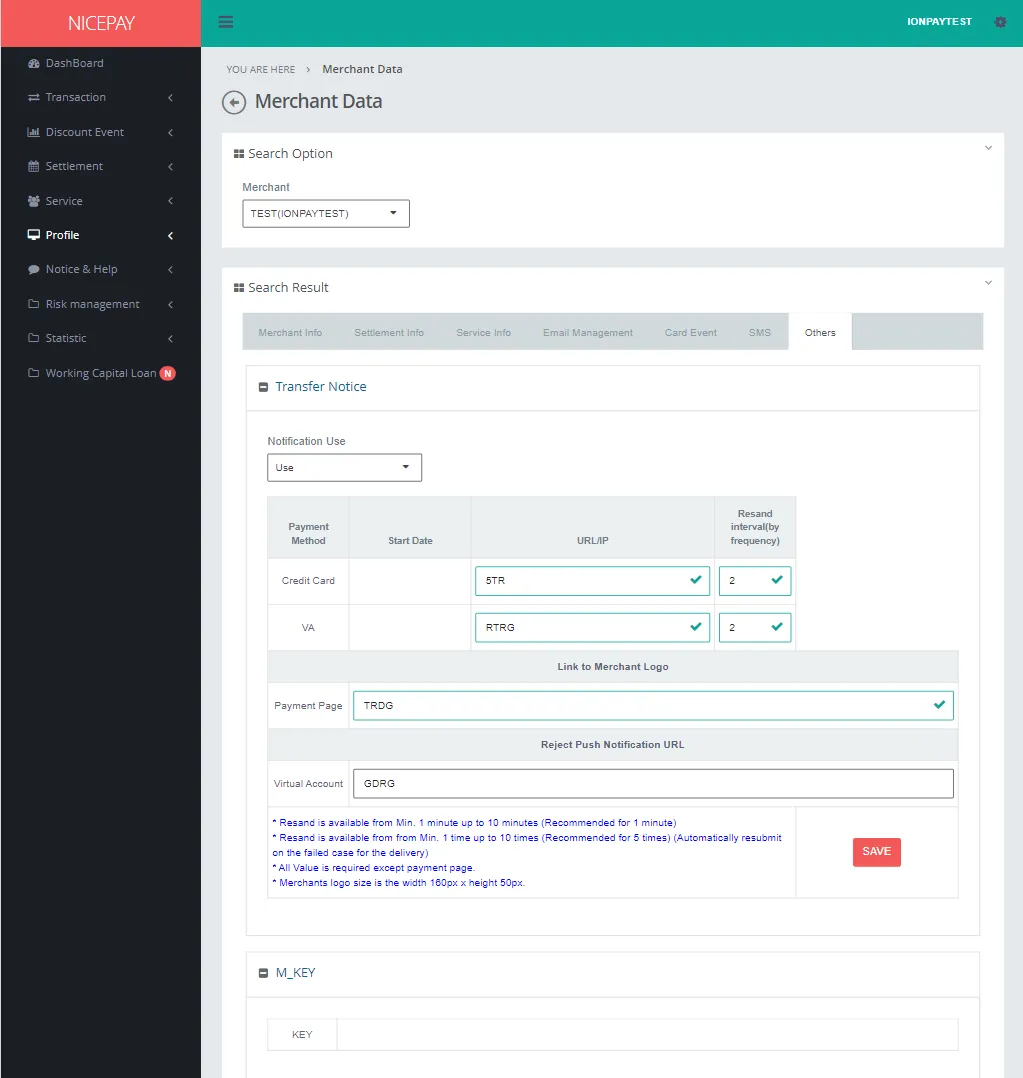
The Others tab displays additional information owns by Merchant. This section divides into 2 sections, which are Transfer Notice and M_KEY. The fields in the form on this tab consist of:
Name | Description | Remark |
|---|---|---|
Notification Use | Activate User notification | Dropdown list:
|
Payment Method | Used payment method | |
Start Date | Last update time based on notification URL | |
URL/IP | URL or Merchant IP used to receive NICEPAY payment notification | |
Resend Interval (by frequency) | Total resend notification if NICEPAY failed to send notification to Merchant URL | |
Credit Card | CC payment method | |
VA | VA payment method | |
Link to Merchant Logo | Merchant logo picture contain URL that will appear on NICEPAY payment page | Will be appear on the Payment page |
Payment Page | Payment page | |
Reject Push Notification URL | URL notification displays reject request | |
Save | Button to save the setting | |
The fields in M_KEY form on this tab consist of:
Name | Description | Remark |
|---|---|---|
KEY | Merchant key | |
Tutorial
View Merchant Data Profile Information
Here’s guidance to search Merchant Data profile information.
- Open sidebar.
- Select the Profile menu.
- Select the Merchant Data sub-menu.
- Please view on the Search Result bar and click on each menu information available on Search Result. Example: Merchant Info, Settlement Info, Service Info, etc.
Sample picture of guide to view Merchant Data profile information for Others tab:
Changing Merchant Logo
Here’s guidance to changing Merchant logo.
- Open sidebar.
- Select the Profile menu.
- Select the Merchant Data sub-menu.
- On Search Result section, select Others tab.
- Input logo link Merchant on Link to Merchant Logo section. Logo terms available on the left side of Save button.
- Click Save button.
Save Data Changes
Occur only on Email Management dan Others tab.
Here’s guidance to save data changes:
- Open sidebar.
- Select the Profile menu.
- Select the Merchant Data sub-menu.
- Changes data on Email Management or Others tab.
- Click Save button to save data.
See also
Visit the User ID page to find out how to manage User access.
Visit the Transaction Limit page to find out how to check the registered card limit data.