Statistic
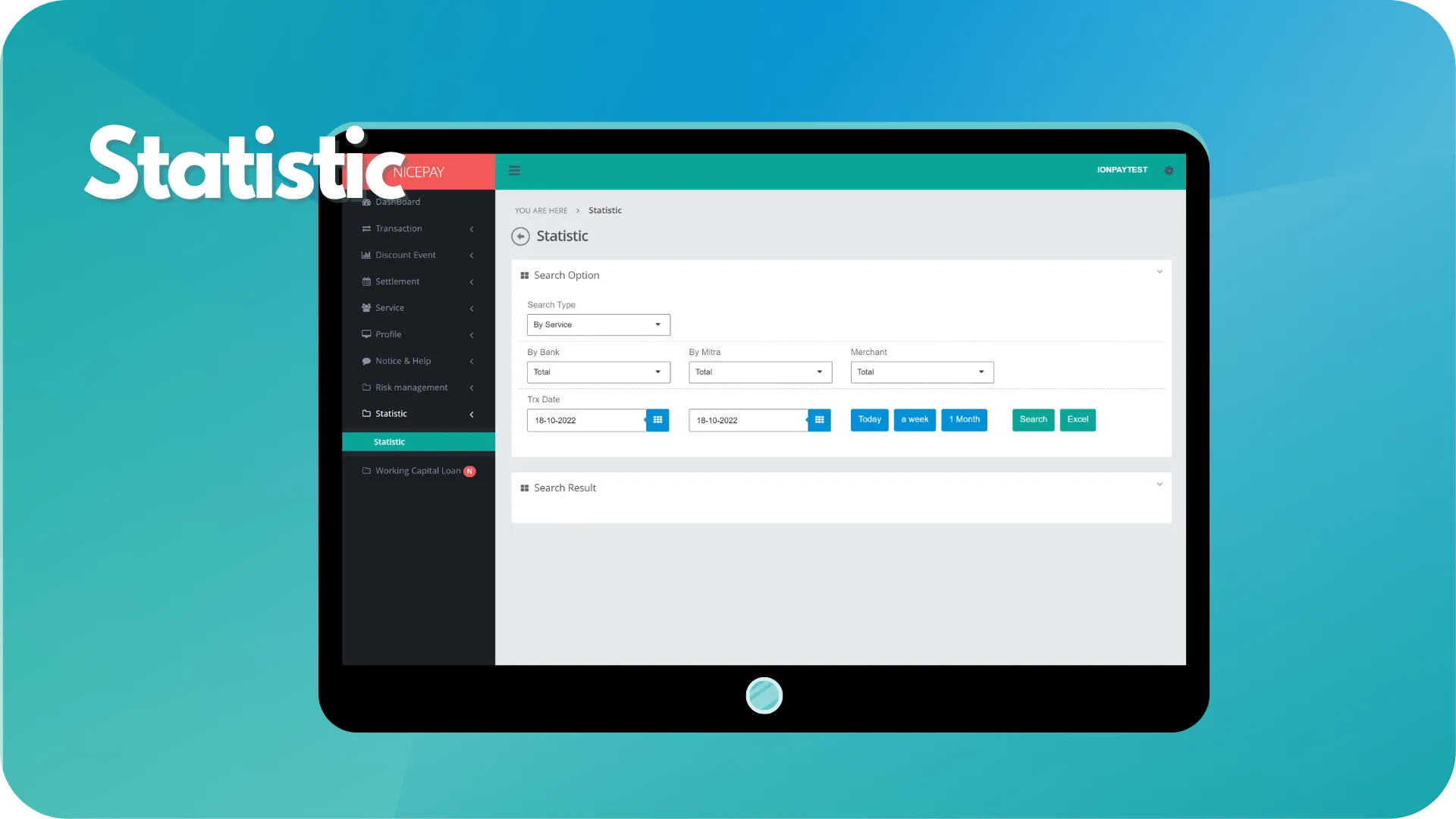
The Statistic menu assists Merchant to view data transaction reports in table format based on the selected search criteria. This sub-menu page is divided into 2 sections, Search Option and Search Result.
Search Option section is a form section used to input the search criteria of transaction data. All fields on the Search Option form are optional. Merchants can choose type search based on Service, Partner, Bank, or Merchant with a customized time range.
The second section on this sub-menu is Search Result section that displays data search results based on the inputted criteria from Search Option section . Data from this section will present after Merchant confirm data searching process by pressing the Search button. Search result depends on the selected field.
Statistic
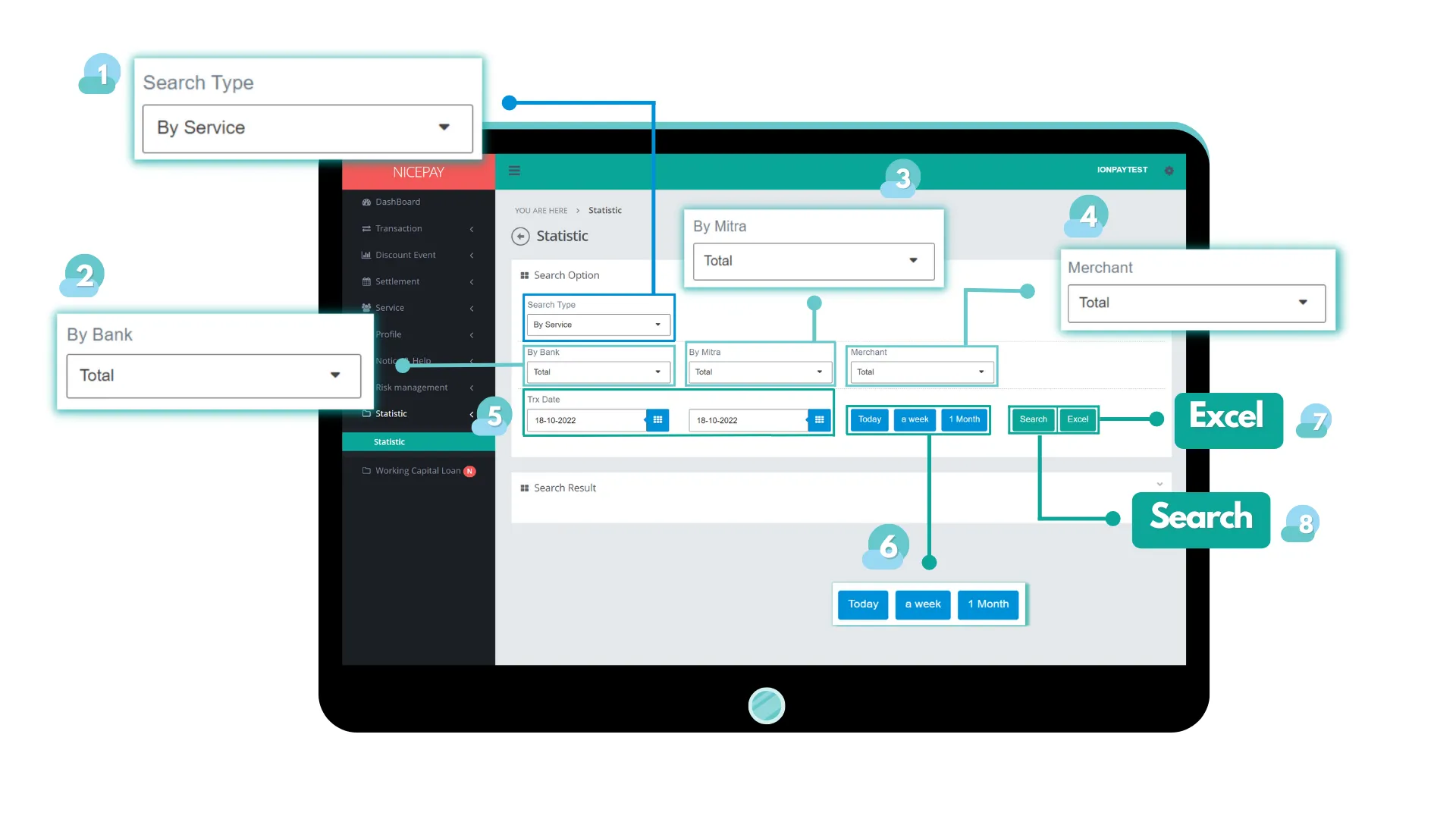
The Search Option section consists of the search form used to search all transaction data. The form consists of:
Name | Description | Remark |
|---|---|---|
Search Type | The type of data statistic report wants to be search | Default: By Service Dropdown option:
|
By Bank | Search statistic data specifically based on specific Bank | Able to choose Total Bank or specific Bank. |
By Mitra | Search statistic data specifically based on specific Mitra/Partner | Able to choose Mitra: Total or specific Mitra/Partner |
Merchant | Selected Merchant | Default: Total -> all Merchant |
Trx Date | Transaction time in date and hour format | Default: today's date and 24 hour time interval |
Trx Date (Within) | Transaction time interval Time settings can be directly determined between today, 1 week, or 1 month | Default: Today |
Excel | Button to process the keywords entered by the Merchant for the file to be downloaded | The file format will be downloaded in Excel format |
Search | Button to process the keywords entered by the Merchant to search for data | Data search results will be displayed in the Search Result section |
Tutorial
Search Transaction Data
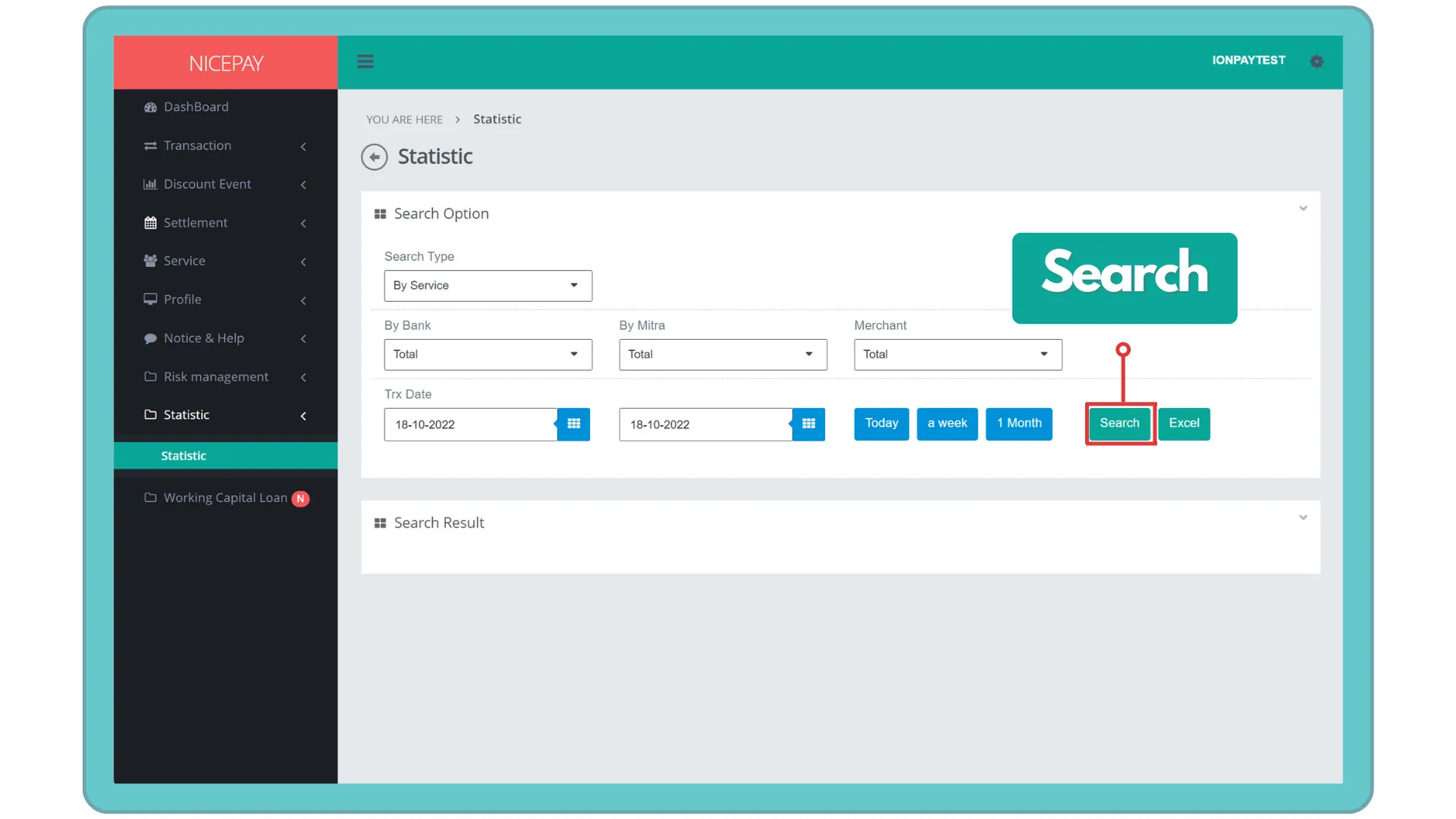
Here’s guidance for searching transaction data.
- Open sidebar.
- Select the Statistic menu.
- Select the Statistic sub-menu.
- Input the search term in the Search Option section.
- Press the Search button to perform the data searching process.
- The searched data will appear in the Search Result section.
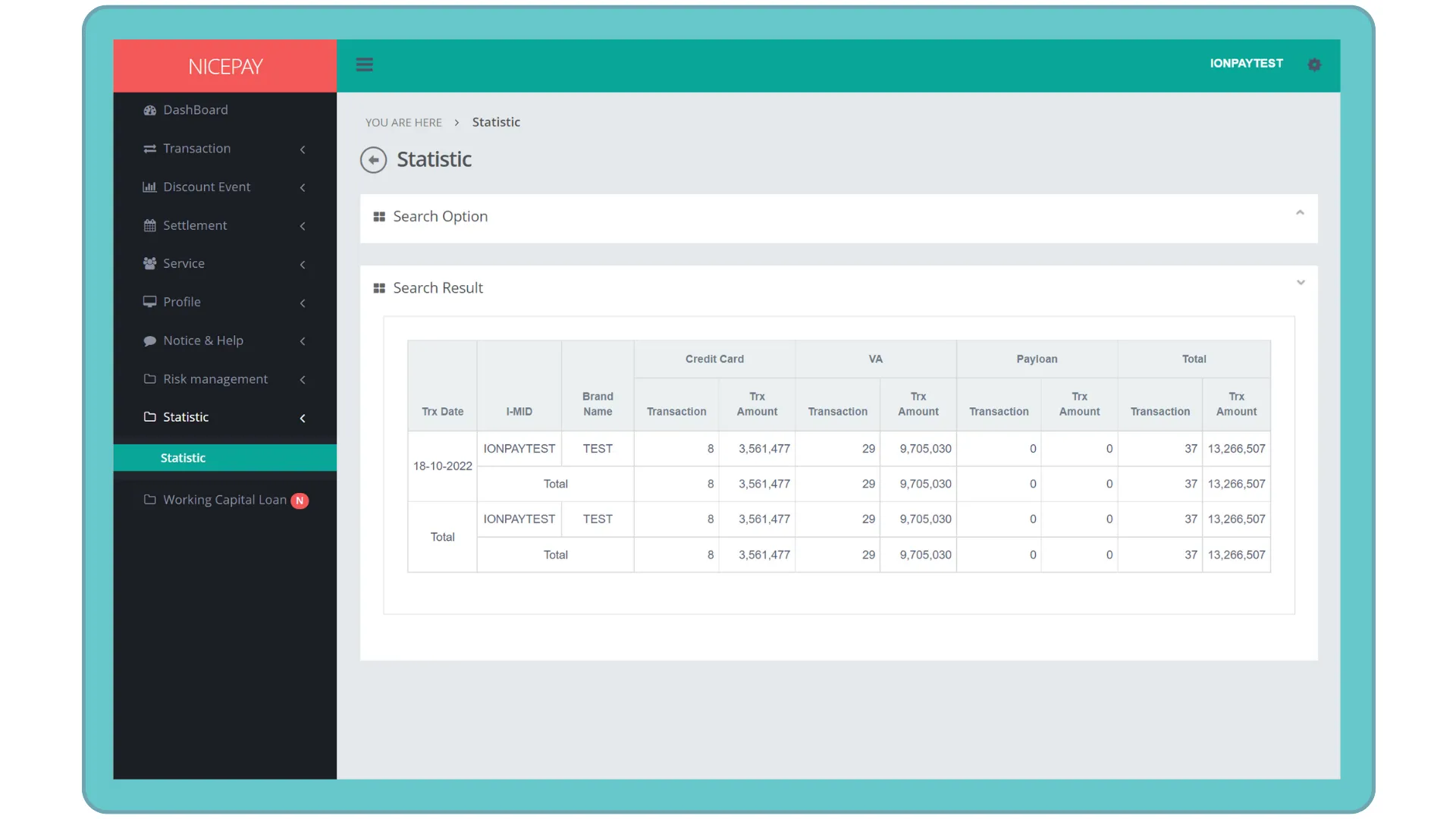
Download Transaction Data
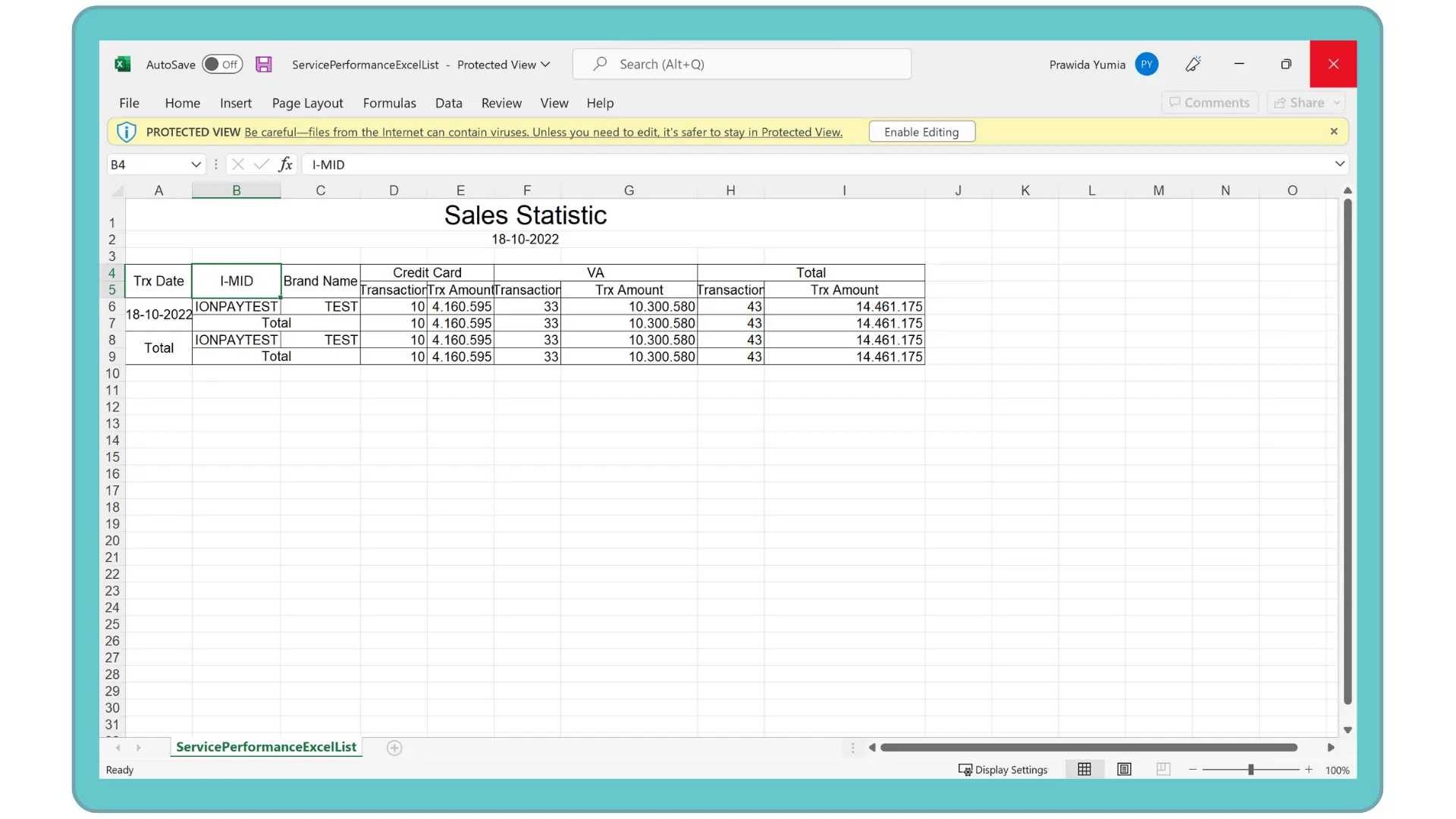
Here’s guidance for downloading transaction data.
- Open sidebar.
- Select the Statistic menu.
- Select the Statistic sub-menu.
- Input the search term in the Search Option section.
- Press the Excel button to download data in Excel format.
- The searched data will download automatically.
See also
Visit the Merchant Back Office page to learn about the platform prepared by NICEPAY.
Visit the Transaction page to learn the particular menu to manage and monitor transaction.
Visit the Discount Event page to learn the particular menu for manage event.
Visit the Settlement page to learn the particular menu for monitoring Settlement process.