User ID
User ID
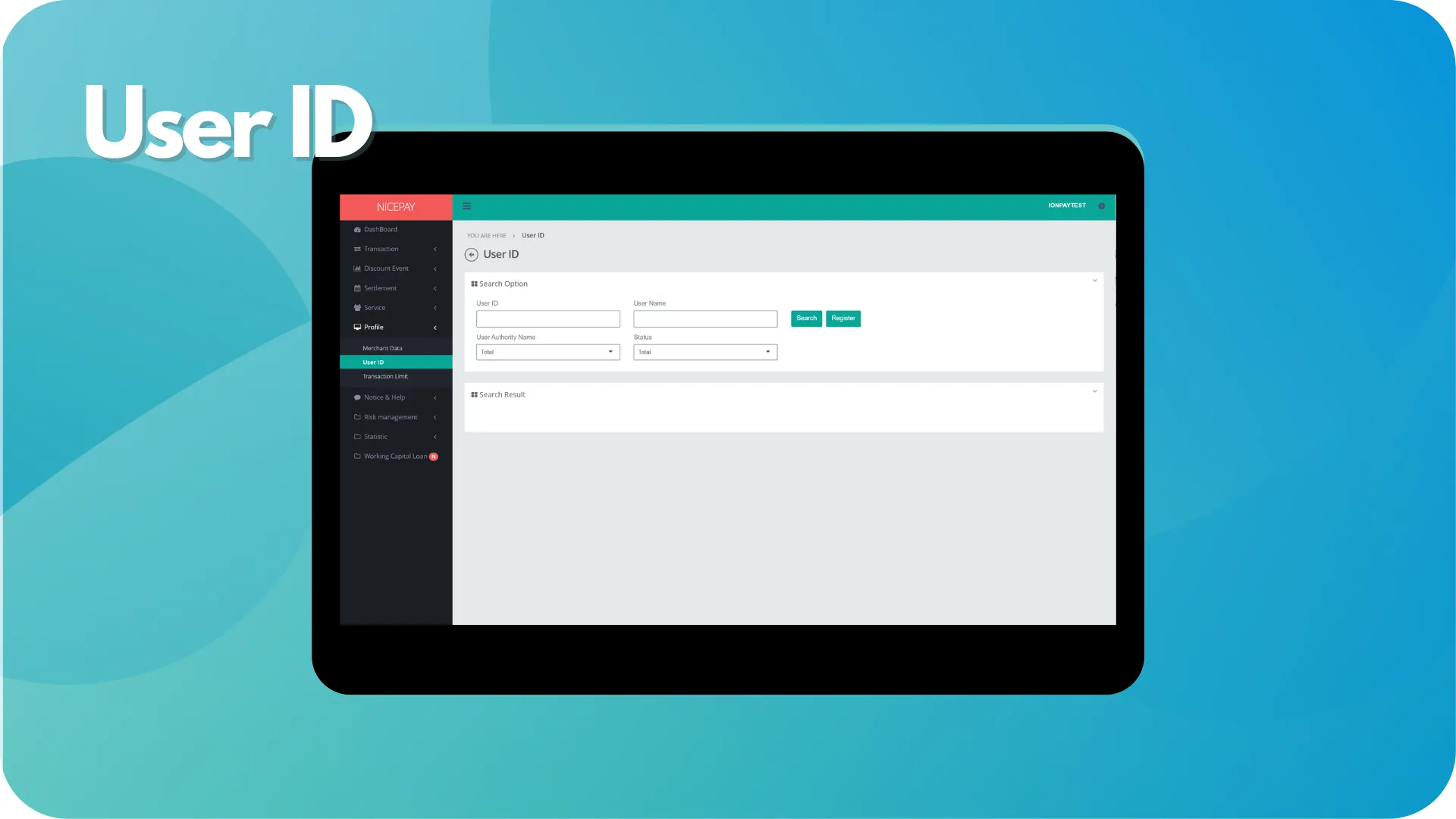
The User ID sub-menu used to manage Back Office User access likes adding new Users, re-manage passwords, and changing User settings.
This page is divided into 3 sections; Search Option section, Search Result section, and Regist section. The Search Option section is a form section used to input the search criteria. The Search Result section is a section to display data search results based on the inputted criteria. The Regist section is a section to proceed the data registration procedure into whitelist.
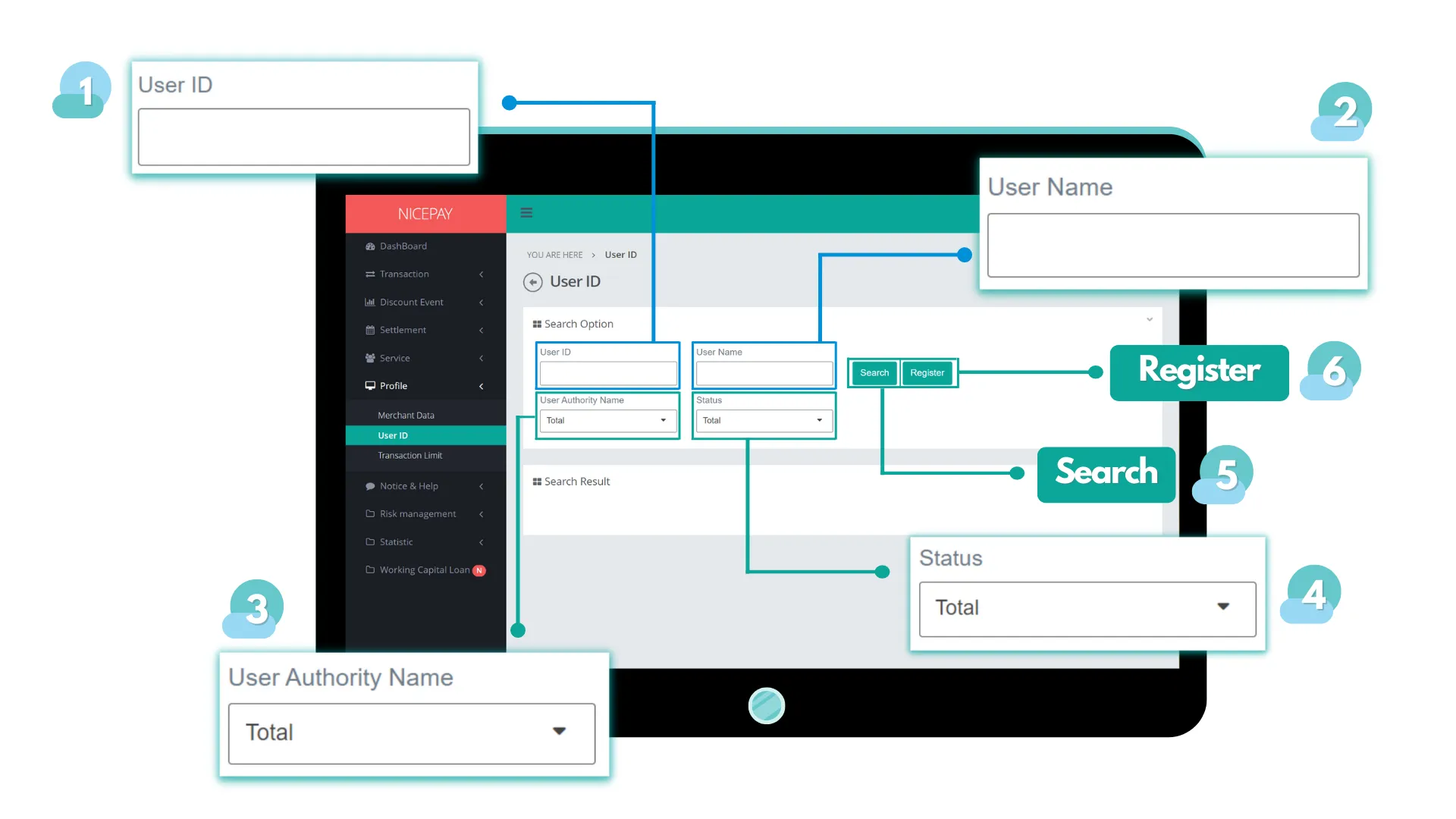
The form in this section consists of:
Name | Description | Remark |
|---|---|---|
User ID | Merchant user ID | |
User Name | Owner User name | |
User Authority Name | User authority type | Default: Total -> all data Dropdown list:
|
Status | User active status | Default: Total -> all data Dropdown list:
|
Search | Button to display searching result | Data search results will be displayed in the Search Result section |
Registrasi | Button to register new User | |
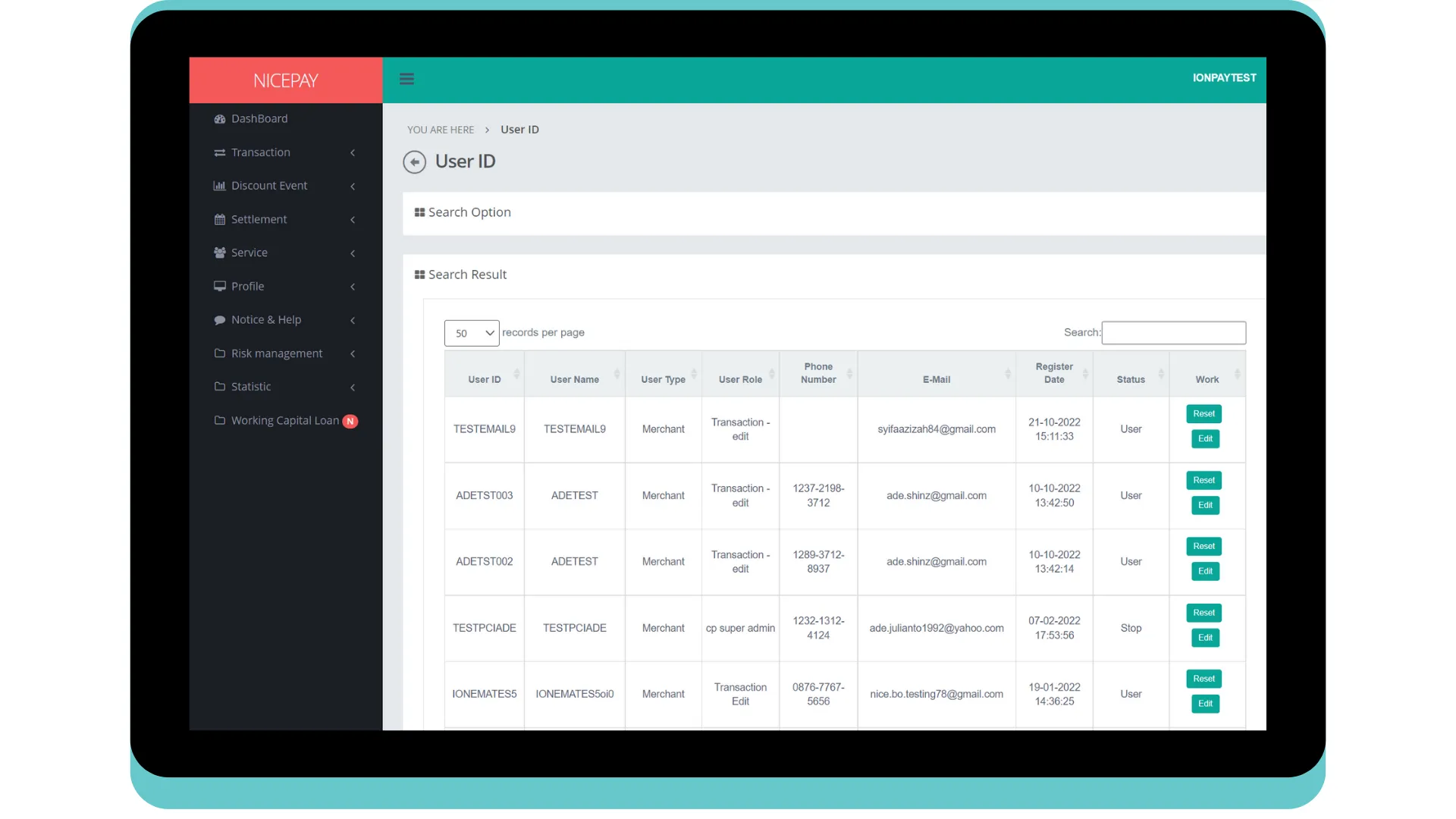
The form in this section consists of:
Name | Description | Remark |
|---|---|---|
User ID | Merchant user ID | |
User Name | Owner user name | |
User Type | User type | |
User Role | User role | |
Phone Number | User phone number | |
User E-mail | | |
Register Date | User access registered date | |
Status | User active status | |
Work | Column contains button to manage User data | Reset -> to reset User data Edit -> to change User data |
Register
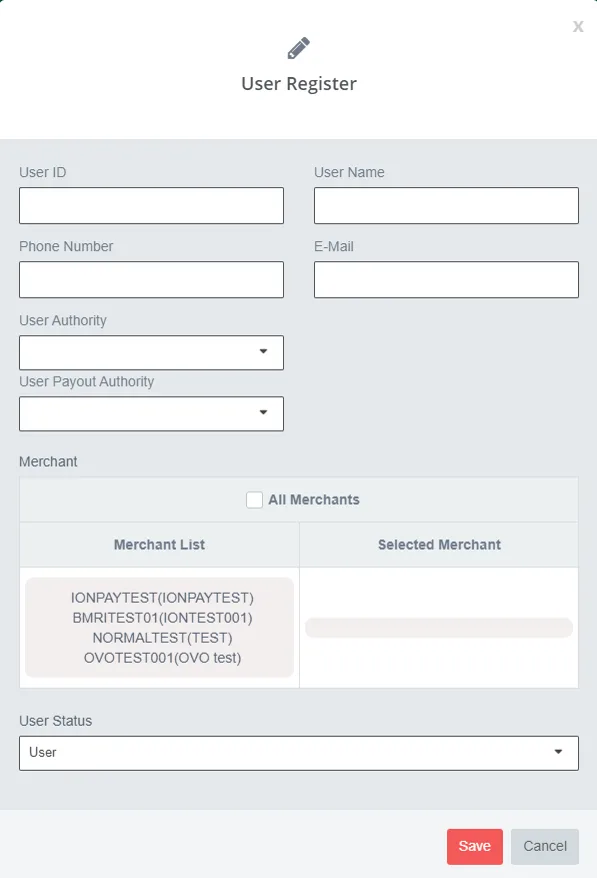
The User Register pop-up section will appear after pressing the Register button in the Search Option section. This section used to register new Users who will access the Back Office portal. The form in this section consists of:
Name | Description | Remark |
|---|---|---|
User ID | Merchant user ID | |
User Name | Owner user name | |
Phone Number | User phone number | |
User E-mail | | |
User Authority | User authority | |
User Payout Authority | User Payout authority | |
Merchant - All Merchant | To give User access to all registered Merchant | |
Merchant - Merchant List | List of Merchant | |
Merchant - Selected Merchant | List of Merchant that could be access from User | |
User Status | User active status | |
Save | Save User data | |
Cancel | Abort adding data process | |
Tutorial
Search User ID Data
Here’s guidance to search User ID data.
- Open sidebar.
- Select the Profile menu.
- Select the User ID sub-menu.
- Input the search term in the Search Option section.
- Press the Search button to performs the data searching process.
- The searched data will appear in the Search Result section.
Register User ID
Here’s guidance to register a user ID.
- Open sidebar.
- Select the Profile menu.
- Select the User ID sub-menu.
- Select the whitelist sort method and press the Register button in the Search Option section bar.
- The Regist bar will automatically appear, don’t forget to equate the chosen method from Search Option bar and Blacklist By bar on Regist bar.
- Input data on information form including the Blacklist period, {} press the Register button.
- Data will register automatically and appear in the Search Result section.
Reset Password
This tutorial only available for super admin role.
Here’s guidance to search User ID data.
- Open sidebar.
- Select the Profile menu.
- Select the User ID sub-menu.
- Input the search term in the Search Option section.
- Press the Search button to performs the data searching process.
- The searched data will appear in the Search Result section.
- Press the Okay button on a user row that will through the process.
- Confirmation pop-up will appear on the screen.
- Press the Okay button to proceed the reset setting process. Otherwise, press Cancel button to abort the process.
- Open related email to follow the next instruction.
See also
Visit the Merchant Data page to find out how to view information related to Merchant data.
Visit the Transaction Limit page to find out how to check the registered card limit data.