Fail Transaction
Fail Transaction
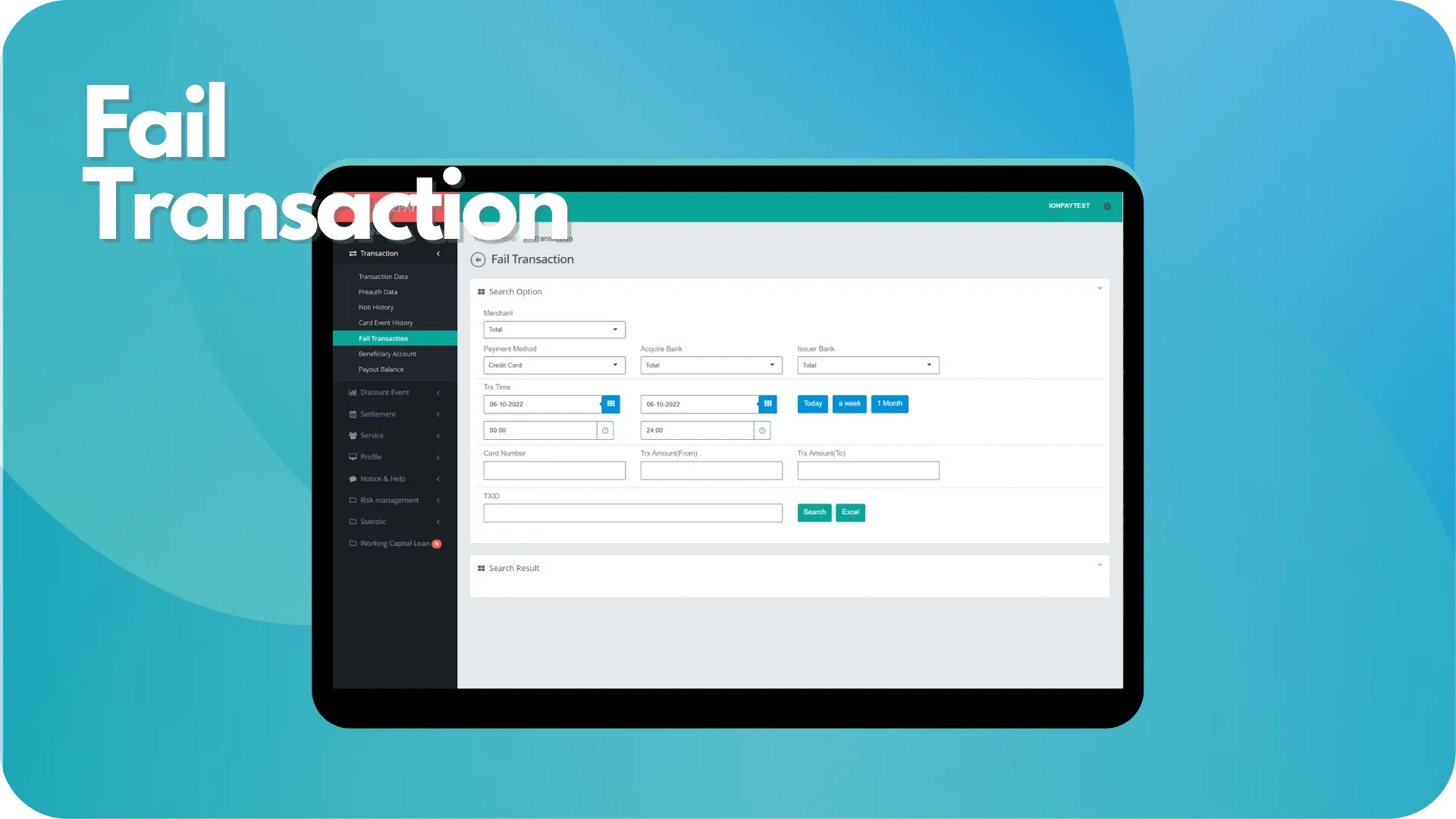
This sub-menu assists Merchant to check data from all transaction process. This sub-menu page divides into 2 sections; Search Option and Search Result.
The Search Option section is a form section used to input the search criteria of transaction data. All fields on the form are optional. However, the search results are dependent on the chosen payment method. There are 7 options for payment methods; which are Credit Card, Direct Debit, E-Wallet, Paylater, Payout, QRIS and GPN. Merchants can perform data searches to appear on the Search Result section or download data in Excel format.
The Search Result section is a section that displays data search results based on the inputted criteria from the Search Option section. Data from this section will appear after the Merchant confirms the data searching process by pressing the Search button. The search results are displayed differently based on the chosen payment method from the Search Option section.
Credit Card
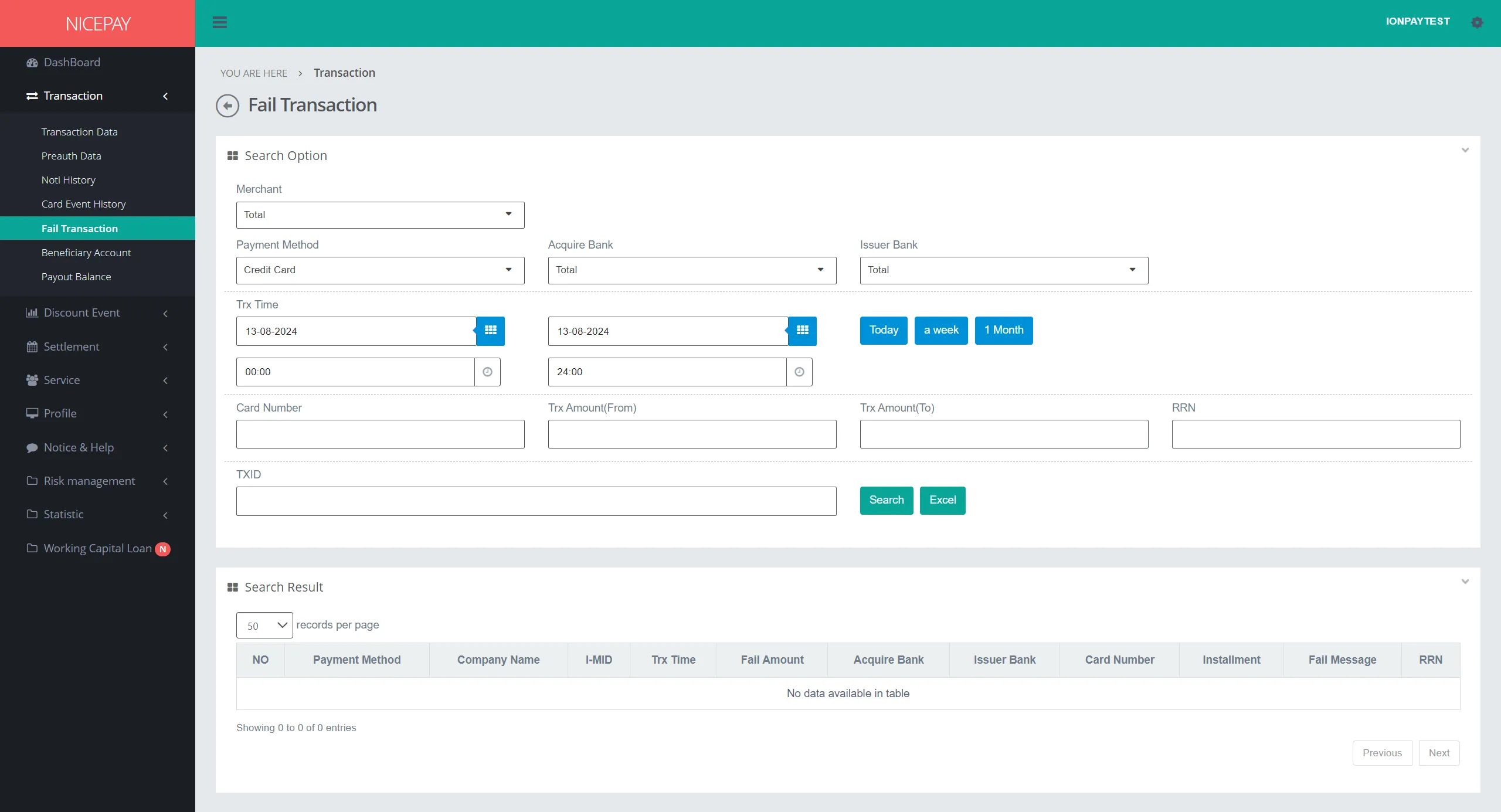
The Search Option section in the payment method: Credit Card contains a specific search form which specifically used to search for Credit Card transaction data. The form consists of:
Name | Description | Remark |
|---|---|---|
Merchant | List of registered Merchant in NICEPAY system | Default: Total -> all Merchants |
Payment Method | List of payment method that available on NICEPAY system | Default: Credit Card Dropdown option:
|
Acquire Bank | List of Acquire Bank name | Default: Total -> all Banks Dropdown option:
|
Issuer Bank | List of Issuer Bank name | Default: Total -> all Banks Dropdown option:
|
Trx Time | Transaction time in date and hour format | Default: today's date and 24 hour time interval |
Trx Time (Within) | Transaction time interval Time settings can be directly determined between today, 1 week, or 1 month | Default: Today |
Card Number | Customer card number | Optional |
Trx Amount | Transaction balance | Optional |
RRN | | Optional |
TXID | ID transaction | Optional |
Search | Button to process the keywords entered by the Merchant to search for data | Data search results will be displayed on Search Result section |
Excel | Button to process the keywords entered by the Merchant for the file to be downloaded | The file format will be downloaded in Excel format |
The Search Result section displays the detail of each Merchant data transaction. Merchant can view detailed information related to the Merchant through the hyperlink. On this table part, there are additional column other than data origin from the Search Option.
Name | Description | Remark |
|---|---|---|
Fail Amount | Failed amount nominal on the transaction | |
Installment | On-going installment time on the transaction | |
Fail Message | Message reason the transaction failed | |
Direct Debit
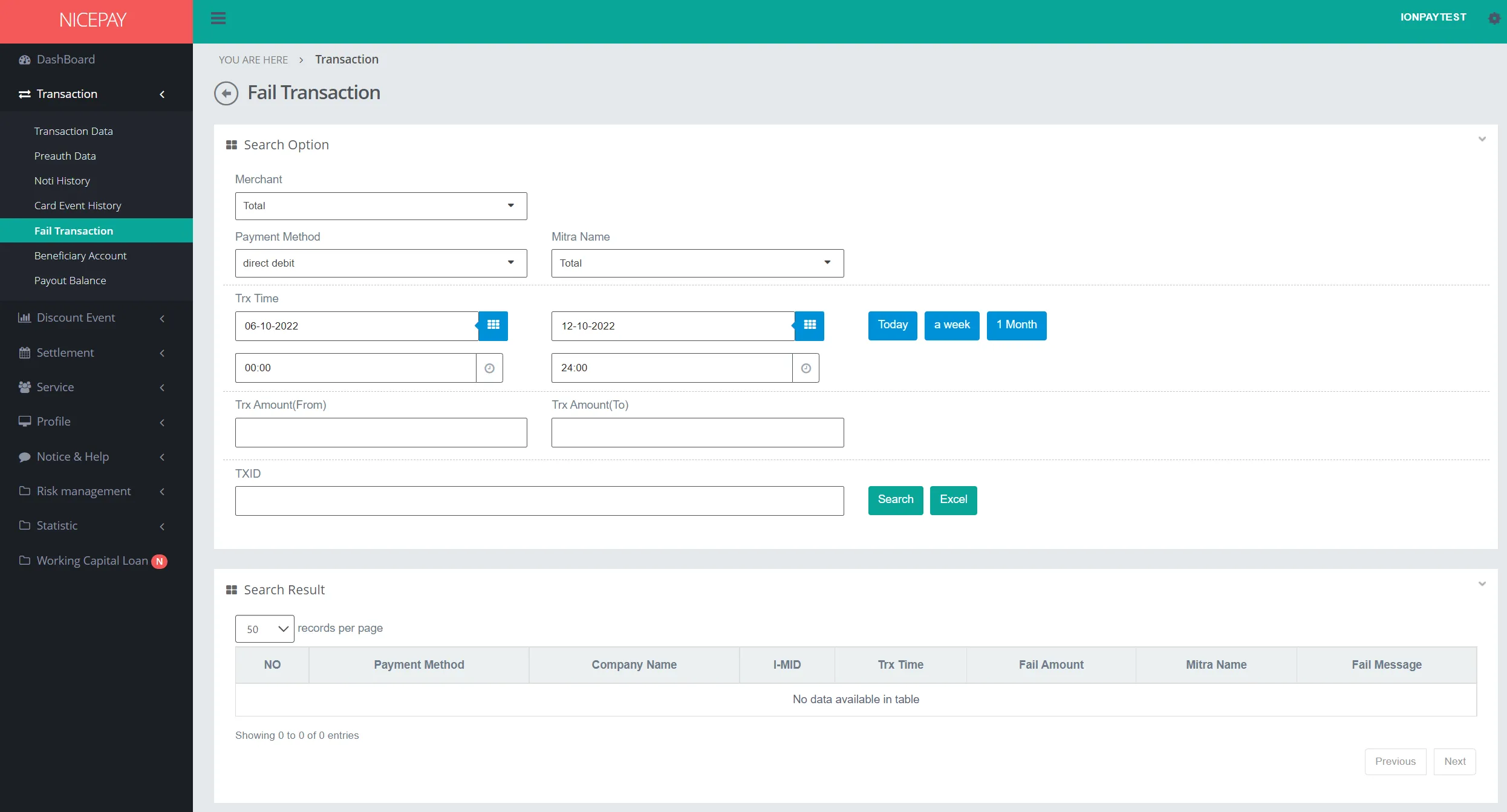
The Search Option section in the payment method: Direct Debit contains a specific search form specifically used to search Direct Debit transaction data. The form consists of:
Name | Description | Remark |
|---|---|---|
Merchant | List of registered Merchant in NICEPAY system | Default: Total -> all Merchants |
Payment Method | List of payment method that available on NICEPAY system | Default: Direct Debit Dropdown option:
|
Mitra Name | Partner's name that performs the transaction | Optional |
Trx Time | Transaction time in date and hour format Time settings can be directly determined between today, 1 week, or 1 month | Default: today's date and 24 hour time interval |
Trx Amount(From) | Minimum (From) transaction balance limits | Optional |
Trx Amount(To) | Maximum (To) transaction balance limits | Optional |
TXID | ID transaction | Optional |
Search | Button to process the keywords entered by the Merchant to search for data | Data search results will be displayed in the Search Result section |
Excel | Button to process the keywords entered by the Merchant for the file to be downloaded | The file format will be downloaded in Excel format |
The Search Result section displays the detail of each Merchant data transaction. Merchant can view detailed information related to the Merchant through the hyperlink. On this table part, there are additional column other than data origin from the Search Option.
Name | Description | Remark |
|---|---|---|
Fail Amount | Failed amount nominal on the transaction | |
Fail Message | Message reason the transaction failed | |
E-Wallet
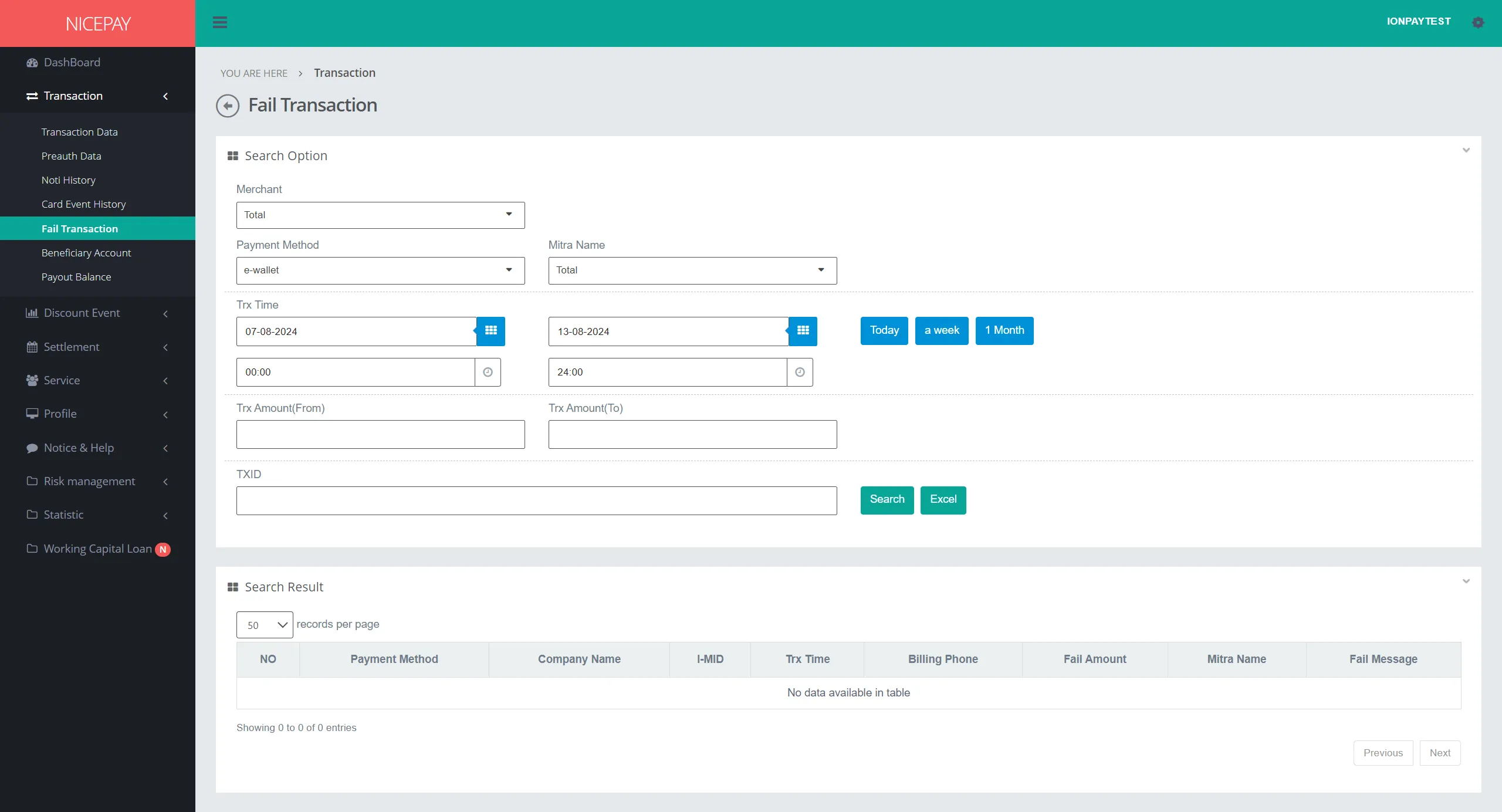
The Search Option section in the payment method: E-Wallet contains of the specific search form specifically used to search E-Wallet transaction data. The form consists of:
Name | Description | Remark |
|---|---|---|
Merchant | List of registered Merchant in NICEPAY system | Default: Total -> all Merchants |
Payment Method | List of payment method that available on NICEPAY system | Default: E-Wallet Dropdown option:
|
Mitra Name | Partner name that performs transaction | Optional |
Trx Time | Transaction time in date and hour format Time settings can be directly determined between today, 1 week, or 1 month | Default: today's date and 24 hour time interval |
Trx Amount(From) | Minimum (From) transaction balance limits | Optional |
Trx Amount(To) | Maximum (To) transaction balance limits | Optional |
TXID | Transaction ID | Optional |
Search | Button to process the keywords entered by the Merchant to search for data | Data search results will be displayed in the Search Result section |
Excel | Button to process the keywords entered by the Merchant for the file to be downloaded | The file format will be downloaded in Excel format |
The Search Result section displays the detail of each Merchant data transaction. Merchant can view detailed information related to the Merchant through the hyperlink. On this table part, there are additional column other than data origin from the Search Option.
Name | Description | Remark |
|---|---|---|
Billing Phone | Telephone number to proceed the bill | |
Fail Amount | Failed amount nominal on the transaction | |
Fail Message | Message reason the transaction failed | |
Paylater
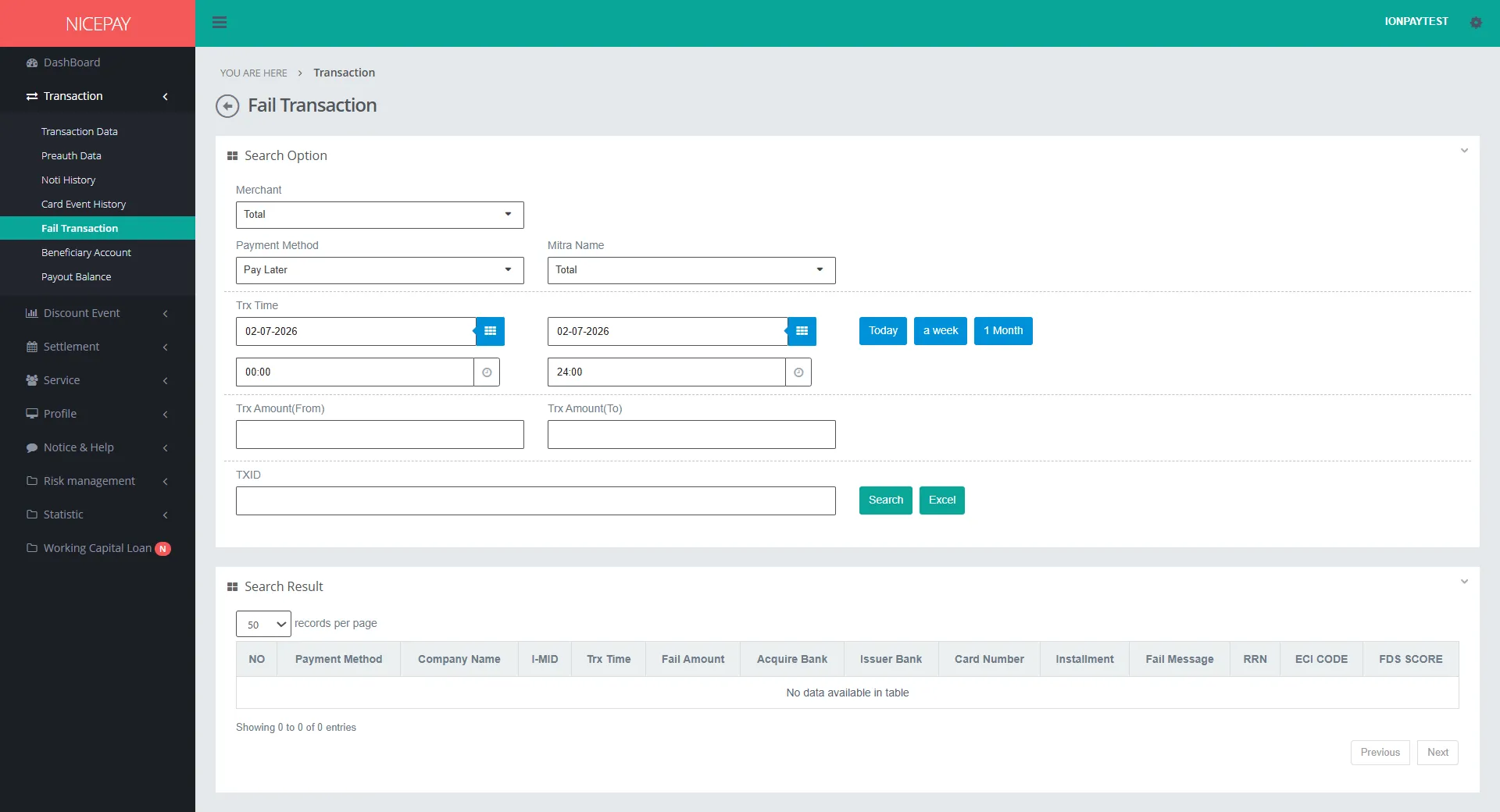
The Search Option section on payment method: Paylater contains a specific search form which specifically use to search for Paylater transaction data. The form consists of:
Name | Description | Remark |
|---|---|---|
Merchant | List of registered Merchant in NICEPAY system | Default: Total -> all Merchant |
Payment Method | List of payment method that available on NICEPAY system | Default: Paylater Dropdown option
|
Mitra Name | Partner name that performs transaction | Optional |
Trx Time | Transaction time in date and hour format Time settings can be directly determined between today, 1 week, or 1 month | Default: today's date and 24 hour time interval |
Trx Amount(From) | Minimum (From) transaction balance limits | Optional |
Trx Amount(To) | Maximum (To) transaction balance limits | Optional |
TXID | ID transaction | Optional |
Search | Button to process the keywords entered by the Merchant to search for data | Data search results will be displayed in the Search Result section |
Excel | Button to process the keywords entered by the Merchant for the file to be downloaded | The file format will be downloaded in excel format |
The Search Result section displays the detail of each Merchant data transaction. Merchant can view detailed information related to the Merchant through the hyperlink. On this table part, there are additional column other than data origin from the Search Option.
Name | Description | Remark |
|---|---|---|
Fail Amount | Failed amount nominal on the transaction | |
Fail Message | Message reason the transaction failed | |
Payout
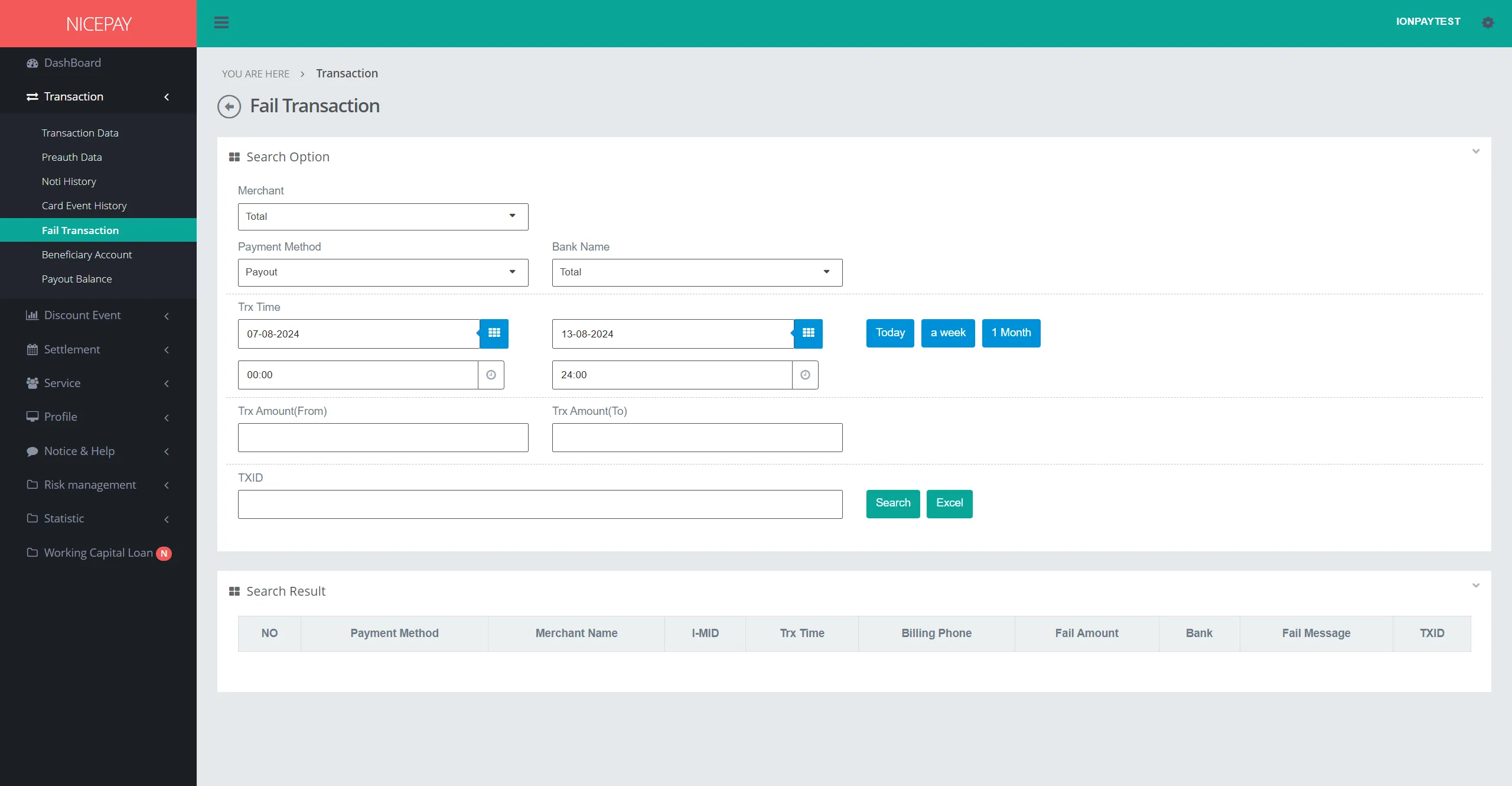
The Search Option section in the payment method: Payout consists of the specific search form which specifically used to search Payout transaction data. The form consists of:
Name | Description | Remark |
|---|---|---|
Merchant | List of registered Merchant in NICEPAY system | Default: Total -> all Merchants |
Payment Method | List of payment method that available on NICEPAY system | Default: Payout Isi dropdown:
|
Bank Name | List of Bank name | Default: Total -> all Banks |
Trx Time | Transaction time in date and hour format Time settings can be directly determined between today, 1 week, or 1 month | Default: today's date and 24 hour time interval |
Trx Amount(From) | Minimum (From) transaction balance limits | Optional |
Trx Amount(To) | Maximum (To) transaction balance limits | Optional |
TXID | ID transaction | Optional |
Search | Button to process the keywords entered by the Merchant to search for data | Data search results will be displayed in the Search Result section |
Excel | Button to process the keywords entered by the Merchant for the file to be downloaded | The file format will be downloaded in Excel format |
The Search Result section displays the detail of each Merchant data transaction. Merchant can view detailed information related to the Merchant through the hyperlink. On this table part, there are additional column other than data origin from the Search Option.
Name | Description | Remark |
|---|---|---|
Billing Phone | Telephone number to proceed the bill | |
Fail Amount | Failed amount nominal on the transaction | |
Fail Message | Message reason the transaction failed | |
QRIS
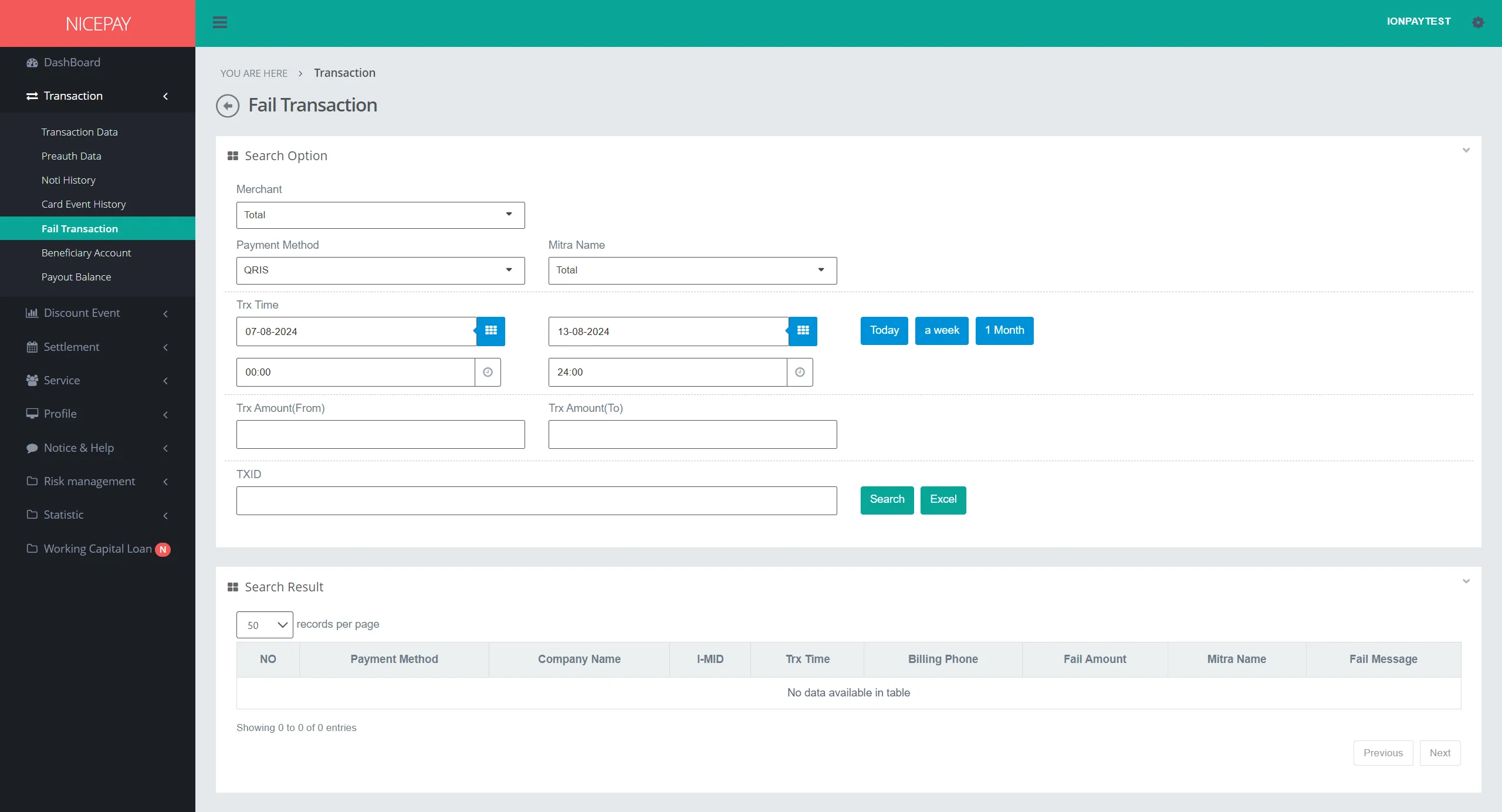
The Search Option section in the payment method: QRIS contains a specific search form specifically used to search QRIS transaction data. The form consists of:
Name | Description | Remark |
|---|---|---|
Merchant | List of registered Merchant in NICEPAY system | Default: Total -> all Merchants |
Payment Method | List of payment method that available on NICEPAY system | Default: QRIS Isi dropdown:
|
Mitra Name | Partner's name that performs transaction | Optional |
Trx Time | Transaction time in date and hour format Time settings can be directly determined between today, 1 week, or 1 month | Default: today's date and 24 hour time interval |
Trx Amount(From) | Minimum (From) transaction balance limits | Optional |
Trx Amount(To) | Maximum (To) transaction balance limits | Optional |
TXID | Transaction ID | Optional |
Search | Button to process the keywords entered by the Merchant to search for data | Data search results will be displayed in the Search Result section |
Excel | Button to process the keywords entered by the Merchant for the file to be downloaded | The file format will be downloaded in Excel format |
The Search Result section displays the detail of each Merchant data transaction. Merchant can view detailed information related to the Merchant through the hyperlink. On this table part, there are additional column other than data origin from the Search Option.
Name | Description | Remark |
|---|---|---|
Billing Phone | Telephone number to proceed the bill | |
Fail Amount | Failed amount nominal on the transaction | |
Fail Message | Message reason the transaction failed | |
GPN
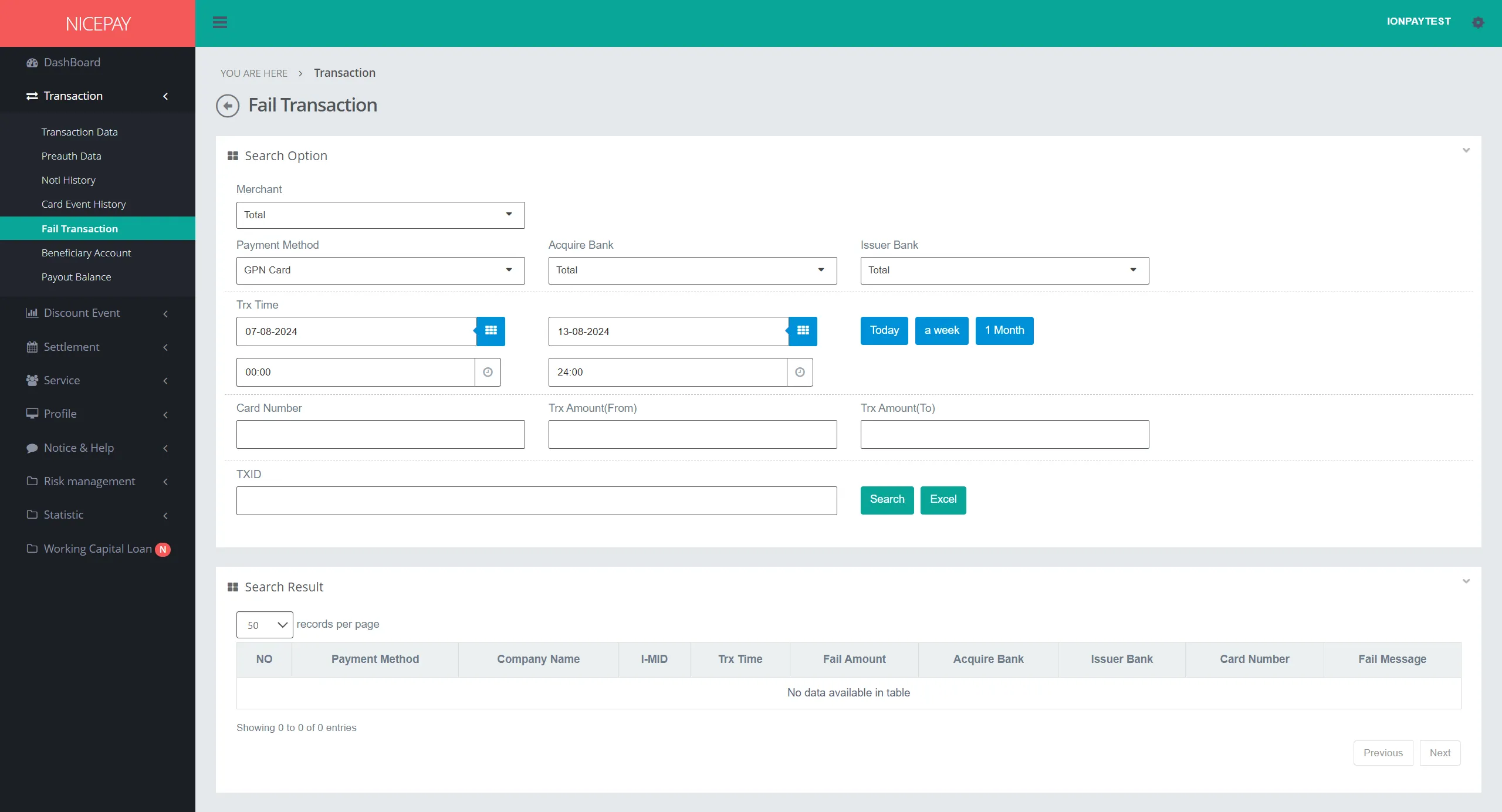
The Search Option section in the payment method: GPN contains a specific search form specifically used to search GPN transaction data. The form consists of:
Name | Description | Remark |
|---|---|---|
Merchant | List of registered Merchant in NICEPAY system | Default: Total -> all Merchants |
Payment Method | List of payment method that available on NICEPAY system | Default: GPN Dropdown option:
|
Acquire Bank | List of Acquire Bank name | Default: Total -> all Banks |
Issuer Bank | List of Issuer Bank name | Default: Total -> all Banks |
Trx Time | Transaction time in date and hour format Time settings can be directly determined between today, 1 week, or 1 month | Default: today's date and 24 hour time interval |
Card Number | Customer card number | Optional |
Trx Amount(From) | Minimum (From) transaction balance limits | Optional |
Trx Amount(To) | Maximum (To) transaction balance limits | Optional |
TXID | Transaction ID | Optional |
Search | Button to process the keywords entered by the Merchant to search for data | Data search results will be displayed the Search Result section |
Excel | Button to process the keywords entered by the Merchant for the file to be downloaded | The file format will be downloaded in Excel format |
The Search Result section displays the detail of each Merchant data transaction. Merchant can view detailed information related to the Merchant through the hyperlink. On this table part, there are additional column other than data origin from the Search Option.
Name | Description | Remark |
|---|---|---|
Fail Amount | Failed amount nominal on the transaction | |
Fail Message | Message reason the transaction failed | |
Tutorial
Search Transaction Data
Here’s guidance for searching transaction data.
- Open sidebar.
- Select the Transaction menu.
- Select the Fail Transaction sub-menu.
- Input the search term in the Search Option section.
- Press the Search button to performs data searching process.
- The searched data will appear in the Search Result section.
Download Transaction Data
Here’s guidance for downloading transaction data.
- Open sidebar.
- Select the Transaction menu.
- Select the Fail Transaction sub-menu.
- Input the search term in the Search Option section.
- Press the Excel button to download data in Excel format.
- The searched data will download automatically.
See also
Visit the Transaction Data page to find out how to check transaction data.
Visit the Noti History page to find out how to check notification history.